

Workflow Step Reference
Every step you can place on the workflow canvas — triggers, messages, inputs, logic, actions, and endings — with what each one does and how to configure it.
This is the complete catalogue of steps available in the workflow builder. The palette groups them into six categories:
| Category | Steps |
|---|---|
| Triggers | Trigger |
| Messages | Send template, Send text |
| Inputs | Ask text, Ask number, Ask choice, Ask date, Ask document |
| Logic | Verify, Verify employee ID, Verify OTP, Branch, Set variable, Compute, Lookup reference |
| Actions | Call action, Submit application |
| End | End — success, End — failure |
Every step shares one common setting: a Label, the name shown on the canvas. Pick labels that read like a story — "Ask for pet's name" beats "ask_text_3".
Triggers#
Trigger#
The entry point of every workflow — it decides which incoming customer messages start this conversation.
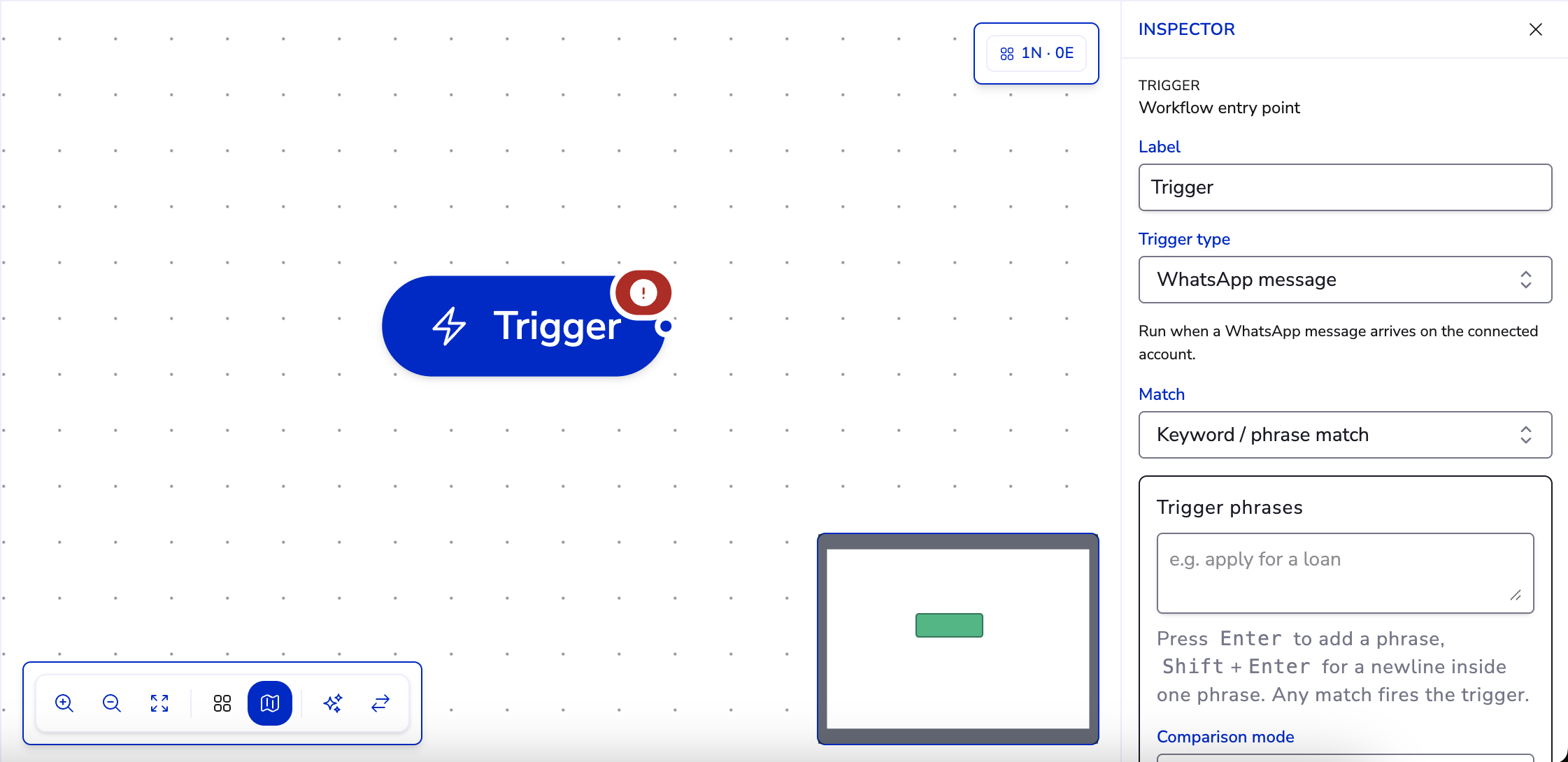
- Trigger type — how the workflow starts (for example, matching what the customer typed).
- Trigger phrases — the words or phrases that match, with a comparison mode (exact or contains) and an optional case sensitive toggle.
- Reply to template — alternatively, trigger when a customer replies to a specific message template — ideal for following up a broadcast.
Messages#
Send template#
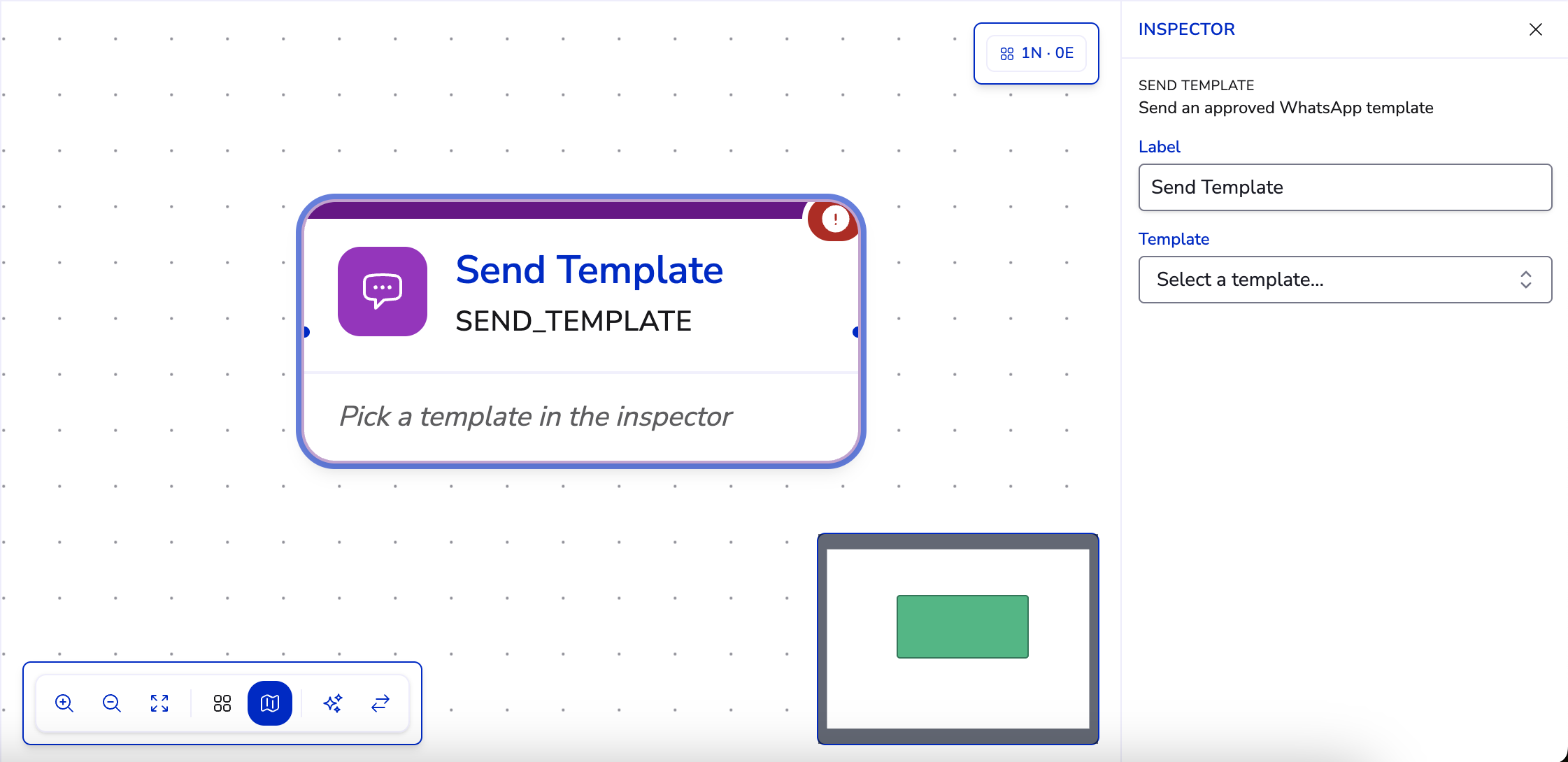
Sends one of your approved message templates, with each template variable (like {{1}} or {{first_name}}) mapped to a workflow variable. Required for starting conversations and for messages outside WhatsApp's 24-hour customer-service window.
Send text#
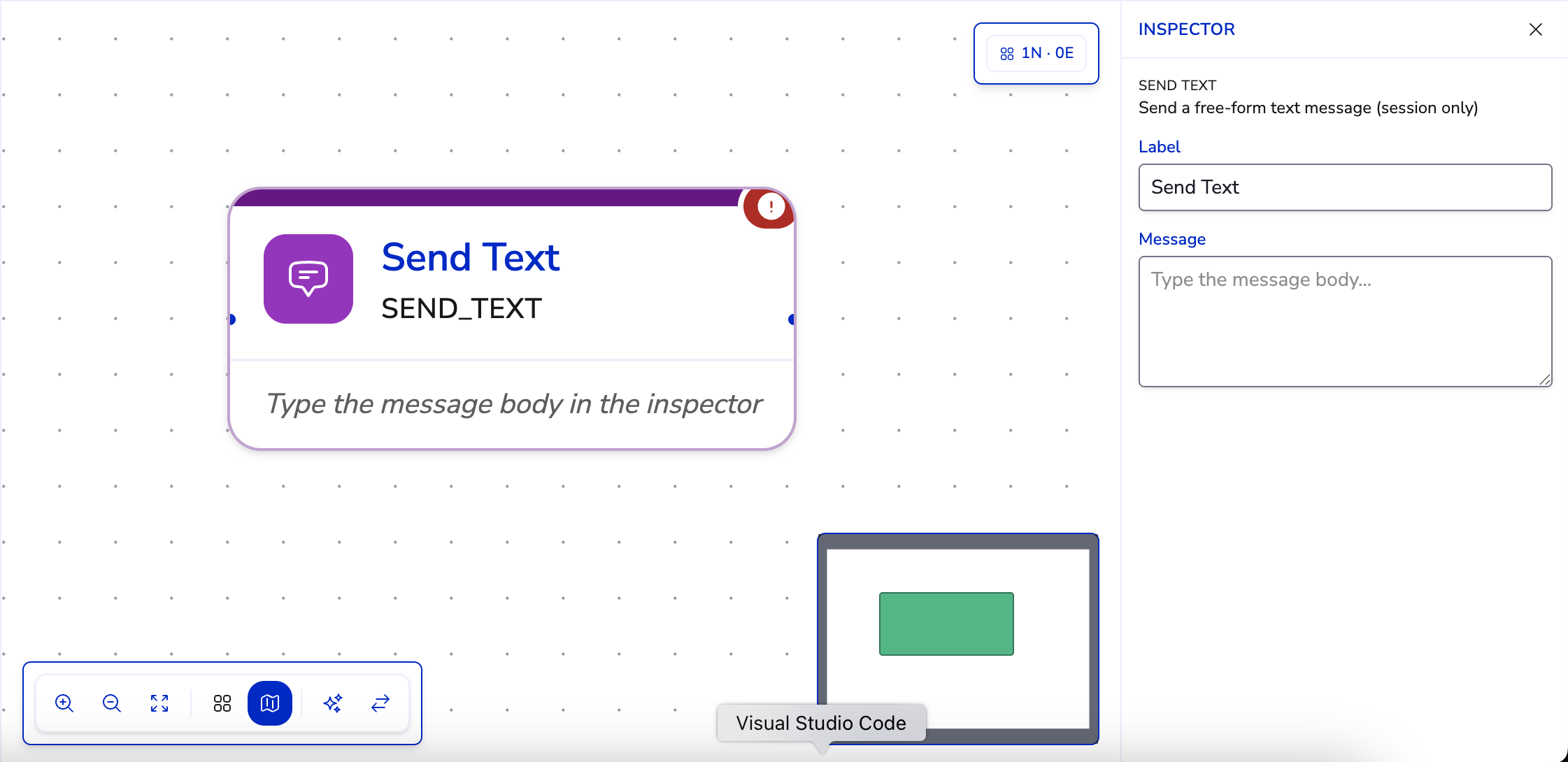
Sends a free-form text message. Only works inside an active session (within 24 hours of the customer's last message) — use Send template outside it.
Inputs#
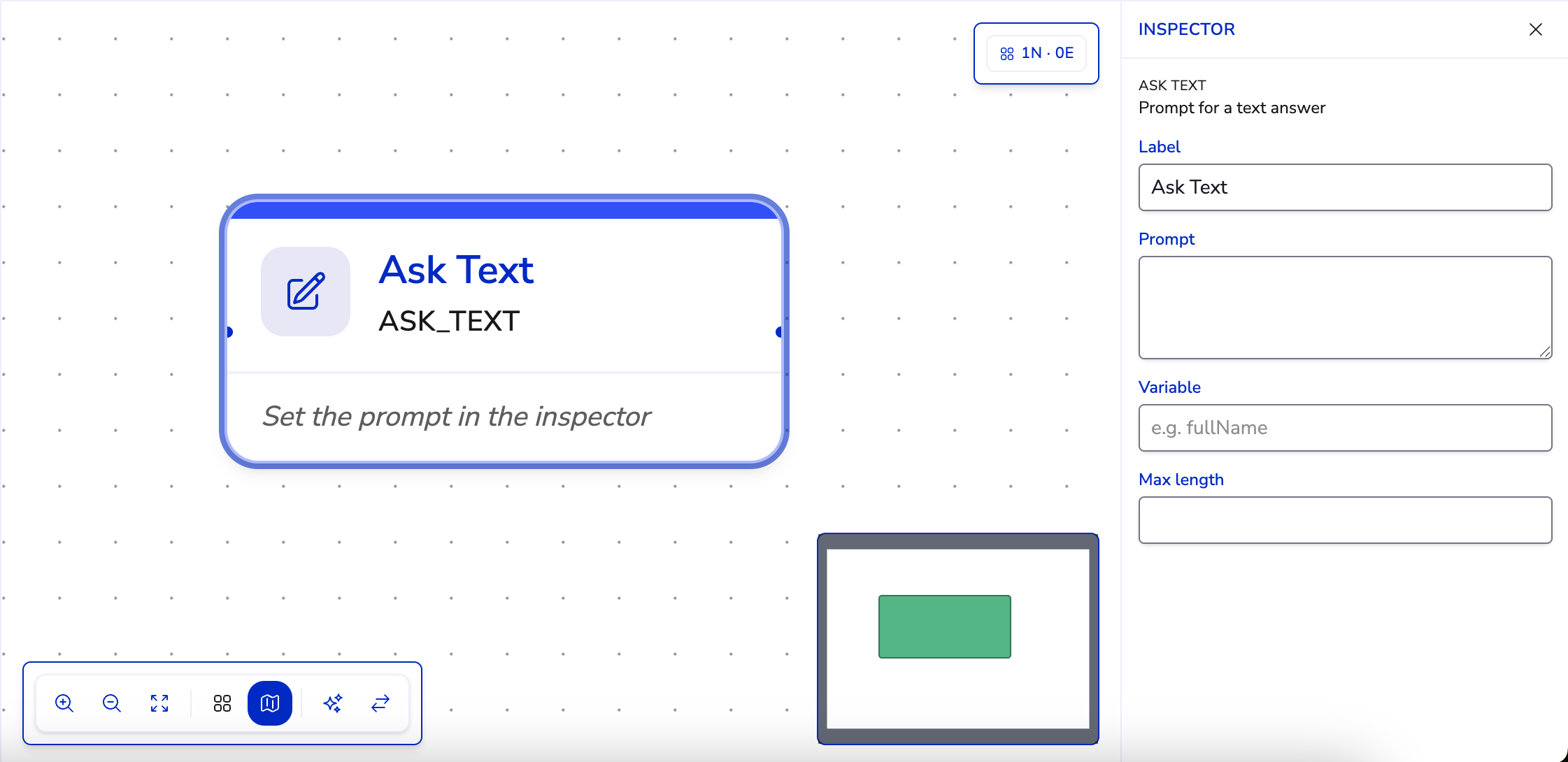
Every input step asks the customer a question (Prompt) and stores the answer in a Variable for later steps. Inputs also share retry behaviour: re-prompt attempts for invalid answers, and an optional fallback path the conversation takes when the customer keeps answering invalidly — route it to a human handoff or a friendly ending.
Ask text#
Free-text answer — a name, an address. Optional max length.
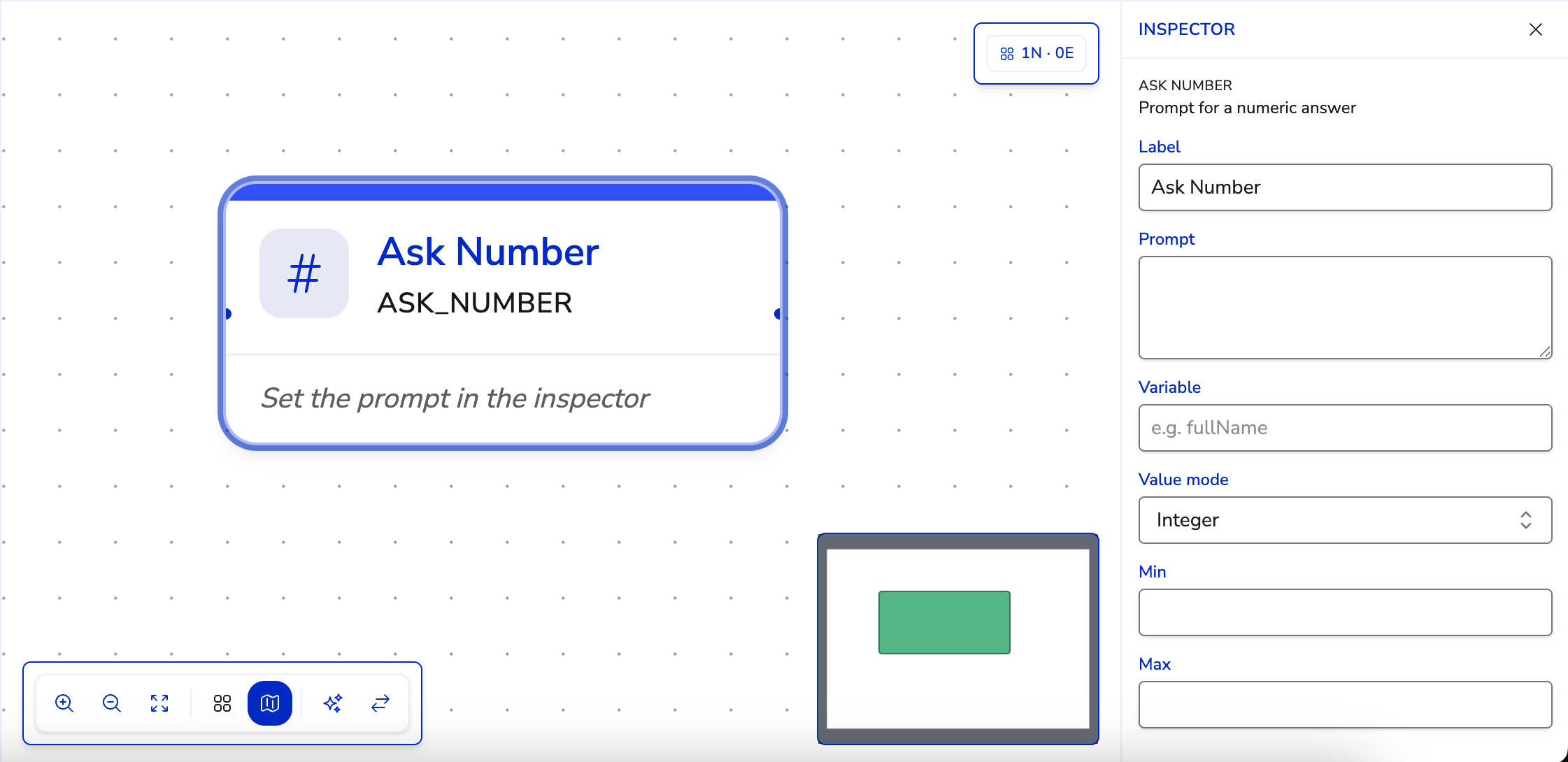
Ask number#
Numeric answer, with a value mode (plain number or currency amount), optional currency and decimal places, and min/max bounds.
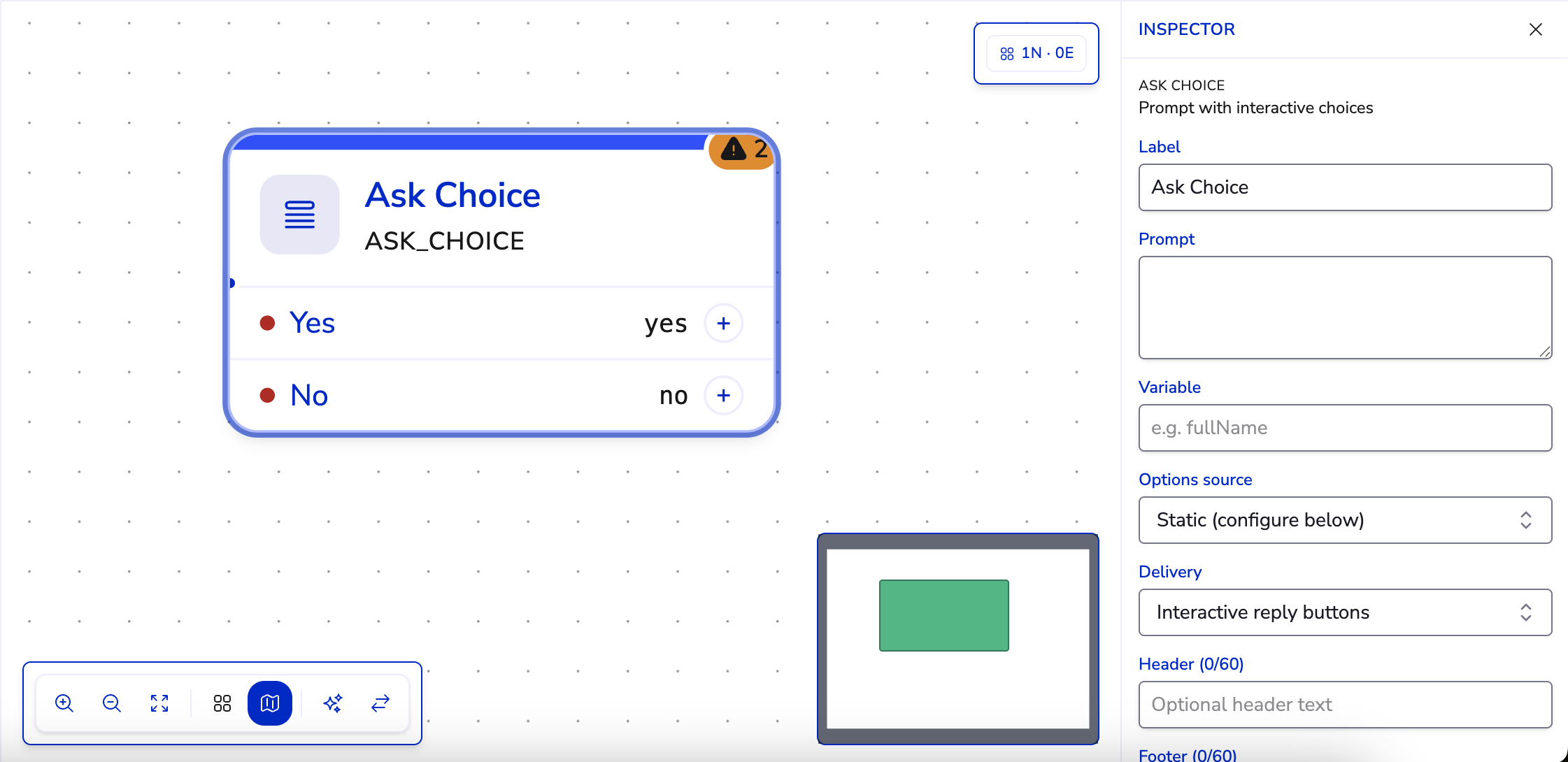
Ask choice#
Presents interactive options the customer taps instead of typing. Configure the options source — type the choices yourself, or populate them from a directory (a list of records like branches or services). Choose a delivery style (buttons or list), and optionally route each option to a different next step — a quick way to build menus without separate Branch steps.
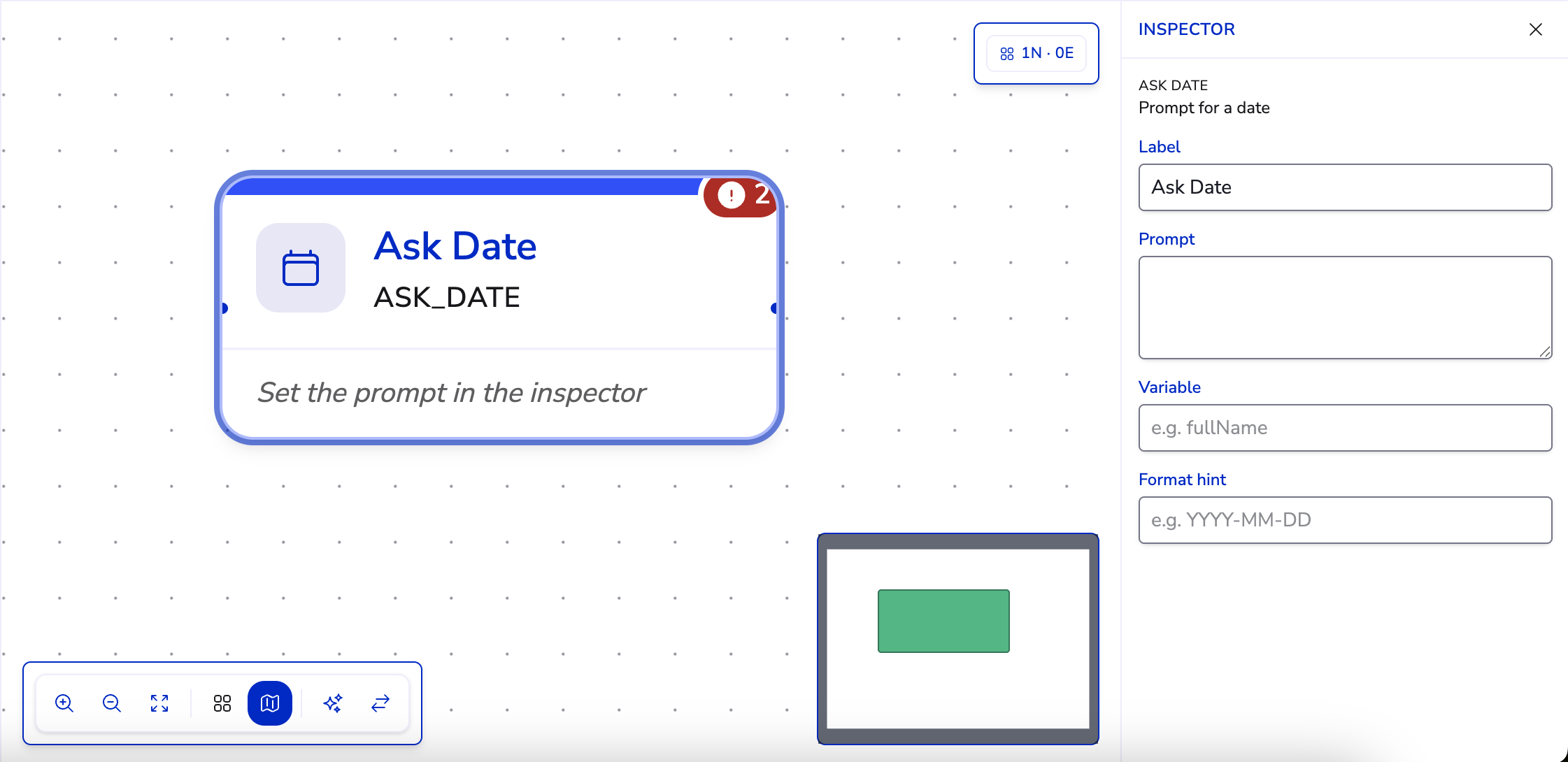
Ask date#
Asks for a date and validates it before storing.
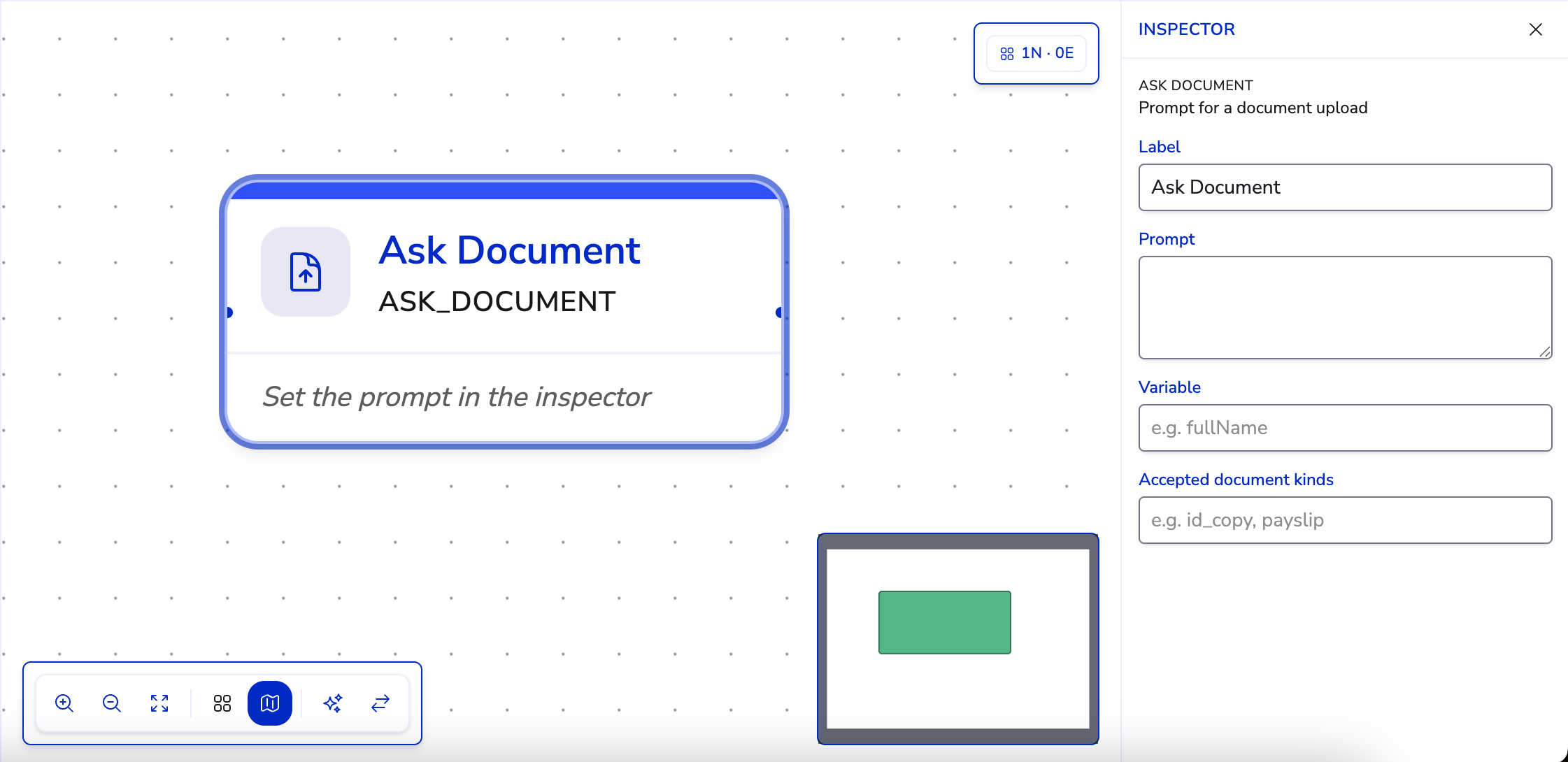
Ask document#
Asks the customer to supply a document. How the file arrives — in the chat or via a secure browser upload link — follows your workspace's document upload mode.
Logic#
Verify#
Validates a variable against a rule and routes accordingly — the general-purpose "check this before continuing" step.
Verify employee ID#
Resolves an ID number the customer typed to a real customer or employee record, so the rest of the workflow knows exactly who it's talking to.
Verify OTP#
Sends a 6-digit one-time code and verifies the customer's reply, then links the conversation to the verified record. Use it before exposing anything personal.
Chain Verify employee ID → Verify OTP to build a secure identity check: first find the record, then prove the person messaging owns it.
Branch#
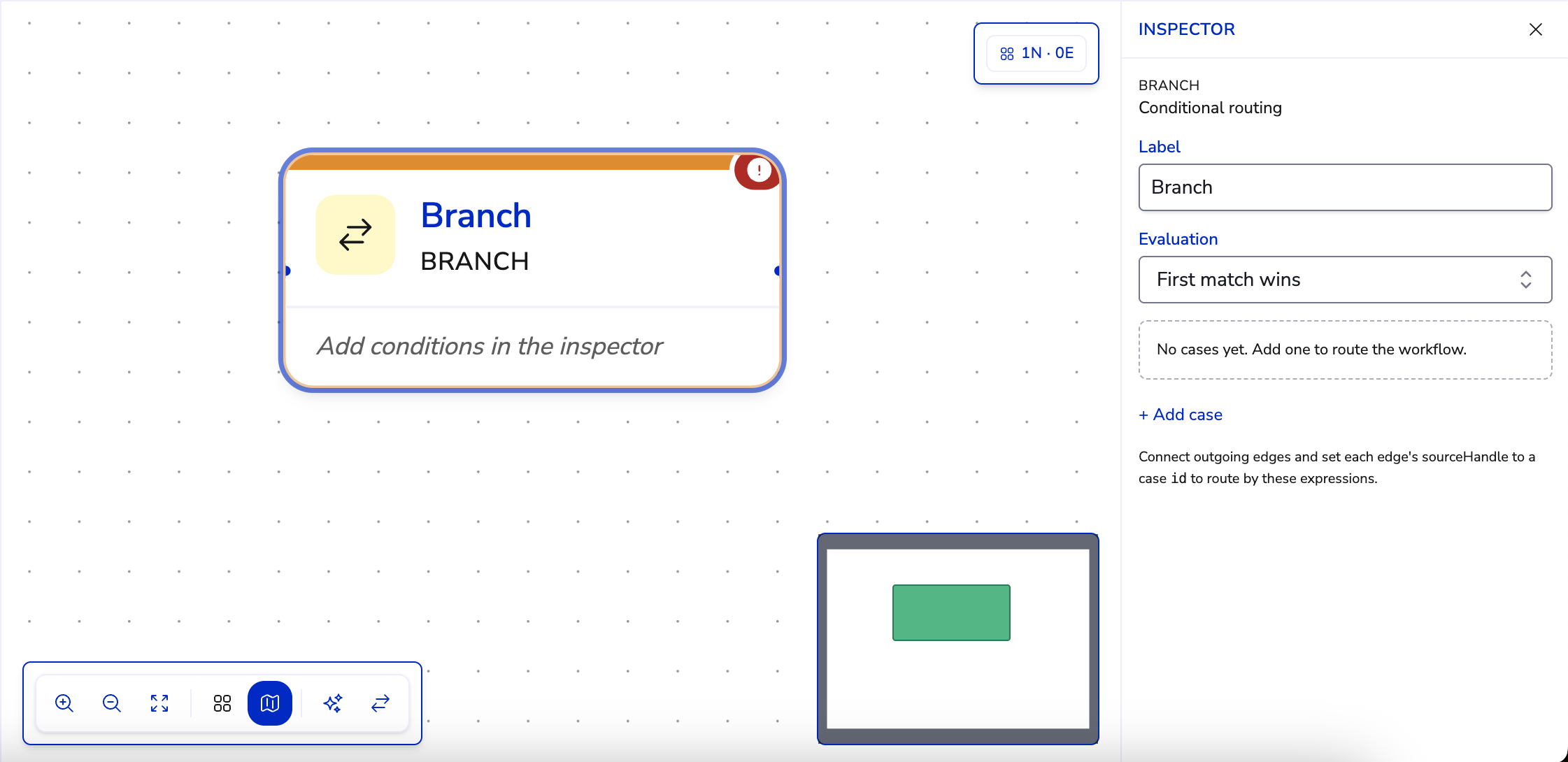
Conditional routing — evaluates a condition on your variables and sends the conversation down the matching path.
Set variable#
Assigns a value to a session variable — handy for flags and defaults.
Compute#
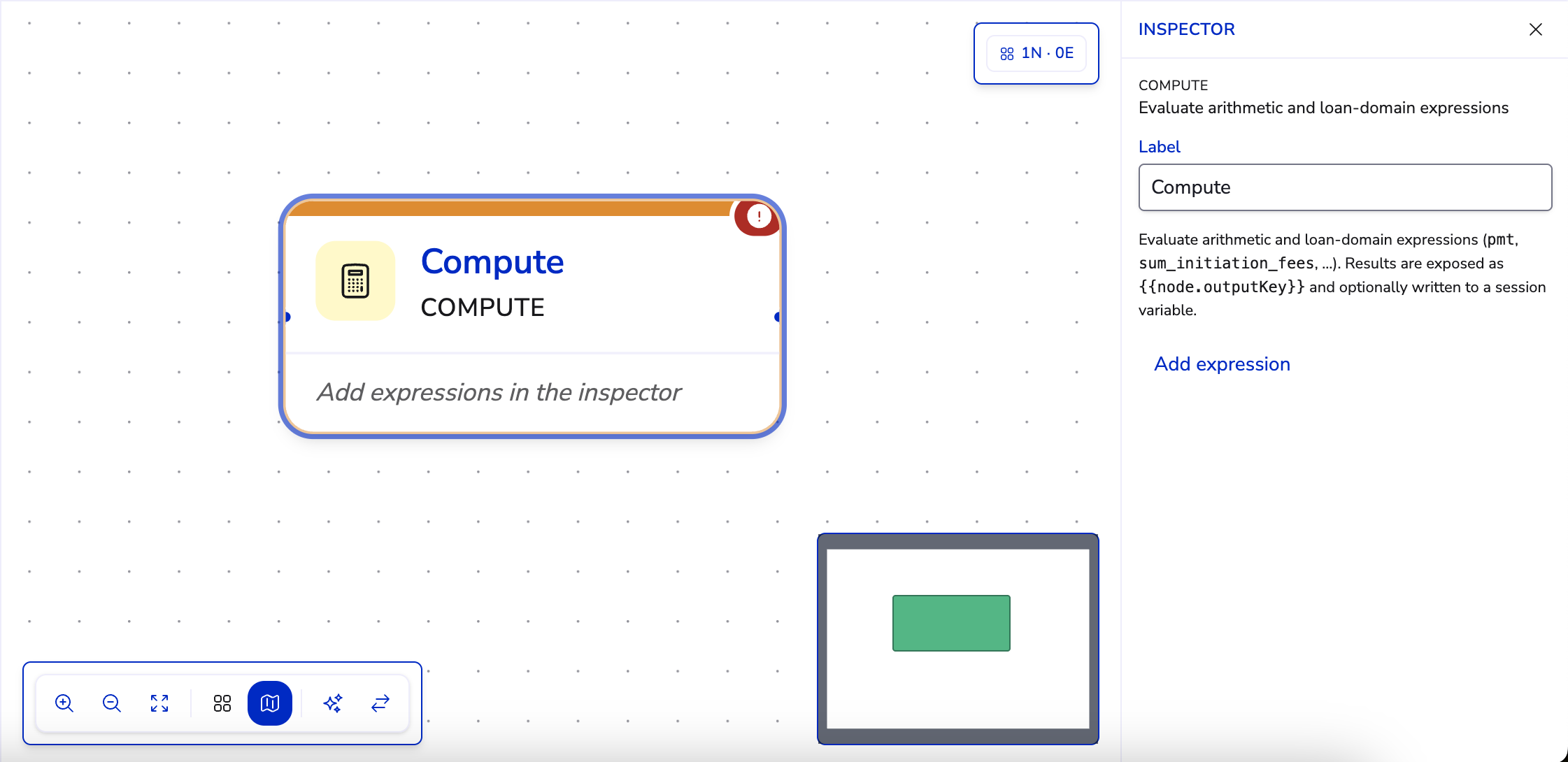
Evaluates arithmetic expressions on your variables and stores the result.
Lookup reference#
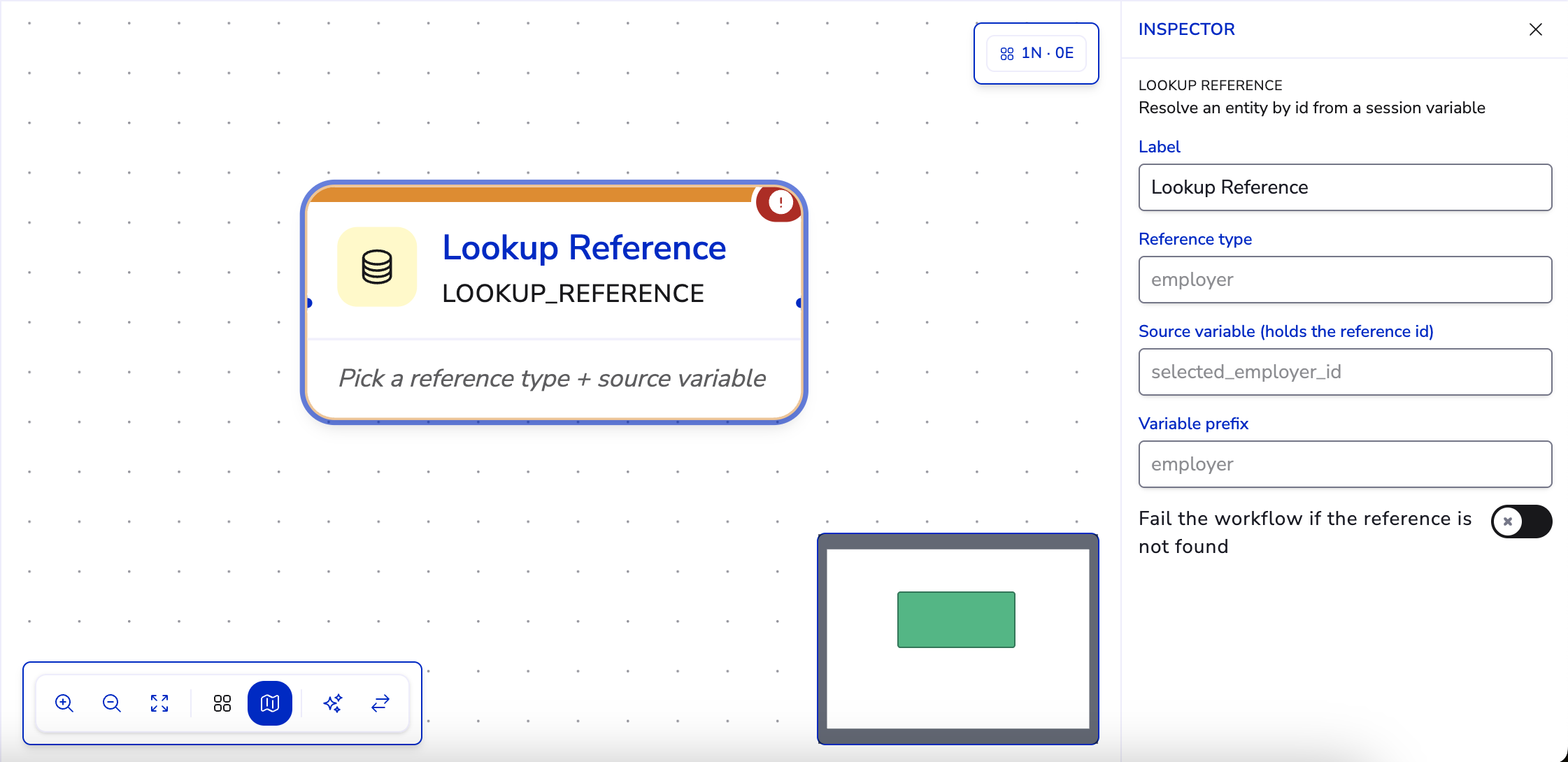
Fetches a record by ID from a session variable and unpacks its fields into variables, using a variable prefix (for example, prefix employer yields employer_name). Optionally fail the workflow if the reference is not found.
Actions#
Call action#
Invokes a backend action with variables you've collected — the bridge from conversation to business system.
Submit application#
Submits everything the workflow collected as a formal application record.
End#
Every path should finish at an ending step — it closes the session cleanly and records the outcome.
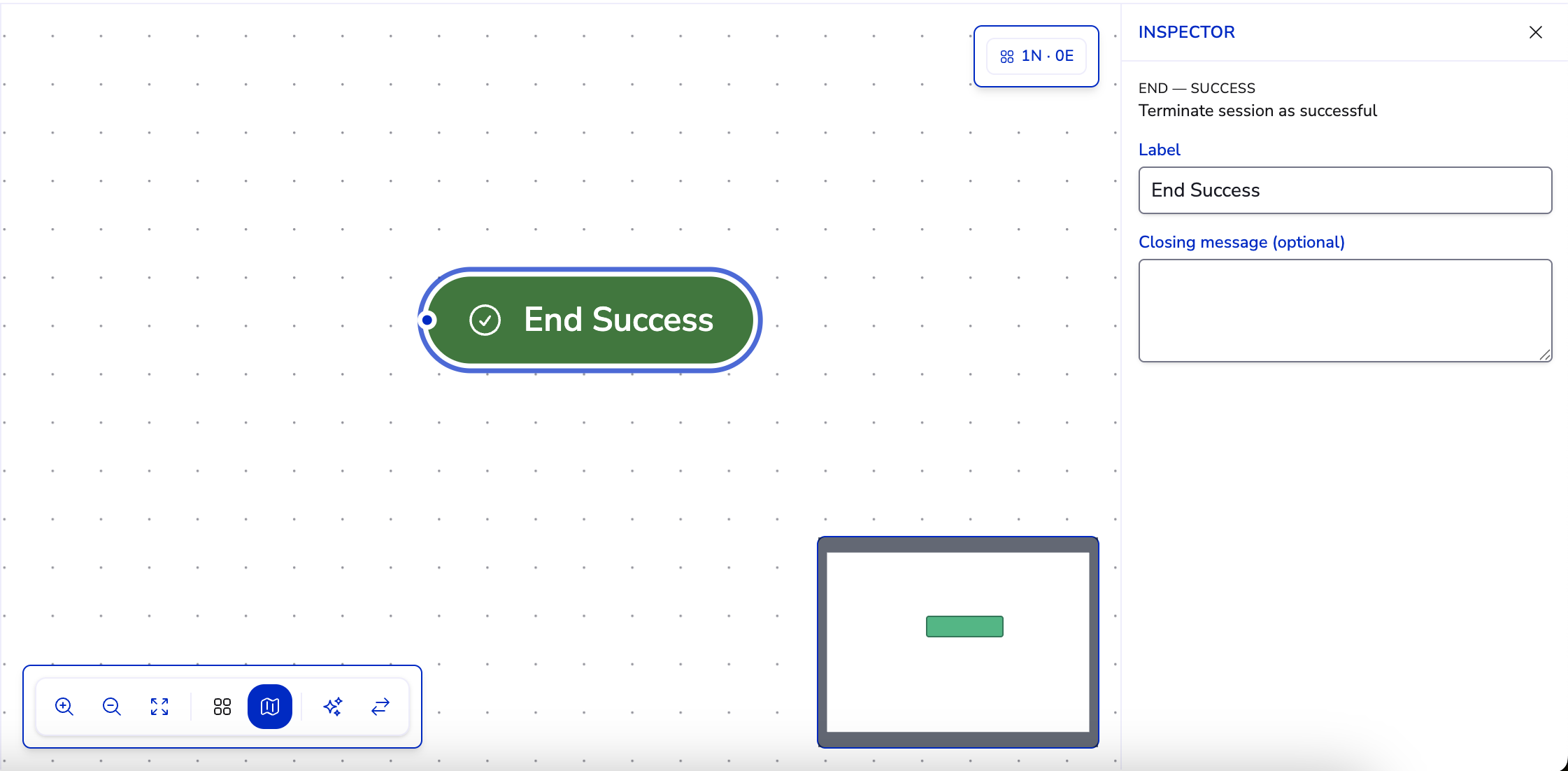
End — success#
The conversation achieved its goal.
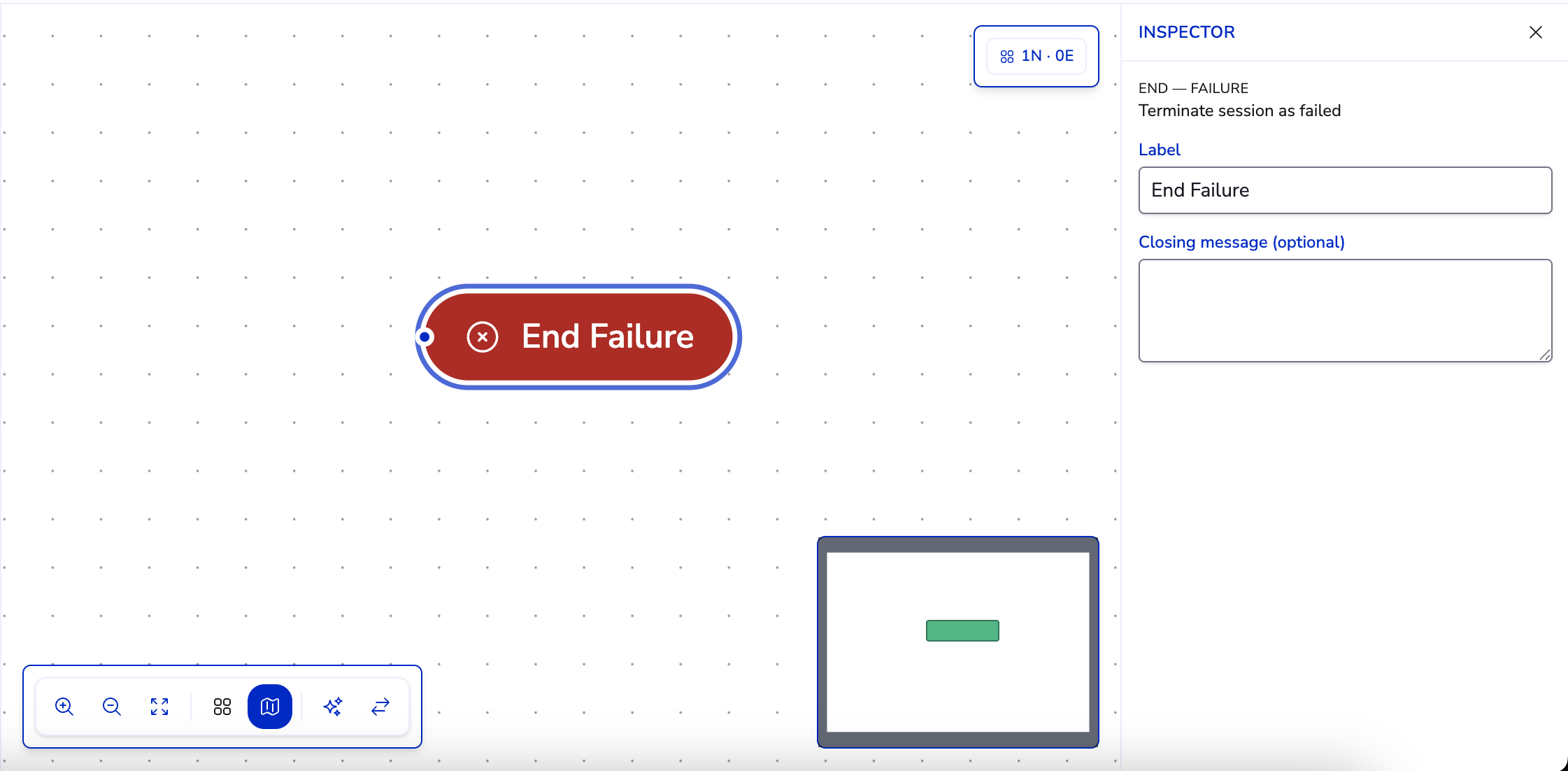
End — failure#
The conversation could not be completed — abandoned, failed verification, or routed down an error path. Recording failures separately makes them measurable.
You may see a Reference picker step in older workflows. It's deprecated — new workflows should use Ask choice with a directory source instead.