

What is the WhatsApp Inbox?
The WhatsApp Inbox is the shared workspace where your team reads and replies to every WhatsApp conversation — with the full history, delivery status, and the 24-hour reply window built in.
The WhatsApp Inbox in MyPetParlor App is the shared workspace where your team reads and replies to every WhatsApp conversation with your customers. Instead of messages scattered across personal phones, every chat with your connected WhatsApp Business number lands in one place — with the full history, so anyone on your team can pick up a thread and reply with confidence.
A conversation appears in the Inbox the moment a contact messages your WhatsApp Business number. From there your team works the thread directly: read what was said, reply in real time, and watch each message's delivery status — all within WhatsApp's 24-hour reply window.
Why the Inbox Matters#
Customer messages are easy to lose when they arrive on different phones and nobody can see the full picture. The Inbox brings every WhatsApp conversation for your connected number into one shared, scrollable list — so the right person can pick up any thread, see everything that has been said, and reply without guesswork. It's the difference between hoping a customer was answered and knowing they were.
Key Benefits#
- Never miss a message — Every conversation for your connected number lands in one shared list, newest activity first.
- Reply with full context — Open a thread to read the complete message history before you respond.
- See what's delivered — Each reply you send shows its status, from sent through to delivered and read.
- Stay within the rules — The Inbox tracks WhatsApp's 24-hour reply window and flags the conversations that need a template to reopen.
- Pick up anywhere — Conversations are deep-linkable, and the two-pane layout collapses to a single pane on mobile.
What's in the Inbox?#
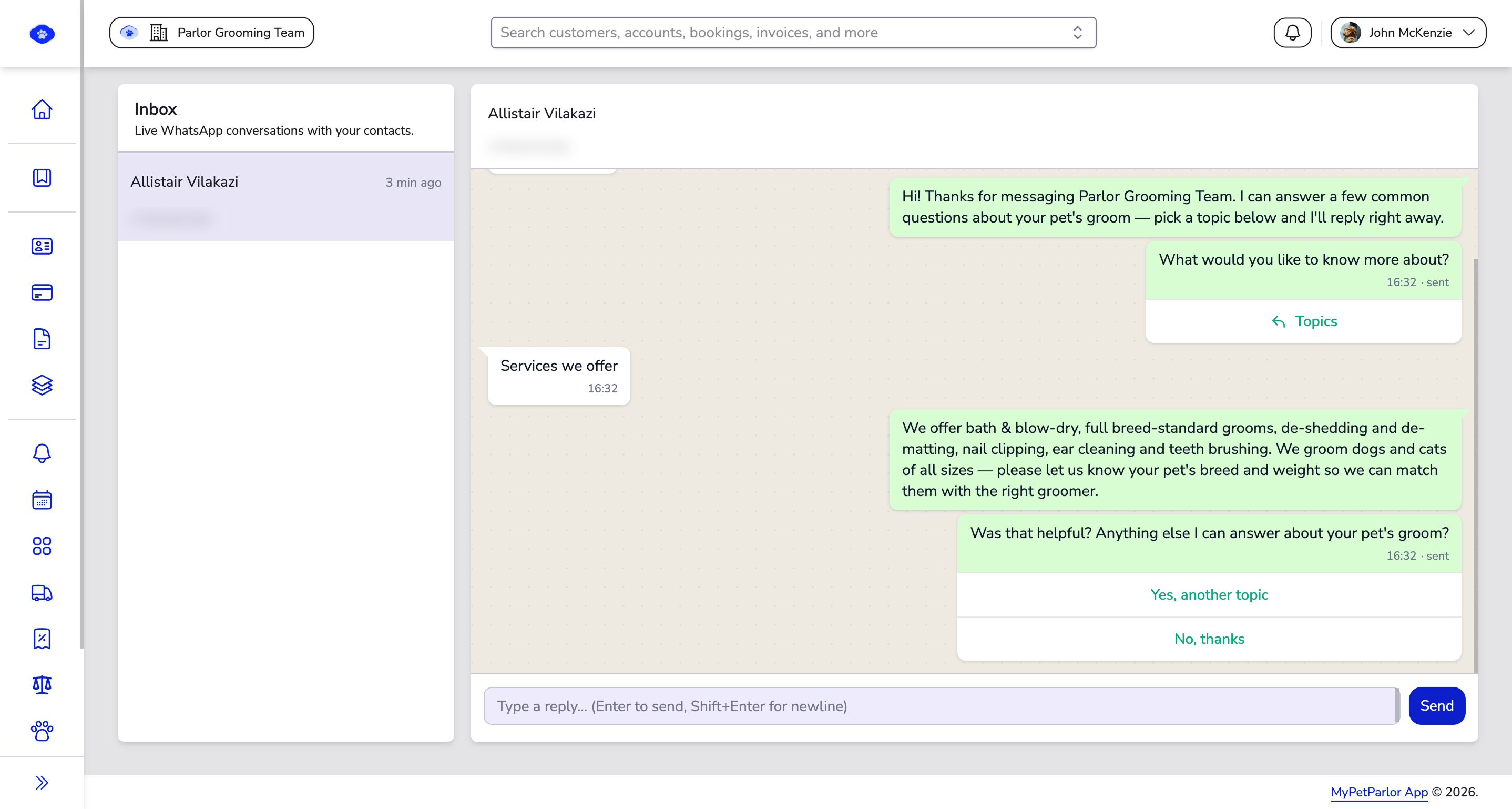
The Inbox is a two-pane workspace — the conversation list on the left, and the selected conversation thread on the right.
Conversation list#
The left pane shows every contact who has messaged your number, sorted by most recent activity. Each row carries a relative timestamp and a Session expired badge once its 24-hour reply window has closed.
WhatsApp number switcher#
If your business has more than one connected number, switch between them from the list header to see each number's conversations.
Conversation thread#
The right pane shows the full back-and-forth with one contact as WhatsApp-style bubbles, grouped by day with date separators.
Reply composer#
Where you type and send your reply — press Enter to send, Shift + Enter for a new line. It locks with a clear note when the 24-hour window has expired.
Delivery status#
Each reply you send shows its status beneath the bubble — sent, delivered, and read — so you can confirm it reached the customer.
How a Conversation Works#
- A contact messages your WhatsApp Business number, and the conversation appears at the top of the Inbox list.
- Open the conversation to read the full history in the thread pane.
- Type your reply in the composer and send it.
- Your message joins the thread and updates its delivery status as it is sent, delivered, and read.
The 24-Hour Reply Window#
WhatsApp lets you reply freely for 24 hours after a customer's most recent message — a period WhatsApp calls the customer service window. Inside that window you can send any reply straight from the composer.
Once 24 hours pass without a new message from the customer, the conversation is marked Session expired and the composer locks. To reach that customer again you'll need an approved Message Template — the same approved content your Broadcasts use. The Inbox tracks this window for you, so you always know which conversations are still open.
Good to Know#
- Conversations appear only after a contact messages your number first — the Inbox is for replying to inbound chats, not starting brand-new ones.
- Each conversation belongs to a single WhatsApp number; if you have more than one, switch numbers from the list header to see the rest.
- When the same question keeps coming up, automate the answer with a Workflow and let it hand longer chats back to a person in the Inbox.
If your Inbox is empty straight after setup, first confirm your number is connected in Connect Your WhatsApp Business Number. Conversations only show once a contact has messaged that number.
For replies you send often, save them as approved Message Templates so anyone on the team can reuse them — and so you can reach a customer again after the 24-hour window closes.