

What is a WhatsApp Workflow?
A WhatsApp Workflow is an automated conversation you build visually on a canvas — a chatbot made of nodes and connections that greets customers, asks questions, branches on the answers, and hands off to your team.
A WhatsApp Workflow in MyPetParlor App is an automated conversation — a chatbot you build visually instead of writing code. When a customer messages your connected WhatsApp Business number, the workflow can greet them, ask questions, react to their answers, look things up, and either resolve the request on its own or hand the conversation to a person in the WhatsApp Inbox.
You assemble a workflow on a canvas by dragging in nodes (each one a single step, like "send a message" or "ask a question") and joining them with connections that decide what happens next. Build it once, publish it, and it runs around the clock — replying instantly and consistently, every time.
Why Use WhatsApp Workflows?#
Some questions arrive again and again — opening hours, pricing, "where do I start?" — and some journeys are the same every time, like collecting the details to open an application. Answering each one by hand is slow and easy to get wrong. A workflow captures that journey once as a clear, visual map, so every customer gets the same accurate path and your team only steps in when it genuinely needs a human.
Key Benefits#
- Reply instantly, day or night — Customers get an answer the moment they message, even outside business hours.
- Build it visually — Drag, drop, and connect nodes on a canvas. No code, and the whole conversation is laid out in front of you.
- Stay consistent — Every customer follows the same path and gets the same answers, no matter who is on shift.
- Collect and act on answers — Capture what the customer tells you into variables, then use them to branch the conversation or trigger an action.
- Hand off cleanly — When a conversation needs a person, the workflow passes it to the Inbox with everything already gathered.
The Canvas: A Node-Based Builder#
The workflow editor is a canvas — an open, pannable space where your conversation is drawn as a diagram. It is built on a node-graph editor, so a workflow is literally a map you can see and rearrange.
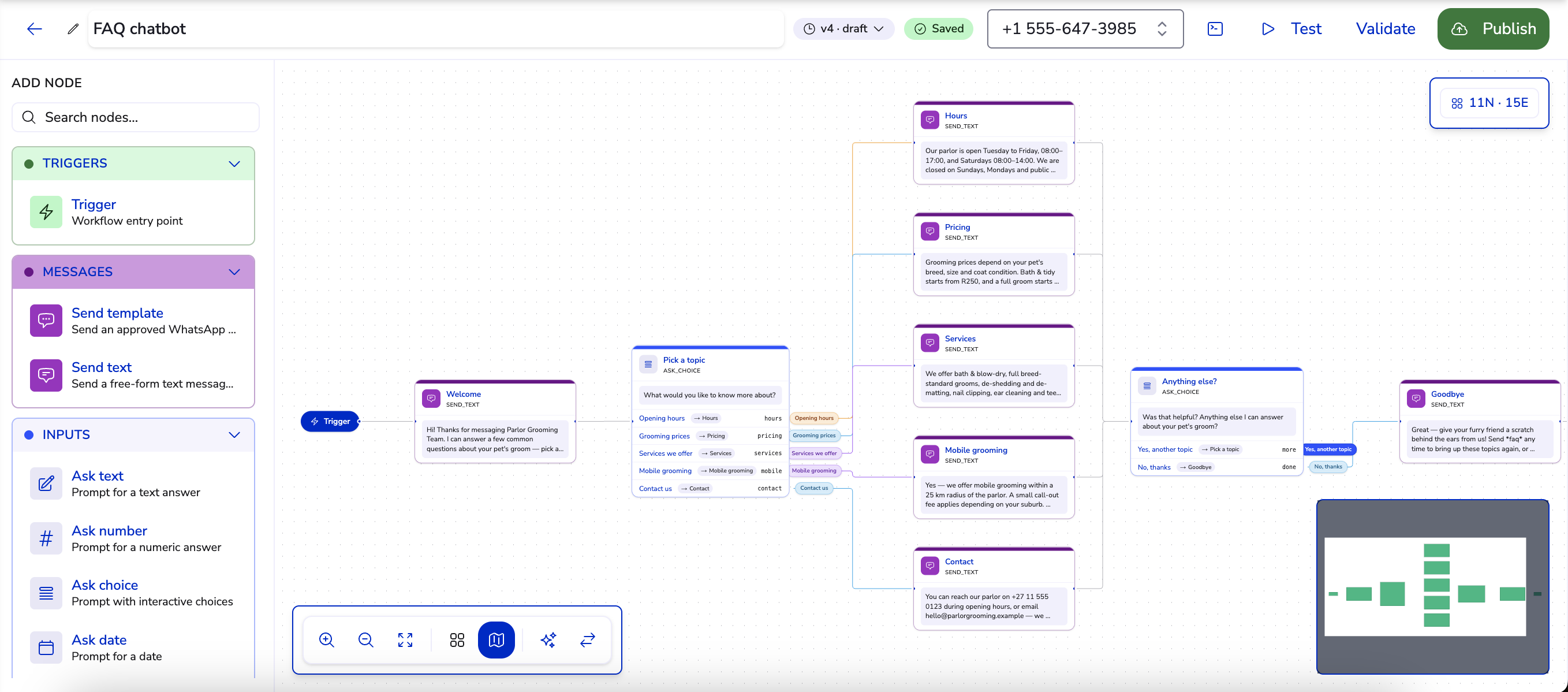
- Node palette — A side panel of every step you can add, grouped by category. Click an item to drop it on the canvas, or drag it exactly where you want it.
- Nodes — The boxes on the canvas. Each node is one step in the conversation (see The Building Blocks below).
- Connections (edges) — The lines between nodes that set the order and decide which step comes next (see Connections below).
- Inspector — Select a node to open its settings: its message text, the question it asks, where to store the answer, and so on.
- Issues panel — Flags problems before you go live, such as a choice or branch with no next step.
- Simulator — Test-runs the conversation right in the editor so you can walk the path a customer would take.
Your changes are saved as you work, and you can tidy the layout automatically when the diagram gets busy.
How a Workflow Starts: Triggers#
Every workflow begins with a trigger — the rule that decides which inbound message starts it. A trigger can fire on:
| Trigger type | Starts the workflow when… |
|---|---|
| Any message | The contact sends any inbound message. |
| Keyword | The message matches a keyword — as an exact word, a prefix, or anywhere in the text. |
| Template reply | The contact taps a button on, or replies to, a specific approved template you sent. |
While a workflow is mid-conversation with a contact, their next replies continue that run rather than starting a new one.
The Building Blocks: Nodes#
Nodes are the steps of the conversation, and each one does a single job — send a message, ask a question, make a decision, or finish. You build almost any chatbot from a handful of them, wired in the order the conversation should flow. Wherever a node shows text, it can weave in details the workflow has already collected — for example, "Thanks {{first_name}}, let's get you booked" — so replies feel personal instead of canned.
The palette groups nodes into six categories.
Triggers#
The trigger is how a workflow knows to begin.
-
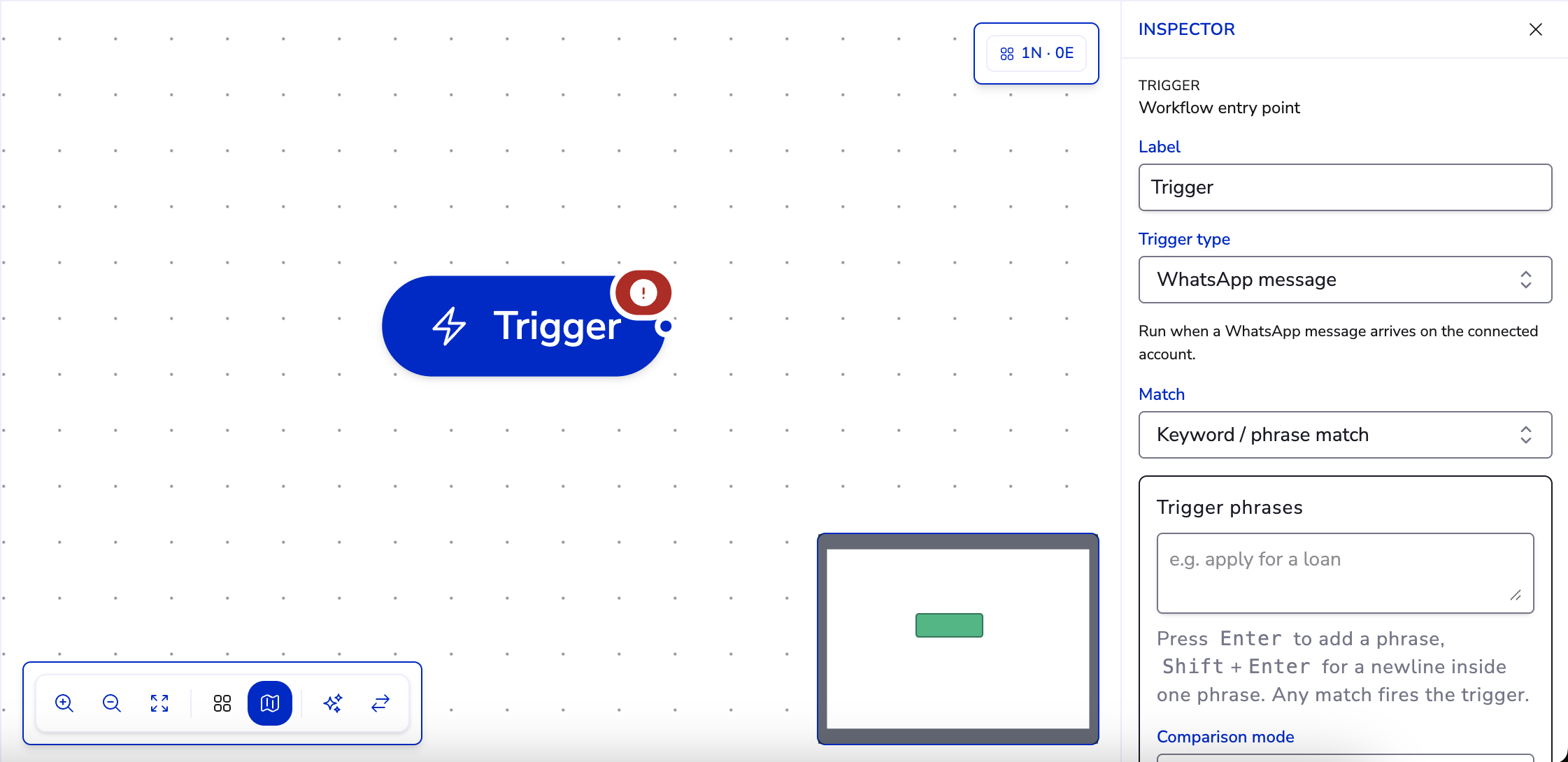
Trigger — The single entry point every workflow has. You decide what starts it: any inbound message, a keyword such as "book" or "loan" (matched exactly, as a prefix, or anywhere in the message), or a tap on a button in a template you sent. Choosing a specific trigger keeps the right workflow tied to the right kind of message.
Messages#
Message nodes are the workflow speaking to the customer.
-
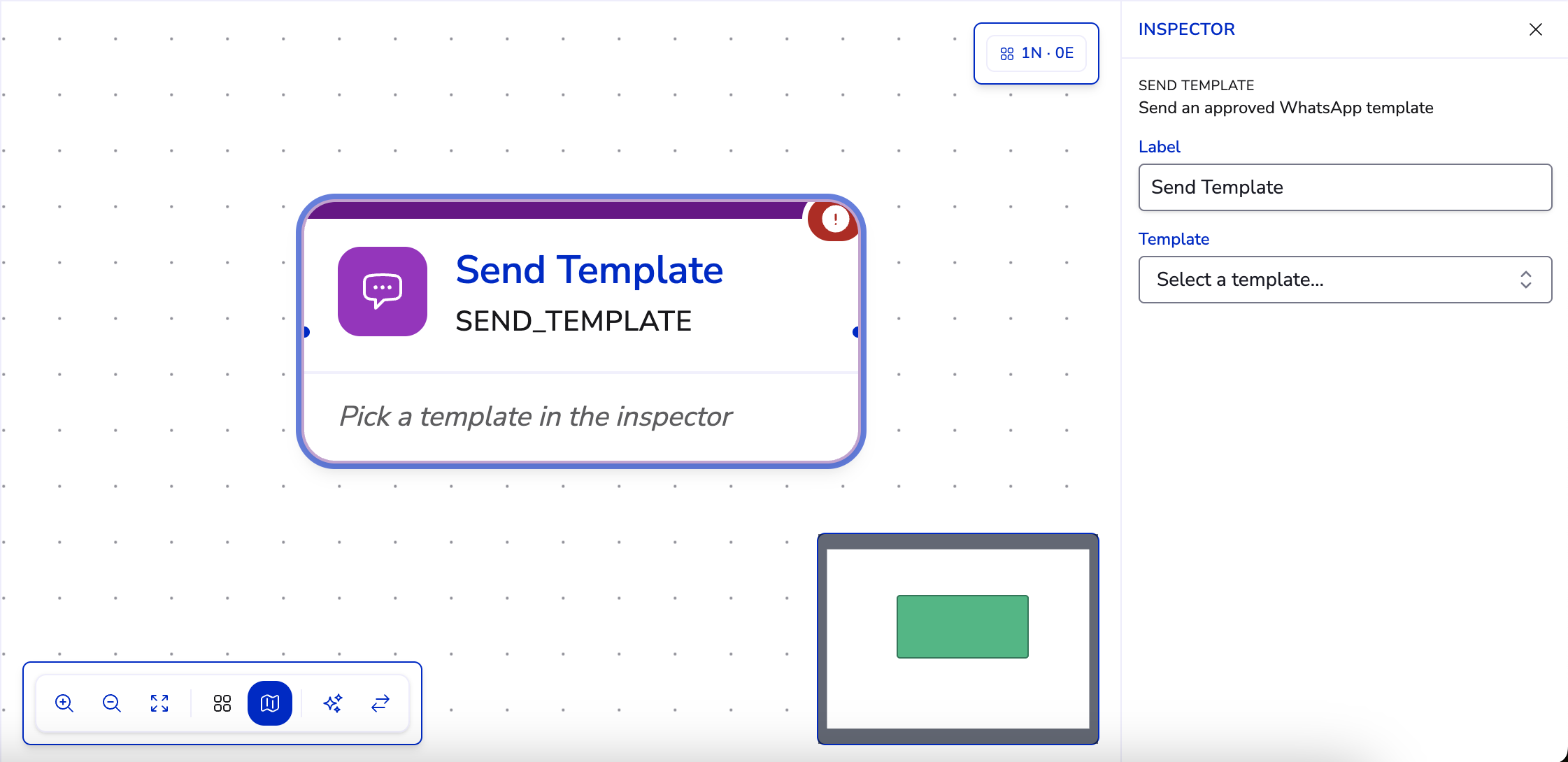
Send template — Sends an approved WhatsApp template, which can carry buttons and structured content. Reach for it to open a conversation, or to message someone once the 24-hour window has closed — templates are the only thing WhatsApp allows then.
-
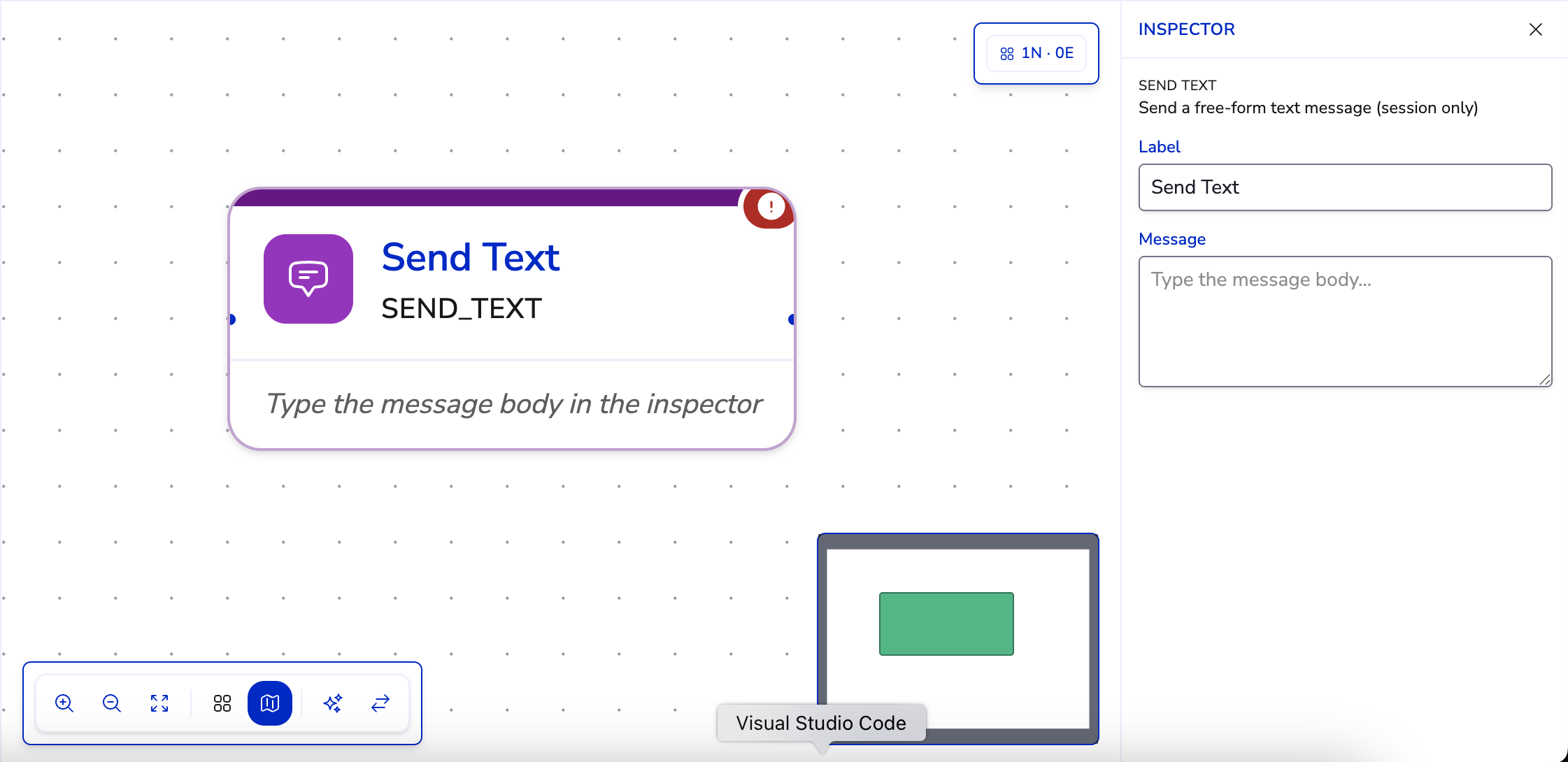
Send text — Sends a quick, free-form line — perfect for confirmations and nudges like "Got it, you're booked for Tuesday." It works only inside the 24-hour reply window, and can drop in details you've already gathered.
Inputs (Asking Questions)#
Input nodes are how the workflow listens. Each one sends your prompt, waits for the customer's reply, and saves it into a variable you name — ready for later steps to use.
-
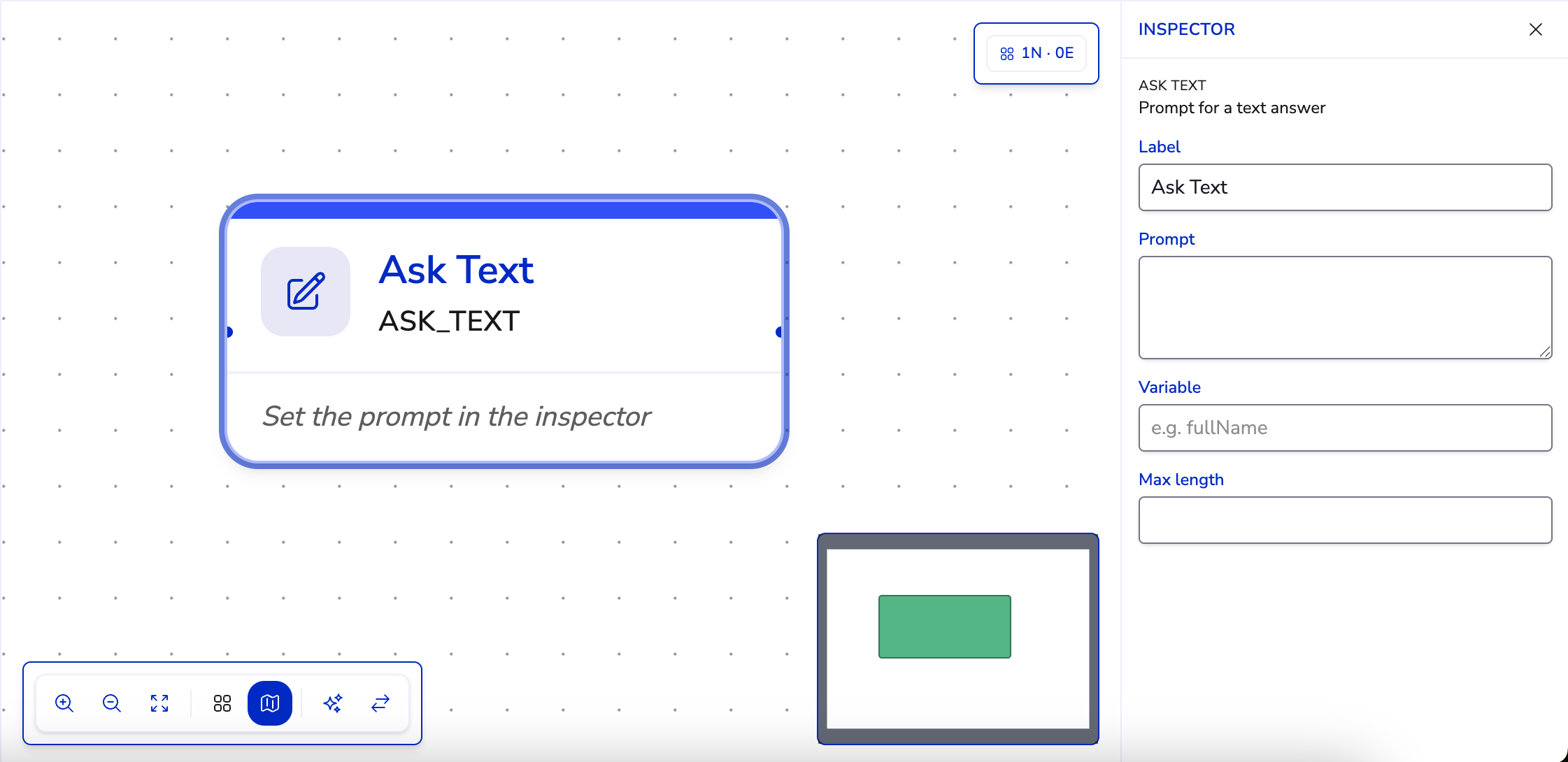
Ask text — Captures a free-text answer, such as a name or a delivery address.
-
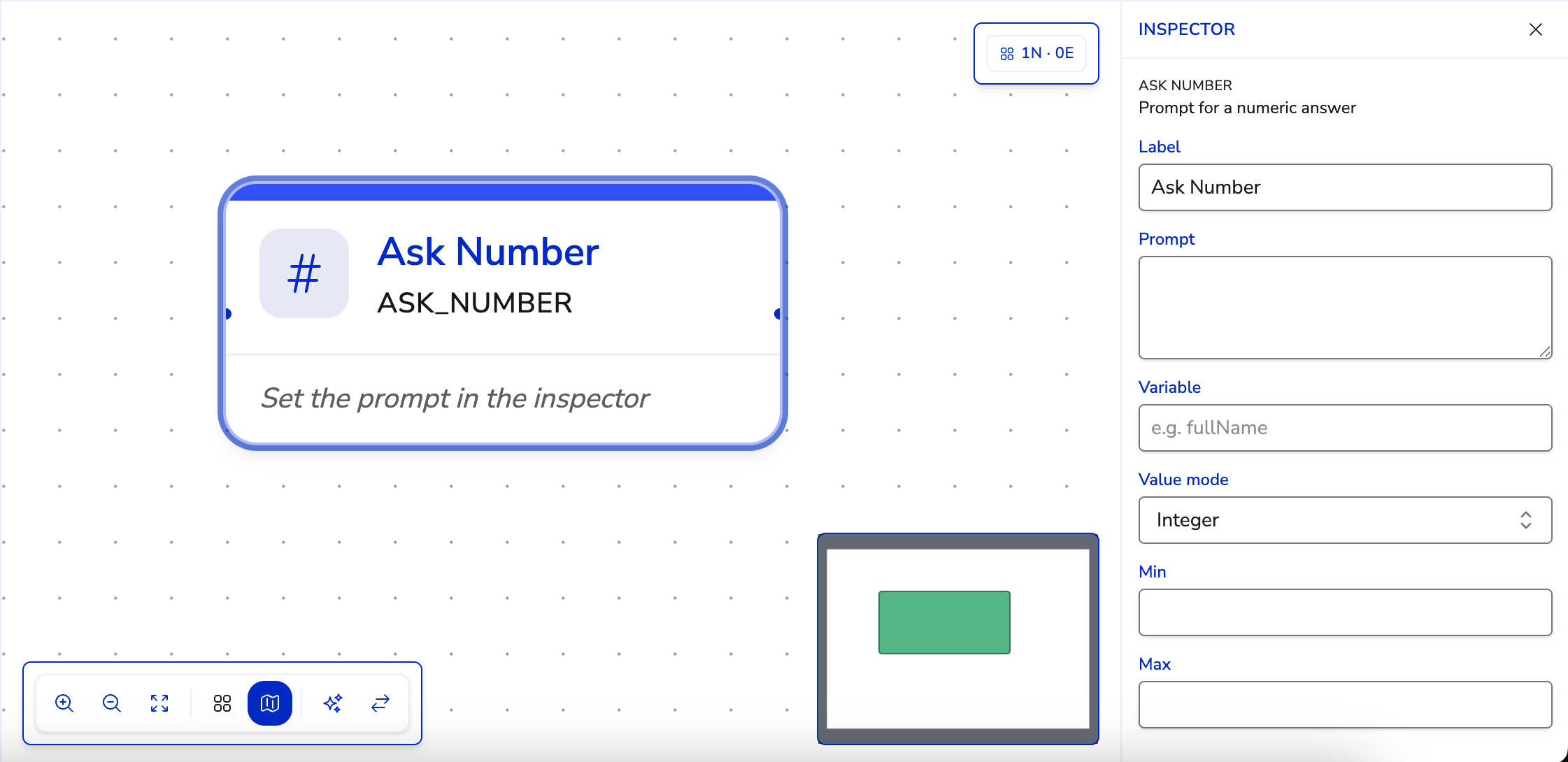
Ask number — Captures a number, like a quantity or an amount, so later steps can compare or calculate with it.
-
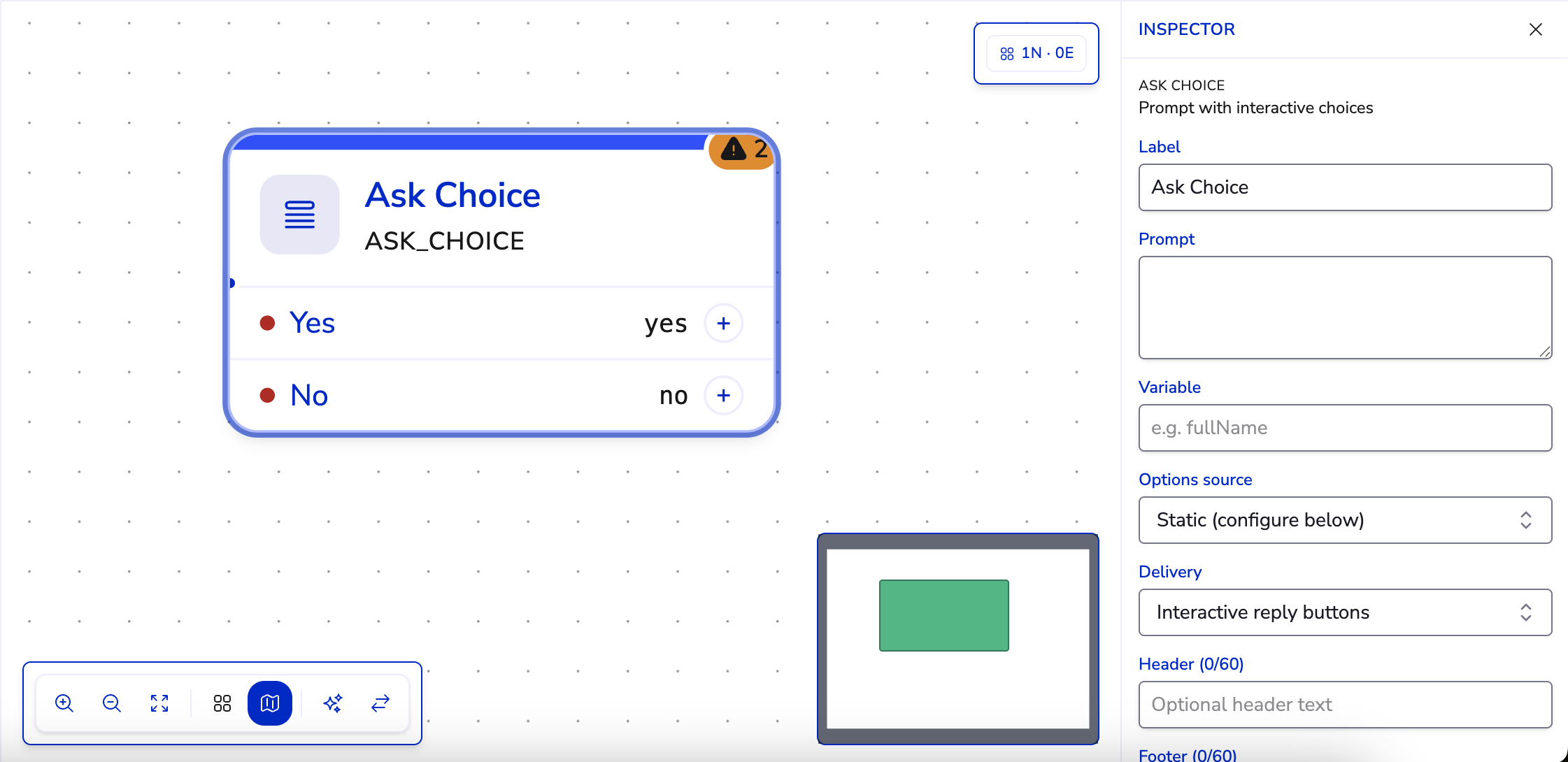
Ask choice — Offers a set of options — a few quick-reply buttons, or a longer tappable list when there are many — and records the one the customer picks. Each option can lead to a different next step, the options can even be pulled from a saved list you maintain, and if a reply doesn't match any option the node simply asks again.
-
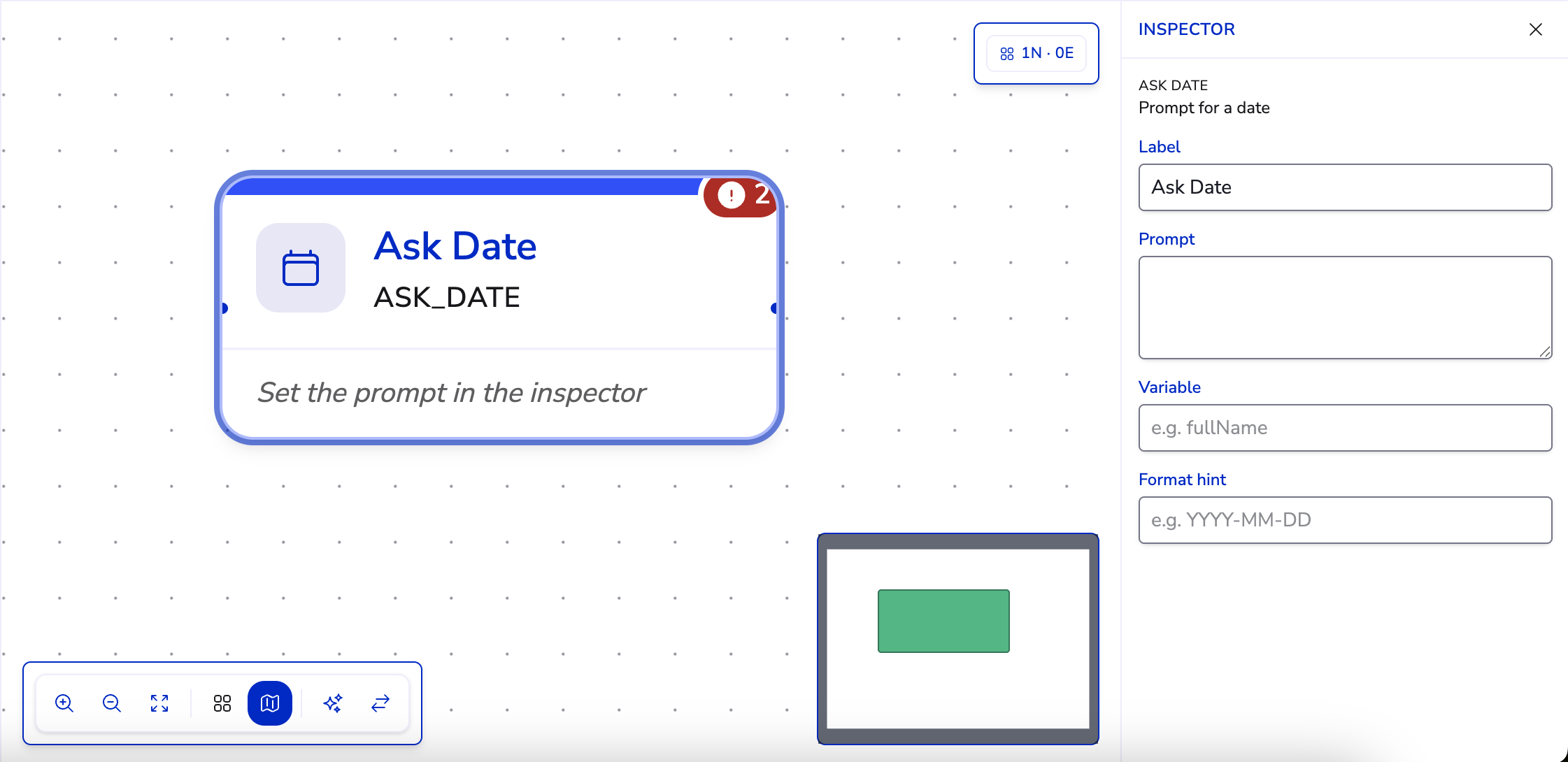
Ask date — Captures a date, such as a preferred appointment day, and you can hint at the format you expect (like YYYY-MM-DD) in the prompt.
-
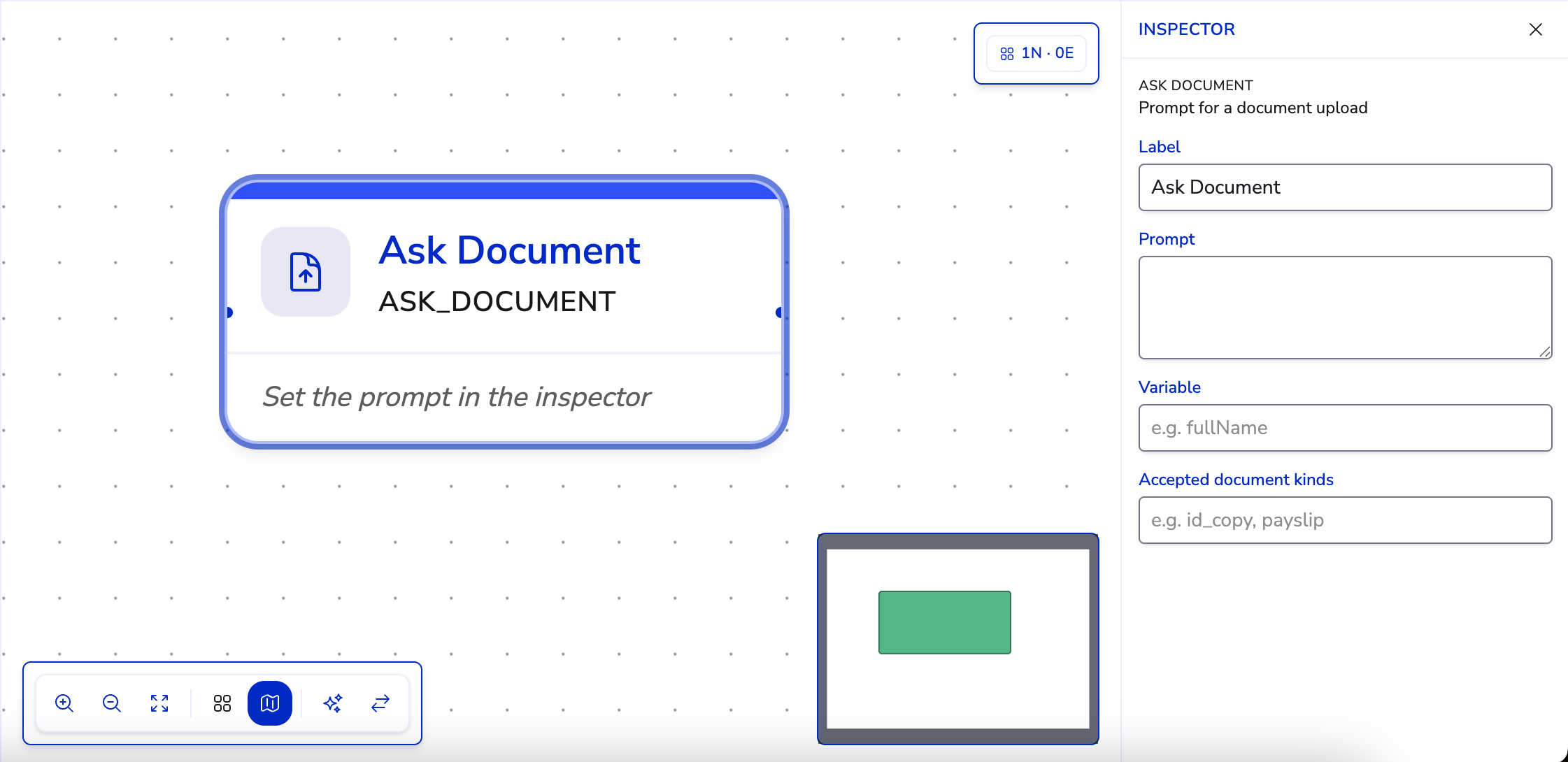
Ask document — Invites the customer to upload a file, such as an ID or a bank statement, and keeps it attached to the conversation for your team.
Logic#
Logic nodes work behind the scenes — the customer never sees them. They decide where the conversation goes next and shape the data you've gathered.
-
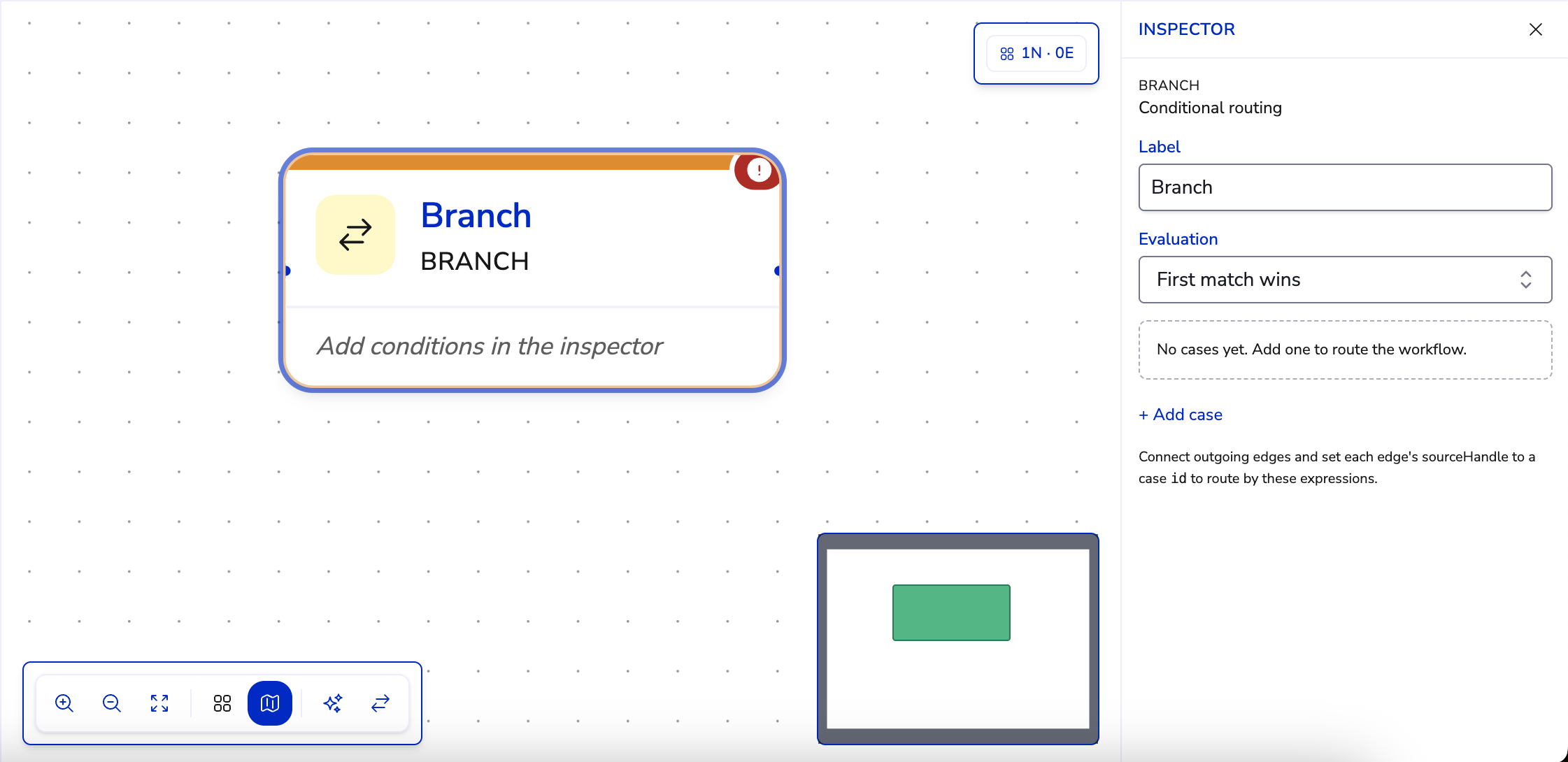
Branch — Routes the conversation down different paths based on what's already been collected, so one flow can handle many situations — for example, sending customers who don't qualify one way and everyone else another.
-
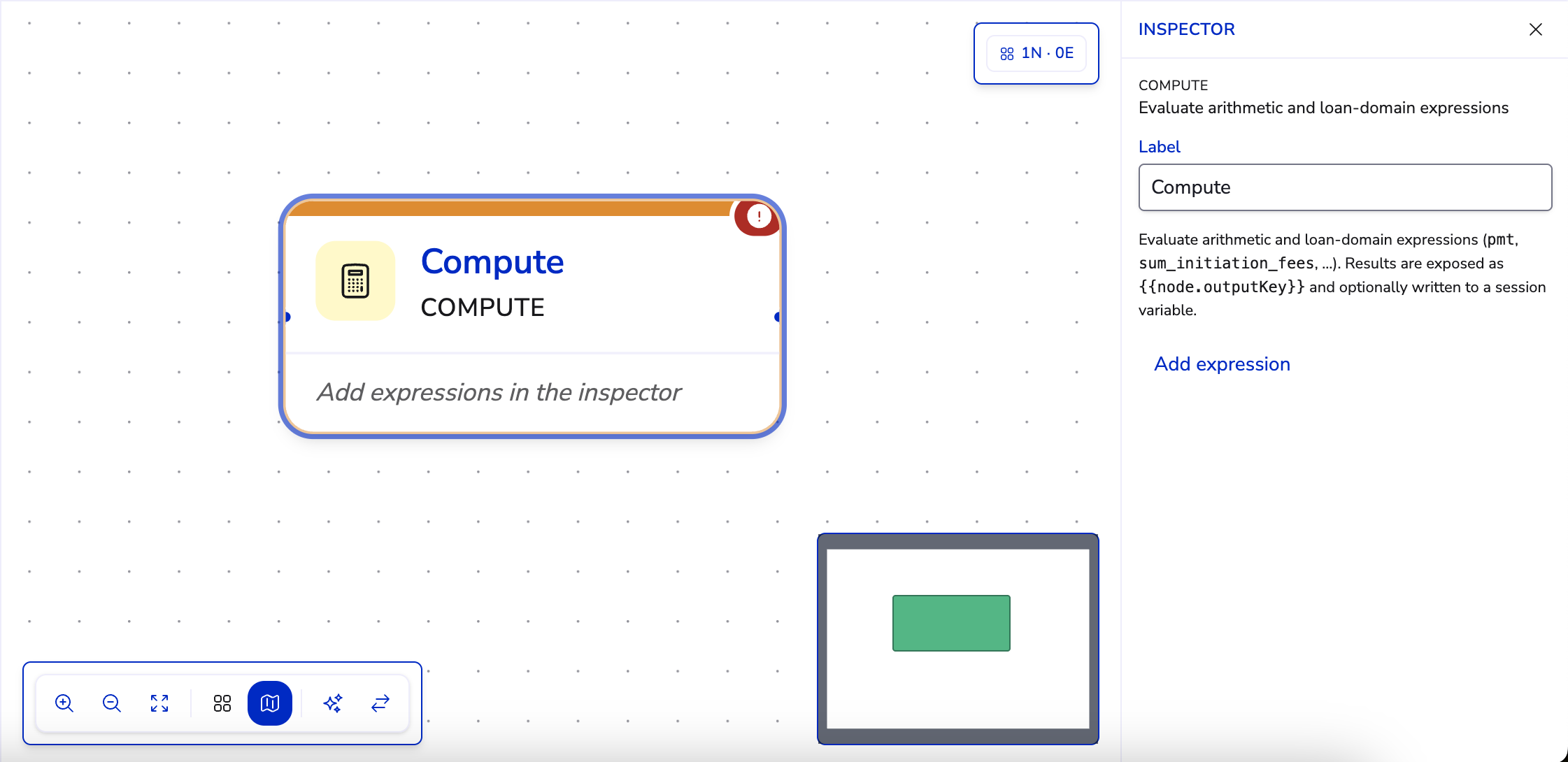
Compute — Works out a new value from earlier answers (for example, an estimated total) and stores it, so a later message or decision can use the result.
-
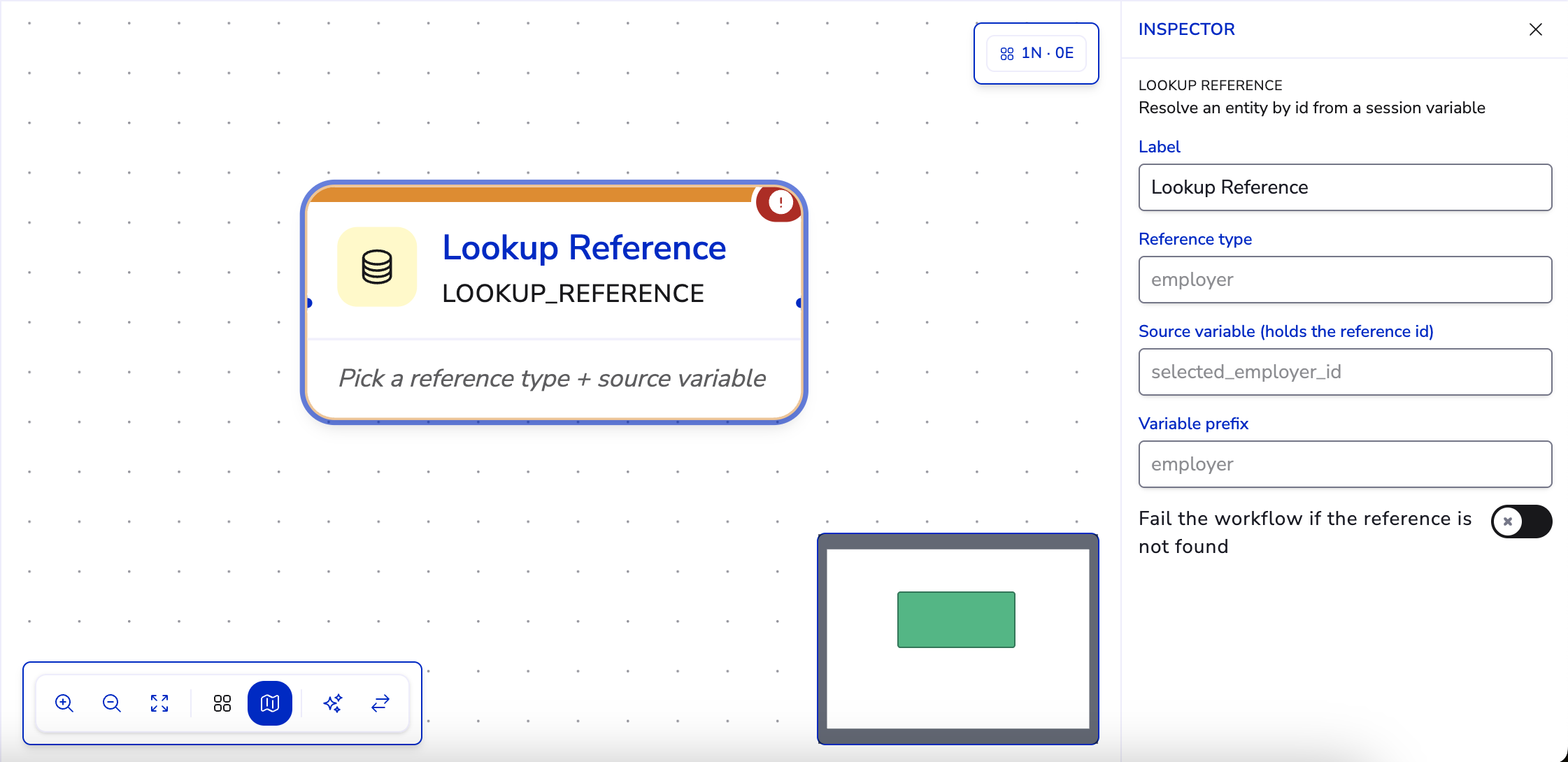
Lookup reference — Fetches a saved record by its id and brings its details into the conversation — handy after a customer picks something earlier, like a branch, product, or plan, and you need the rest of its information.
Actions#
Action nodes reach beyond the chat into the rest of MyPetParlor App.
- Call action — Triggers a backend action and waits for the result — for example, creating or submitting an application from everything the customer has given, then carrying on differently depending on whether it succeeded.
End#
A conversation finishes when it reaches an end node, which closes the customer's session and frees them to start fresh next time.
-
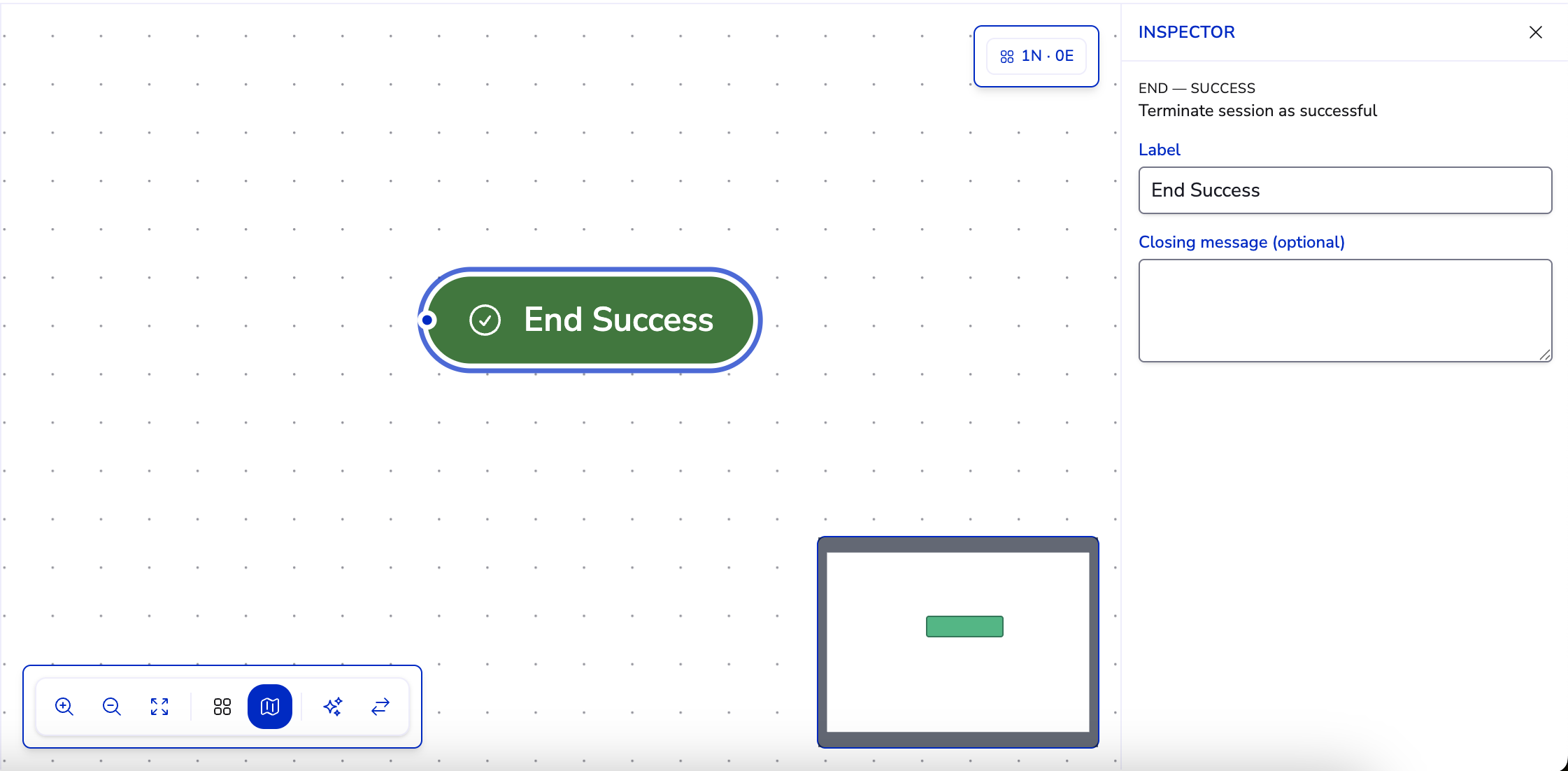
End — success — Closes the conversation as resolved.
-
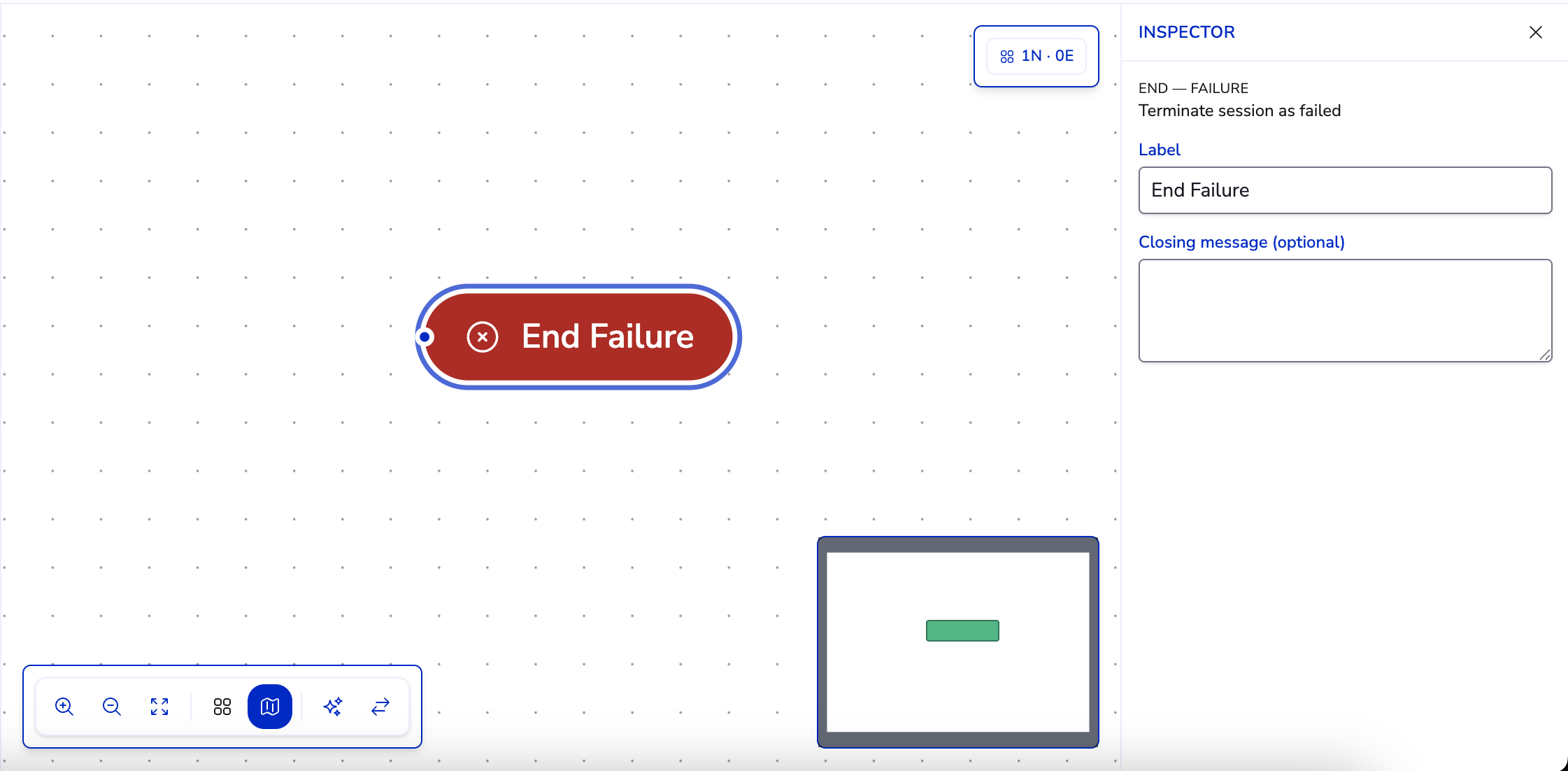
End — failure — Closes the conversation as unsuccessful — for example, when the customer doesn't qualify.
Connections (Edges) and Branching#
A connection — also called an edge — is a line from one node to the next. It's how you set the order of the conversation: after this step, do that one.
Most nodes simply flow straight on to the node they connect to. Forks in the conversation come from two nodes:
- An Ask choice node has one outgoing connection per option, so each answer the customer picks can lead somewhere different.
- A Branch node has a separate outgoing connection for each case you define, plus a default — so the path forks on what's already been gathered.
A Branch's cases are built from the answers and values collected earlier, combined with and / or / not logic and comparisons (equals, greater than, contains, is empty, between, and so on). This is what lets a workflow respond differently to different customers instead of following one fixed script.
Variables: the Workflow's Memory#
As the conversation runs, it remembers what it learns in variables — values such as text, a number, a currency amount, a yes/no, or a reference to a record. An Ask node writes the customer's answer into a variable; a Compute node works one out; and Lookup reference and Call action write their results back too. Later steps read these values to fill in messages and to decide which Branch path to take.
From Draft to Live#
A workflow moves through three states, and only one of them is editable:
| State | What it means |
|---|---|
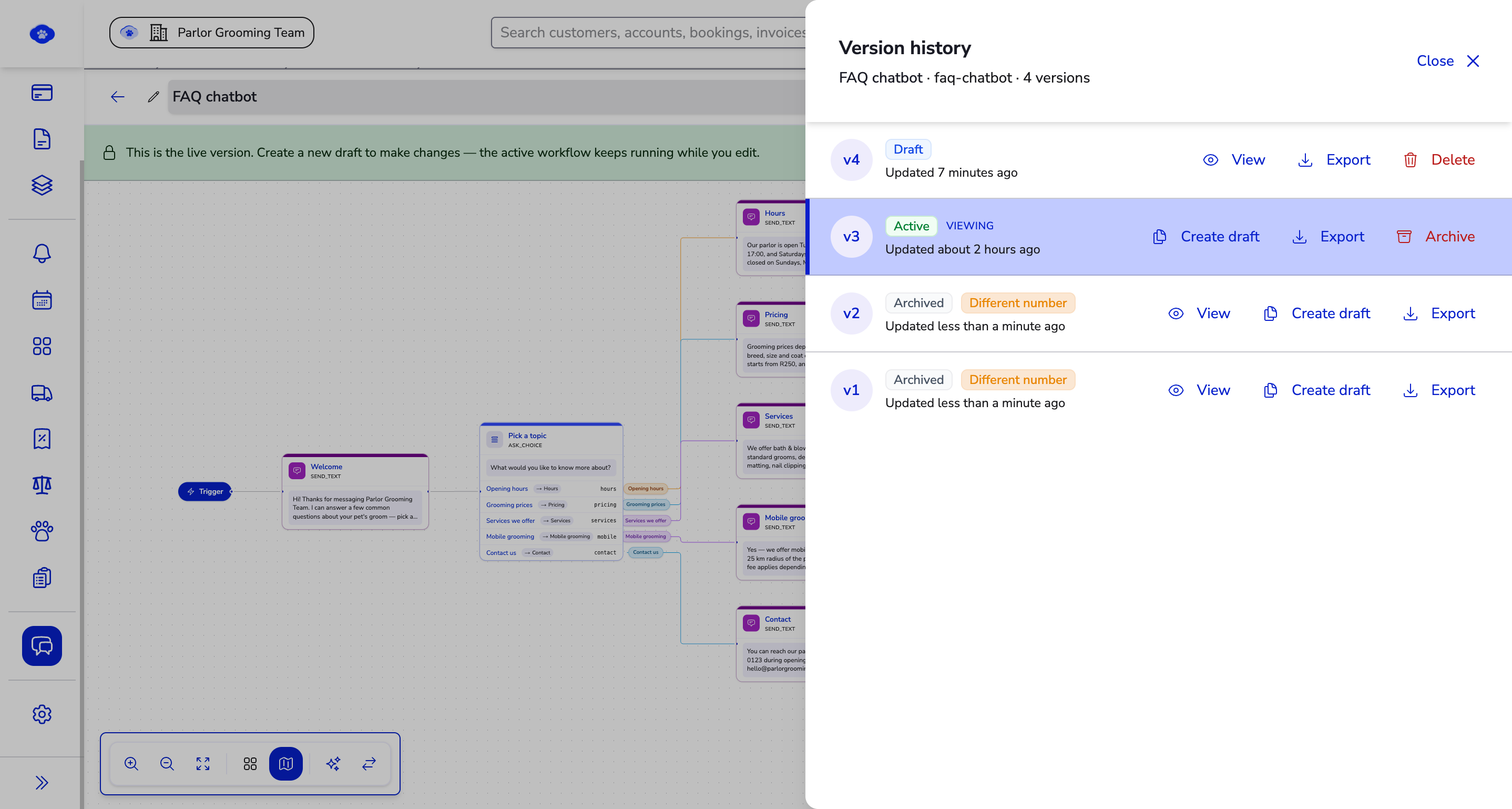
| Draft | A work in progress. You can freely add, connect, and edit nodes. Drafts never run live. |
| Active | Published and running. The canvas becomes read-only so a live version can't change under you. |
| Archived | Retired. Kept for reference and reuse, but no longer running. |
Before publishing, validate the workflow — the issues panel lists anything that needs fixing, like a choice with no next step. When it's clean, publish to make it live. Every published version is kept in version history, so you can review what changed and revisit earlier versions. To change a live workflow, edit a draft and publish again — the new version takes over straight away.
The 24-Hour Window and Handing Off#
WhatsApp Workflows follow the same rules as the rest of your messaging. You can send free-form Send text steps for 24 hours after the customer's most recent message — the customer service window. Outside that window, only approved Message Templates can reach the customer, which is why Send template steps matter for re-engagement.
When a conversation needs a person, the workflow simply stops automating and the thread is waiting in the WhatsApp Inbox — with everything the workflow gathered already in the history.
A Real Example#
A grooming parlor's FAQ chatbot shows the pieces working together. A pet owner messages the business number with "faq", and the workflow:
- Greets them with a friendly welcome.
- Asks them to pick a topic from a tappable list — opening hours, grooming prices, the services on offer, mobile grooming, or contact details.
- Sends the matching answer for whatever they choose, each option wired to its own reply.
- Asks if there's anything else with two quick-reply buttons — "Yes, another topic" loops back to the list, and "No, thanks" moves on.
- Says goodbye and ends the conversation.
What would be a steady trickle of the same questions answers itself, day and night, without anyone on the team stepping in.