

What is a WhatsApp Message Template?
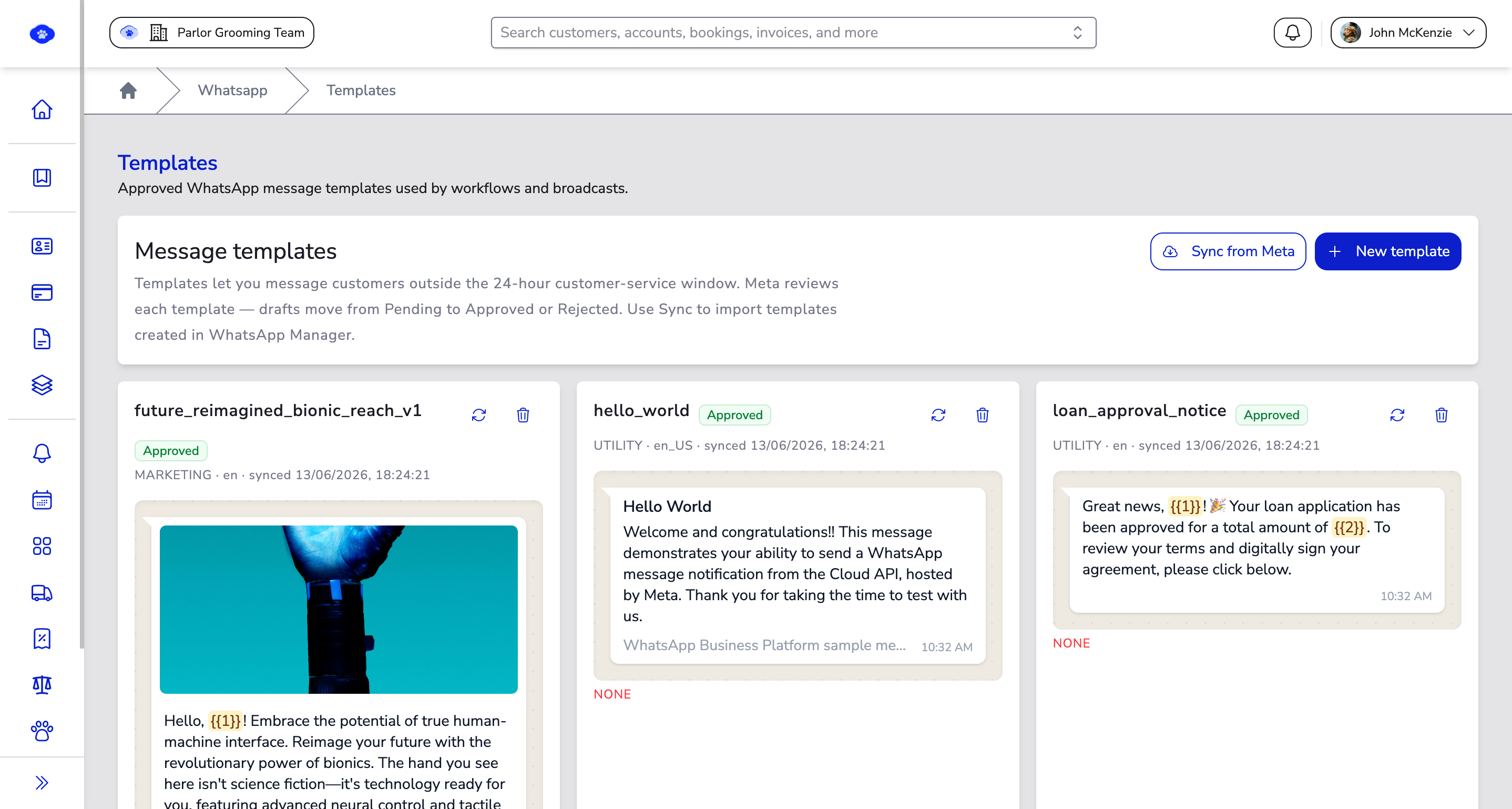
A WhatsApp Message Template is a pre-approved, reusable message — the only kind WhatsApp lets you send outside the 24-hour window — that powers your Workflows and Broadcasts.
A WhatsApp Message Template is a reusable message you write once and submit to WhatsApp for approval. Once approved, your whole team can send it in seconds — polished, on-brand, and compliant — and it becomes the building block your Workflows and Broadcasts rely on.
Templates exist because of one WhatsApp rule: outside the 24-hour customer service window, an approved template is the only kind of message you're allowed to send. So whenever you want to start a conversation or re-engage a customer who hasn't messaged in a while — a booking reminder, a payment update, a one-time passcode — it goes out as a template.
Why Templates Matter#
Free-form replies only work while a customer is actively chatting with you. The moment that 24-hour window closes, WhatsApp blocks free-form messages to protect people from spam. Templates are how you stay reachable: each one is reviewed by WhatsApp up front, so you can send it proactively and at scale without tripping those rules. Approving your common messages once also keeps everyone on the team sending the same accurate, on-brand wording.
Key Benefits#
- Reach customers anytime — An approved template is the only message you can send once the 24-hour window has closed.
- Send in seconds — Pick a ready-made template instead of writing the same message from scratch.
- Stay on-brand and compliant — Every send uses the same approved, reviewed wording.
- Personalise at scale — Variables drop each customer's own details into the same template.
- Power other features — Templates are what your Workflows send and what every Broadcast goes out as.
What's in a Template?#
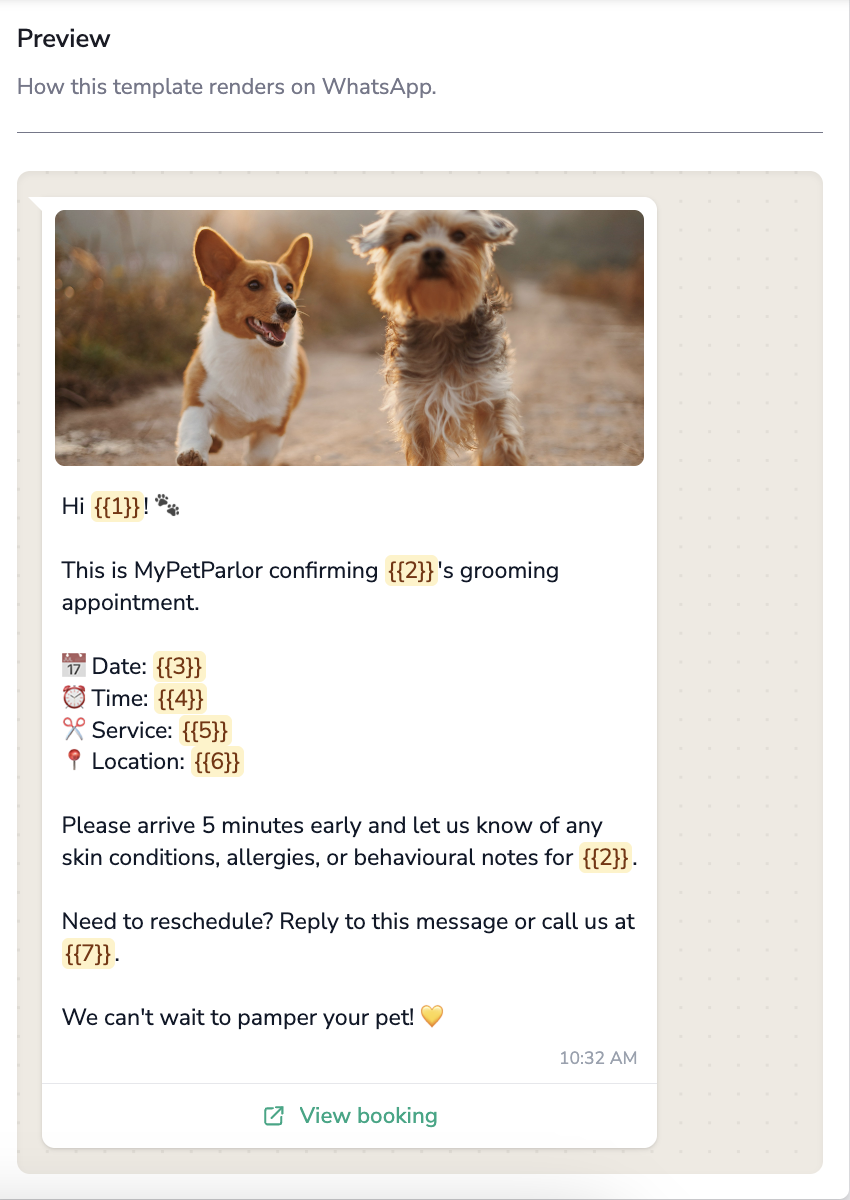
You build a template from a few parts, and a live preview shows exactly what the customer will receive as you go.
Category#
Every template is one of three categories, which tells WhatsApp what the message is for and affects how it's priced:
| Category | Use it for |
|---|---|
| Utility | Transactional notifications — confirmations, updates. |
| Marketing | Promotions, offers, and announcements. |
| Authentication | One-time passcodes and verification. |
Header (optional)#
A short heading at the top — either a line of text, or a piece of media: an image, video, document, or location.
Body#
The main message. You can format it with bold, italic, strikethrough, and monospace, add emoji, and insert variables for the parts that change per customer.
Footer (optional)#
A small line of text beneath the body, such as a sign-off or an opt-out note.
Buttons (optional)#
Up to a handful of tappable buttons, mixing two kinds:
- Quick replies — One-tap canned responses the customer sends back.
- Call-to-action — Visit website, Call phone number, Call on WhatsApp, or Copy offer code.
Language#
Each template is written in a specific language. The same template name can exist in several languages as separate templates.
Variables: Personalising a Template#
Variables are placeholders you drop into the header or body that get filled in with each customer's details at send time — so one template greets everyone by name. A template uses one of two styles (you can't mix them):
- Numbered —
{{1}},{{2}}, filled in order. - Named —
{{first_name}},{{order_id}}, filled by name.
When you add a variable you also give it a sample value (for example, "Jane"). WhatsApp uses these samples to review the template, and the preview shows them highlighted in place.
Getting a Template Approved#
Because templates can be sent proactively, WhatsApp reviews every one before it can be used.
- Open WhatsApp → Templates and start a new template.
- Choose a category and language, then build the header, body, footer, and buttons — watching the live preview.
- Add sample values for any variables and any media header.
- Submit for review — WhatsApp checks the template, usually quickly, though it can take up to 24 hours.
A template is only usable once it's Approved. If it's Rejected, the rejection reason is shown so you can adjust the wording and submit a fresh one.
Template Statuses#
Each template shows its current status so you always know what's sendable:
| Status | What it means |
|---|---|
| Draft | Still being written — not yet submitted. |
| In review | Submitted to WhatsApp and awaiting a decision. |
| Approved | Reviewed and ready to send across the platform. |
| Rejected | Declined during review — check the reason, then create an adjusted version. |
| Paused | Temporarily unsendable after repeated negative feedback from recipients. |
| Disabled | Switched off due to ongoing poor feedback — it can no longer be sent. |
Approval and these status changes are decided by WhatsApp, not MyPetParlor App. Allow a little time between submitting a template and using it in a Workflow or Broadcast.
Managing Templates#
Open any template to see its full content and a WhatsApp-style preview. From there you can:
- Refresh from Meta — Pull the latest review status and quality changes.
- Delete — Remove the template; this also deletes it from WhatsApp.
Templates are fixed once submitted — to change one, create a new template with the updated wording and remove the old one when you no longer need it.
Good to Know#
- Name templates clearly (lowercase letters, numbers, and underscores) so Workflows and Broadcasts can find the right one fast.
- A template must be Approved before it can be sent or referenced anywhere.
- WhatsApp tracks each template's quality from how recipients respond — consistently poor feedback can pause or disable it, so keep messages relevant and useful.