

What is a WhatsApp Broadcast?
A WhatsApp Broadcast sends one approved template to a whole list of recipients in a single campaign — scheduled, personalised, and tracked message by message.
A WhatsApp Broadcast sends one approved Message Template to a whole list of recipients in a single campaign. Instead of messaging people one by one, you pick the template, choose who receives it, send now or schedule it for later — then watch, message by message, how it lands.
Because a broadcast reaches people who aren't in an active chat with you, it always goes out as an approved template — the only kind of message WhatsApp allows outside the 24-hour customer service window. That's what makes broadcasts ideal for announcements, promotions, and reminders.
Why Use Broadcasts?#
Reaching a lot of customers by hand is slow, easy to get wrong, and impossible to measure. A broadcast turns each of those everyday frustrations into a result you can count on.
| The frustration without broadcasts | What a WhatsApp Broadcast gives you instead |
|---|---|
| Copy-pasting the same message to one customer after another | Send one campaign to your whole list in a few clicks |
| A bulk message that reads exactly the same for everyone | Personalise each one with the recipient's own name from their contact record |
| Emails and texts that go unread or get lost in a crowded inbox | Land in the app your customers already check every day |
| Messaging people out of the blue and risking WhatsApp's rules | Every broadcast goes out as a pre-approved template, so you stay compliant |
| Hitting send and just hoping it worked | Watch delivery, read, and reply rates climb message by message, live |
| Catching customers at the wrong moment | Schedule the campaign to land exactly when it should |
How a Broadcast Comes Together#
You build a broadcast in a short, four-step wizard.
1. Message#
Choose the approved template to send and give the broadcast a name. You can set default values for the template's variables, and — for a template with a media header — upload the image, video, or document recipients will receive. A preview shows the message exactly as it will arrive.
2. Recipients#
Add who the broadcast goes to, three ways:
- Paste phone numbers, one per line or comma-separated.
- Upload a CSV of numbers.
- Pick from your Contacts — people who have messaged your number, each labelled with the customer or employee they belong to.
Numbers are de-duplicated automatically, and a broadcast can have up to 5,000 recipients.
3. Schedule#
Send immediately, or pick a date and time to have it go out later.
4. Review#
Check the message, audience, and timing in one place, then create the broadcast — and start it now if you didn't schedule it.
Personalising a Broadcast#
A broadcast doesn't have to read like a mass message. For any variable in the template, you can map it to a contact field — First name, Last name, or Full name — and each recipient gets their own detail filled in from the customer or employee their number belongs to. Anyone the personalisation can't resolve falls back to the fixed default you set, so no message goes out with a blank gap.
Broadcast Statuses#
A broadcast moves through a clear set of states:
| Status | What it means |
|---|---|
| Draft | Created but not yet sent — you can still edit recipients and timing. |
| Scheduled | Set to send automatically at a future date and time. |
| Running | Currently sending to recipients. |
| Completed | Every recipient has reached a final outcome. |
| Failed | A campaign-level problem stopped the send. |
| Cancelled | Stopped by you before it finished. |
You can start a draft or scheduled broadcast immediately, and cancel one that's draft, scheduled, or still running.
Tracking Delivery and Engagement#
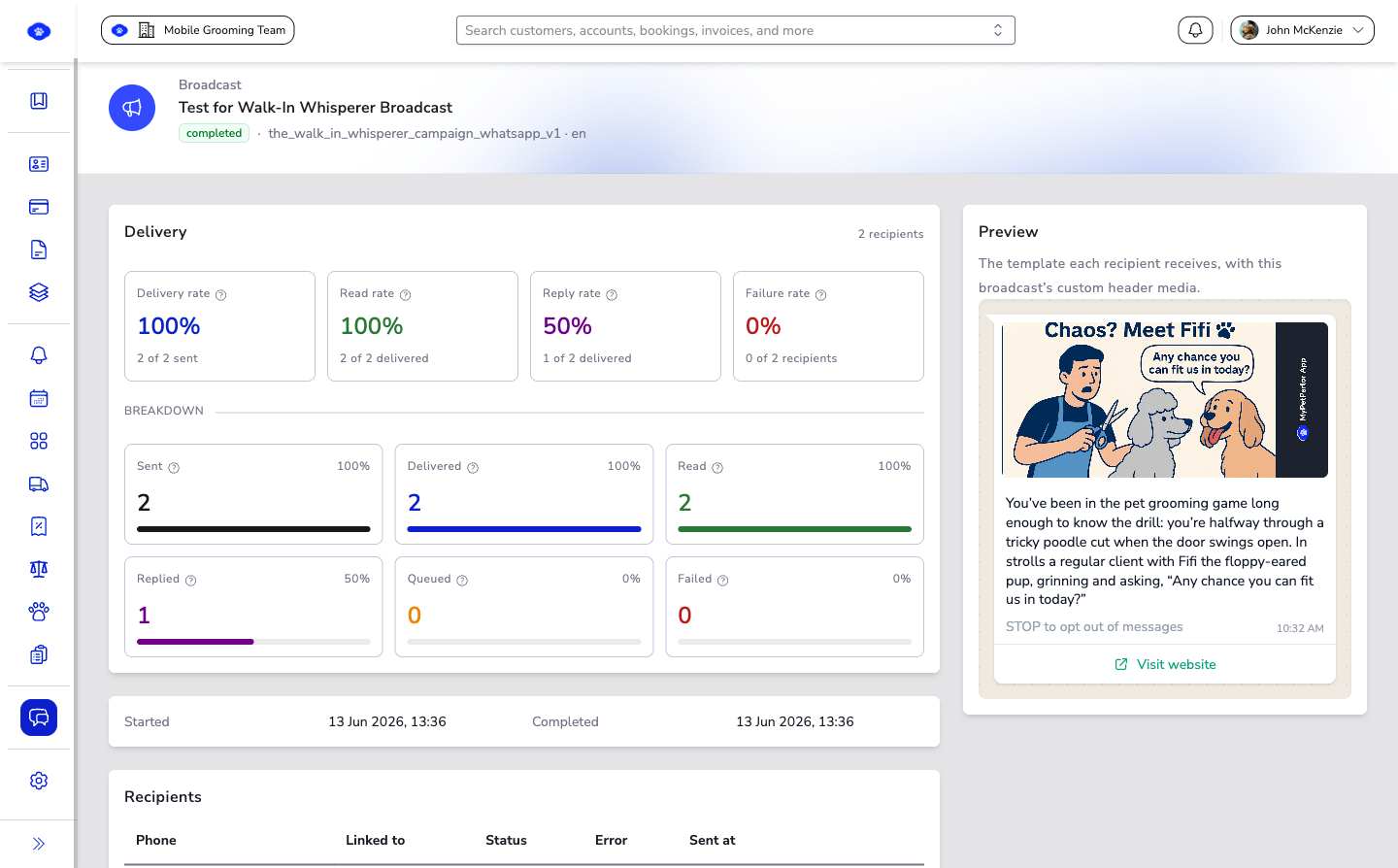
Open a broadcast to see how it's performing, updating live while it sends.
Headline rates summarise the whole campaign:
- Delivery rate — delivered ÷ sent, how many accepted messages reached a device.
- Read rate — read ÷ delivered, how many delivered messages were opened.
- Reply rate — replied ÷ delivered, how many delivered messages got a reply.
- Failure rate — failed ÷ total, the share of the audience that couldn't be reached.
Beneath them, a delivery funnel counts recipients at each stage — Sent → Delivered → Read → Replied, plus Queued (still waiting to be sent) and Failed. Every recipient is also listed individually with its own status and the customer or employee it's linked to, so you can chase up anything that didn't get through.
Good to Know#
- A broadcast can only send an approved template — prepare your Message Templates first.
- Each broadcast belongs to one connected WhatsApp number.
- A clear, well-chosen audience matters more than a big one — relevance drives engagement and protects your number's quality rating.
Sending a new style of campaign for the first time? Create a small broadcast to a handful of recipients first, check the rates, then send to the full list once the message and timing are proven.