

Connect Your WhatsApp Business Number
Stop juggling customer chats on personal phones. Connect the WhatsApp number you already have — no API keys, no developer — and unlock a shared Inbox, automations, templates, and broadcasts. If your number was ever used in the free WhatsApp Business app, a short one-time migration step is needed first — this guide covers that too.
Customer messages scattered across staff phones, no shared history, and the constant worry that something went unanswered — that's what connecting WhatsApp fixes. MyPetParlor App becomes the single place your team chats with customers, using the WhatsApp Business Account (WABA) and number you already have. You authorise access once with Facebook Login for Business, pick the number to provision for your organisation, and your Inbox, Workflows, Templates, and Broadcasts are instantly ready — no API keys to copy, and no developer setup.
If this number was ever set up in the free WhatsApp Business app on a phone (most numbers that predate a system like this one were), Meta requires a short, one-time migration step before it can connect here — see Migrating a Number Already Used in the WhatsApp Business App below. Brand-new numbers that have never been used in that app can skip straight to connecting.
You need an existing WhatsApp Business Account with at least one phone number before you connect. If you don't have one yet, Meta's guide WhatsApp Business Accounts explains how to create one in Meta Business Suite and share it with a partner.
Key Benefits#
- Use the number you already have — Connect an existing WhatsApp Business Account and its number.
- Sign in securely with Meta — Facebook Login for Business handles authorisation, so there are no tokens to copy or rotate by hand.
- Unlock every WhatsApp feature — A single connected number powers your Inbox, automations, message templates, and campaigns.
- Provision per tenant — Pick exactly which number serves this tenant, so each part of your business uses the right line.
Prerequisites#
Before you connect, make sure you have:
-
A WhatsApp Business Account (WABA) with at least one phone number. See Meta's WhatsApp Business Accounts guide if you need to create or share one.
-
A Meta account with access to that WABA in your Meta Business Portfolio.
-
Our support team invited as Admins on your Meta Business Manager (the same portfolio that owns your Facebook Business Page and WABA). This is what lets us step in and resolve it directly with Meta if your number needs the migration step below, rather than leaving you stuck mid-setup. From Business Settings → Users → People → Add, invite:
sasha@mybusinessapp.co.zaallistair@mybusinessapp.co.za
Set their role to Admin, then send the invite — they'll each need to accept it from their own Meta account before access is active.
-
Permission to manage WhatsApp settings in MyPetParlor App.
Migrating a Number Already Used in the WhatsApp Business App#
Skip this section if your number has never been used in the free consumer WhatsApp Business app on a phone. If it has — which is true for most numbers businesses have been messaging customers from before connecting a system like this one — Meta keeps that number registered to the app until it's explicitly released, and won't let it connect here until you do.
- On the phone that has the WhatsApp Business app installed for this number, open it and go to Settings → your profile/business name → Delete Account → confirm.
- This does not delete your phone number, your WhatsApp itself, or any of your business's data outside that one app. It only removes that app's own claim on the number, freeing it up to connect here.
- Wait for Meta to release the number, then continue to How to Connect Your Number below.
Meta's own documentation states this should clear in up to 3 minutes for a clean, first-time deletion — try connecting again after a few minutes. In our own experience, though, if a connection attempt was already tried on this number before (for example an earlier "Add a new number" step that got stuck), Meta's support team has told us their servers can take up to 24 hours to fully clear it, even though that's longer than their public documentation states. If your first retry after a few minutes doesn't work, don't keep repeating the attempt — that's what led to the longer wait in our own case. Instead, wait the full 24 hours, or reach out to us and we'll pick it up directly with Meta.
How to Connect Your Number#
- Open Settings and go to WhatsApp.
- Click Connect number.
- Complete the Facebook Login for Business prompts to authorise access to your WhatsApp Business Account.
- In the Connect WhatsApp Number dialog, pick the number you want to provision for this tenant.
- Click Connect.
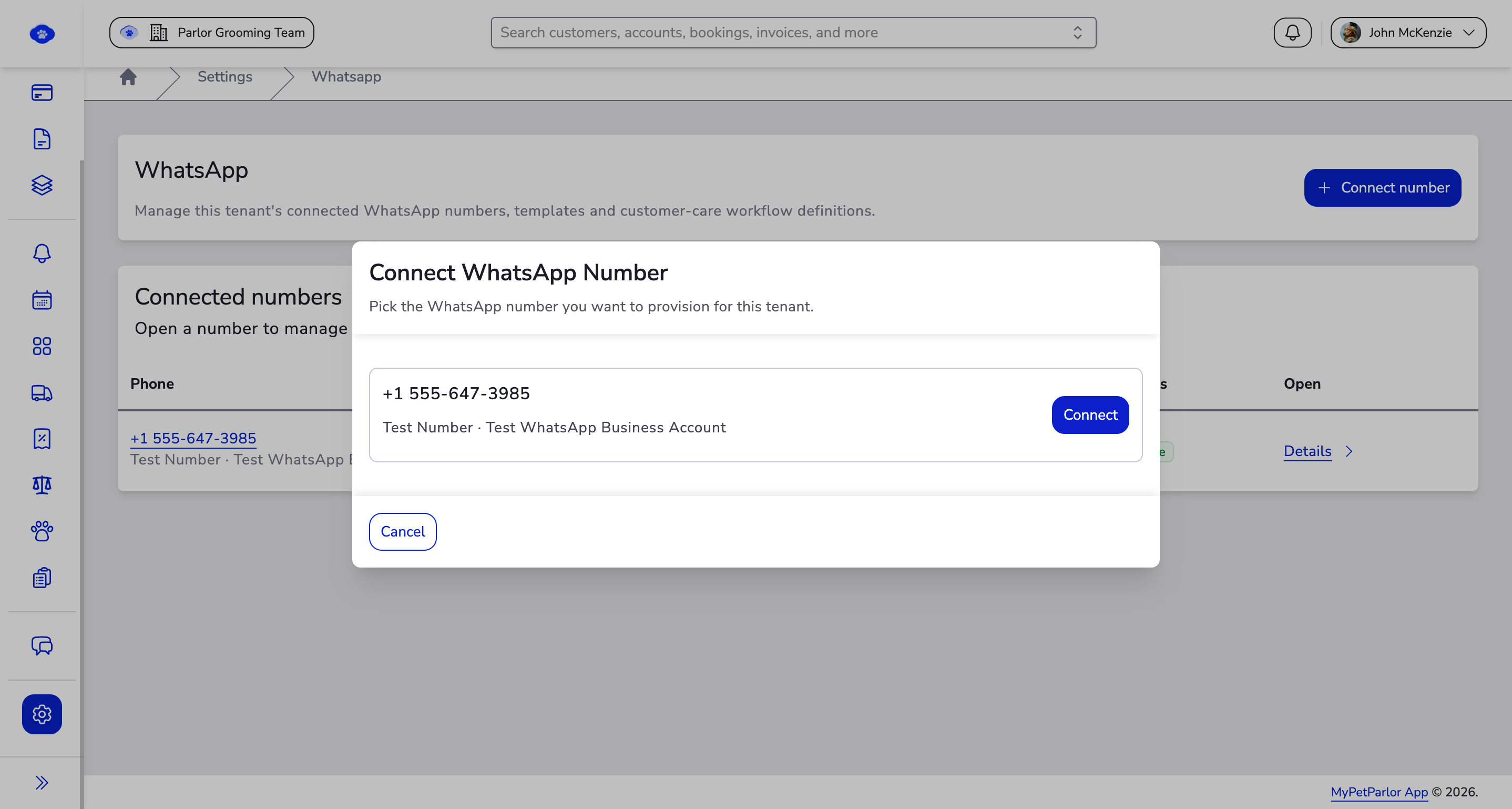
The number now appears under Connected numbers with its status. Open Details on any number to manage it.
If your WABA has several numbers, the dialog lists them all. Pick the line that belongs to this tenant so conversations and campaigns stay with the right part of your business.
Good to Know#
- You only provision a number once per tenant. After that, it's available to everyone working in that tenant.
- The dialog only shows numbers that already belong to your connected WhatsApp Business Account — if a number is missing, add it to your WABA in Meta first.
- If a connection ever shows as disconnected, reconnect from the same Settings → WhatsApp page.
- Connecting a number doesn't message your customers — it simply provisions the line for this tenant.
- Inviting
sasha@mybusinessapp.co.zaandallistair@mybusinessapp.co.zaas Admins doesn't give us access to your Facebook Page's public content or ad accounts — it's scoped to what Meta requires to manage the WABA/WhatsApp connection. You can review or remove this access at any time from Business Settings → Users → People.
Quick Reference#
Key Terms#
| Term | What It Means |
|---|---|
| WhatsApp Business Account (WABA) | The Meta account that owns your WhatsApp Business numbers. Connect the one you already have. |
| WhatsApp Business app | The free consumer app some businesses install on a phone to message customers directly. If your number was ever registered there, Meta requires it to be released (see the migration section above) before it can connect here. |
| Phone number | The WhatsApp Business line you provision for a tenant. A single WABA can hold several. |
| Facebook Login for Business | Meta's secure authorisation flow. You complete it once — there are no API keys or tokens to copy. |
| Meta Business Portfolio | Where your Meta account manages access to the WABA you want to connect, and where you add us as an Admin. |
| Tenant provisioning | Connecting a number for one tenant so everyone working in that tenant can use it. Done once per tenant. |
Related Concepts#
A connected number powers every other part of WhatsApp in MyPetParlor App:
- WhatsApp Inbox — The shared place every conversation from your connected number lands.
- Automate with WhatsApp Workflows — Automated replies sent from your connected number.
- WhatsApp Message Templates — Approved, reusable content your connected number can send.
- Send WhatsApp Broadcasts — Campaigns sent from your connected number to many customers at once.