

Create a Subscription
Enrol a customer in a billing plan — set pricing, trial periods, and add-ons. Start immediately or schedule for a future date with automated recurring invoices.
A subscription allows your customers to access your plans and services for a specified period. By creating a subscription in MyPetParlor App, you automate the recurring billing process — invoices are generated, payments collected, and renewals handled without manual work.
Key Benefits#
- Flexibility — Start subscriptions immediately or schedule them for a future date.
- Customisation — Override default plan pricing, set custom trial periods, and attach add-ons tailored to each customer.
- Automation — Let the platform handle billing so you can focus on serving your customers.
Prerequisites#
Before creating a subscription, make sure the following are in place:
- A Business Entity is configured (determines invoice branding and tax settings).
- An Account exists for the customer you want to subscribe.
- At least one Plan has been configured with pricing and a billing interval.
- For automatic payment collection, the customer's account has a valid payment method linked to your Payment Gateway.
How to Create a Subscription#
- Navigate to the Subscription Dashboard.
- Click the Add button in the top-right corner.
- Fill in the fields described below, then click Create.
Account#

Select the customer account this subscription will belong to. You can search by name or account code.
When you change the selected account, the form resets the plan and add-on fields to ensure the subscription is configured correctly for that customer.
Subscription Details#
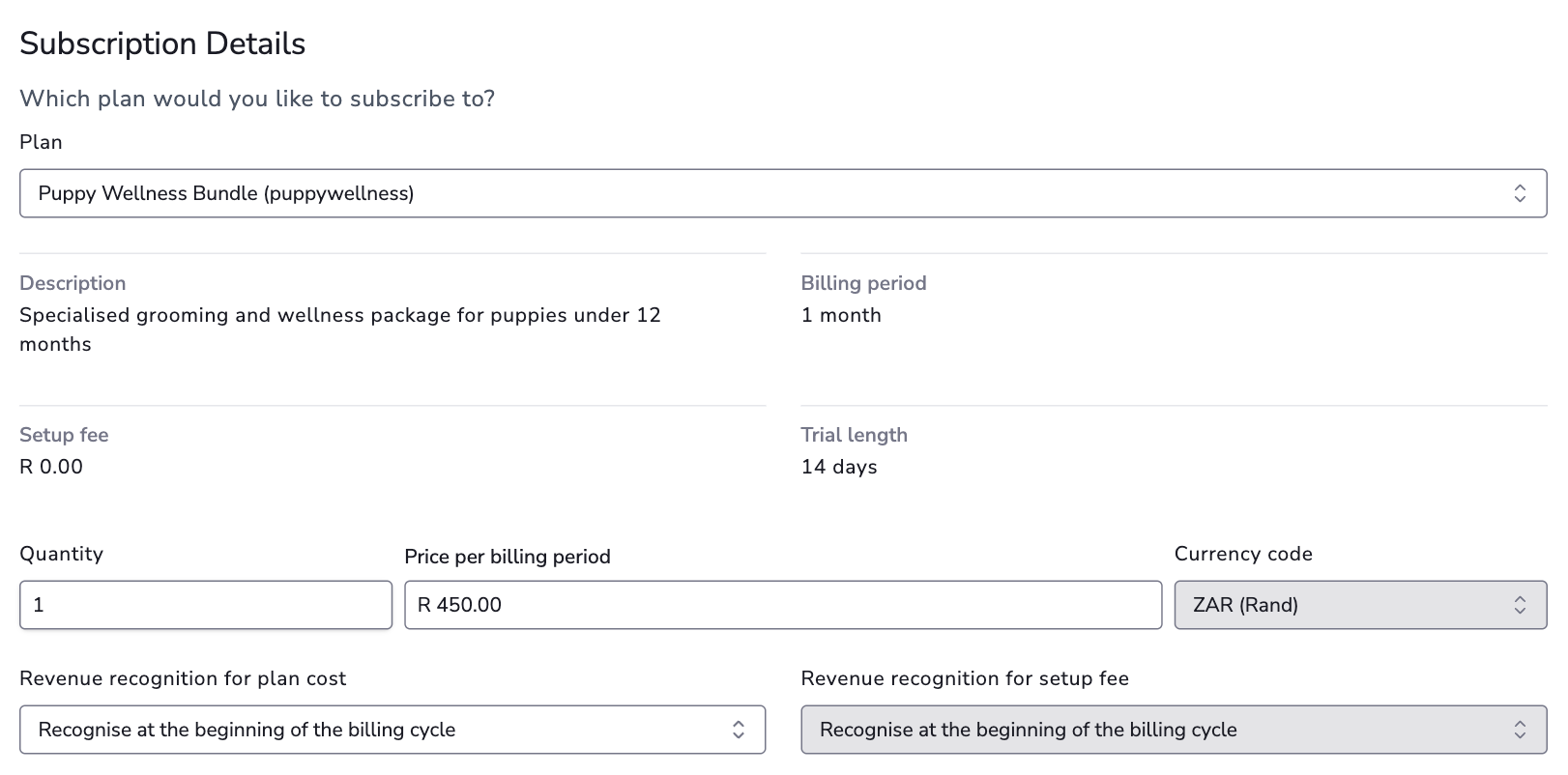
This section captures the core aspects of the subscription.
- Plan — The plan the customer is subscribing to. This is a required field and determines the billing interval, base price, and available add-ons.
- Description, billing period, setup fee, and trial length — These auto-populate from the selected plan's configuration and are displayed for reference.
- Currency and unit amount — The currency and amount charged each billing cycle. Defaults to the plan price but can be overridden per subscription.
- Quantity — How many units the customer is subscribing to (e.g. number of licences or seats). Defaults to 1.
- Revenue recognition — How revenue from the plan cost is recognised: evenly across the billing cycle, at the start, at the end, or never.
Add-Ons#

Additional services or features that sit on top of the core plan. Click Choose Add-Ons to open a dialog listing all add-ons available for the selected plan. Select one or more, then configure the pricing and quantity for each.
Timing#
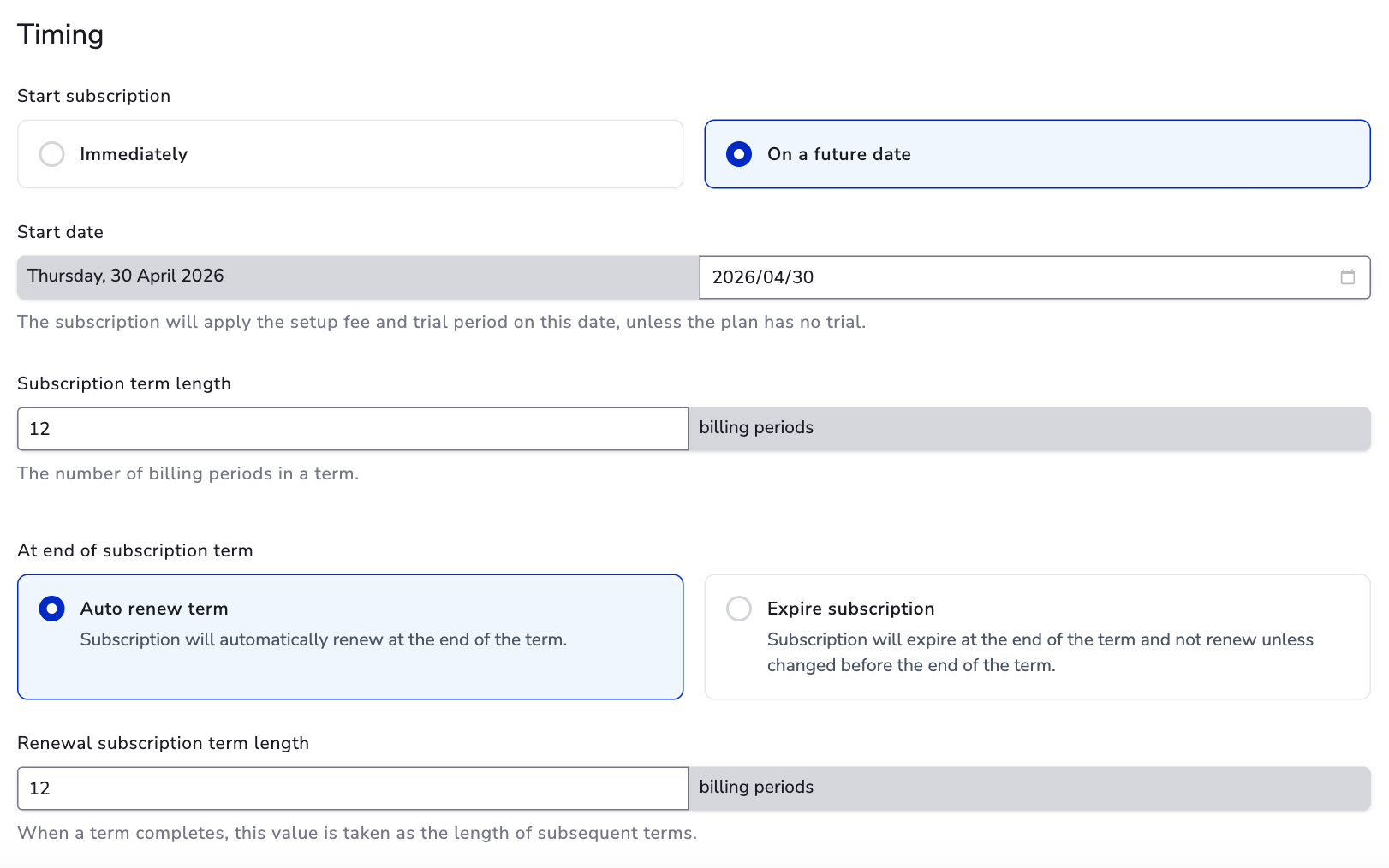
This section controls when the subscription starts and how long it lasts.
- Start subscription — Choose to begin immediately or set a future date. Future-dated subscriptions enter the Future state and do not generate invoices until the start date.
- Next bill date — Shown when the selected plan uses the next bill date start-day behaviour and the subscription starts immediately. The subscription activates right away and the first billing period is billed pro rata up to this date (prefilled from the plan's default start day); subsequent periods bill in full on that day. Choosing a future start date instead clears the next bill date.
- Subscription term length — The number of billing periods in the initial term (e.g. 12 monthly billing periods for a one-year subscription).
- At end of subscription term — Decide what happens when the term completes:
- Auto renew — The subscription automatically renews for another term.
- Expire — The subscription expires and is not renewed unless changed before the term ends.
- Renewal term length — If auto-renewing, the number of billing periods for each subsequent renewal term.
Invoice Options#
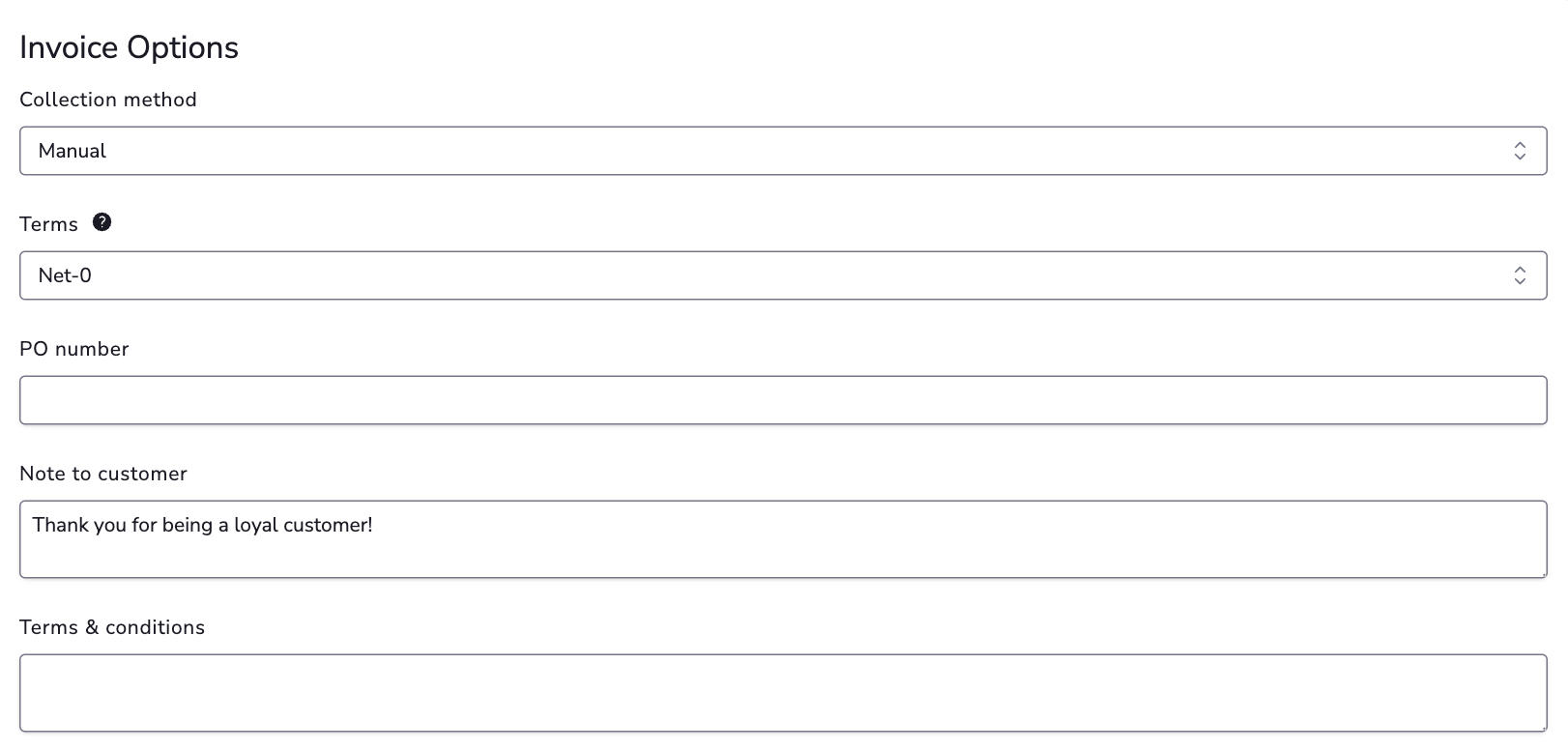
Configure how invoices are generated and collected for this subscription.
- Collection method — Choose between:
- Automatic — Payment is collected using the billing information on file when an invoice is generated.
- Manual — An invoice is generated but payment is not collected automatically. You handle payment externally and mark the invoice as paid.
- Terms — How many days the customer has to pay after an invoice is issued. Choose from standard options (Net-0, Net-10, Net-30, Net-60) or end-of-month terms, or set a custom number of days.
- PO number — An optional purchase order number to include on invoices.
- Note to customer — A message visible to the customer on their invoice.
- Terms and conditions — Legal clauses included on the invoice.
Invoice terms, customer notes, and terms and conditions default from your Business Entity invoice settings. You can override them per subscription.
What Happens After Creation#
Once you click Create:
- An invoice is generated for the first billing period (unless the subscription is future-dated or starts with a trial).
- If the collection method is Automatic, payment is attempted against the customer's payment method on file.
- A subscription activation email is sent to the account holder.
- The subscription appears on the Subscription Dashboard with an Active status (or Future if future-dated).
For automatic collection, valid billing details are required on the account. For manual collection, billing information is not a prerequisite.
Billing Information Requirement#
For subscriptions using automatic collection, the customer's account must have valid billing information on file. If no payment method is available, the system falls back to manual collection.
For manual collection subscriptions, billing information is not required — you collect payment externally and update the invoice status once received.
Subscriptions that start with a free trial follow the plan's Require billing information at sign up setting:
- Require (the default) — intended for self-serve sign-ups with automatic collection. If the account has billing information on file (or the request references a stored payment method), the subscription is created with your chosen collection method. If the account has no billing information, the subscription is still created but its collection method falls back to manual — the same behaviour as non-trial subscriptions without a payment method. Subscriptions created with manual collection are never affected by this setting.
- Do not require — the subscription starts its trial without any payment details on the account (a cardless free trial). Add billing information before the trial ends so the first renewal invoice can collect automatically.
See Create a plan — Free Trial for configuring this per plan.