

Invoice management
Generate, track, and customise invoices across MyPetParlor — from numbering and display through collection methods, dunning, refunds, and write-offs.
MyPetParlor's invoice management tools generate, track, and customise every invoice attached to a customer account — covering subscription renewals, one-off charges, refunds, credits, and write-offs. Each invoice records the services or products delivered and their associated costs, so your books, your team, and your customers all see the same numbers.
This article walks through how invoices are created, what they contain, how they're delivered, and the actions available to you through each state of the lifecycle.
Key Benefits#
- Detailed transaction records. Every invoice provides a full breakdown of origins, amounts, customer details, and balance-changing entries — giving you the transparency you need to support your customers and reconcile your books.
- Flexible numbering. Invoice numbers are sequential and unique within your account, with prefix and starting-number options available so multi-location or multi-brand operators can keep separate sequences.
- Configurable display. Each invoice carries your business entity's branding, addresses, VAT details, line items, payment history, and notes — keeping invoices informative, compliant, and on-brand.
Invoice Numbering#
Each invoice is assigned a unique number for reconciliation and reporting. Invoice numbers are sequential within your MyPetParlor account and appear on the invoice itself, in customer emails, and on the Invoices dashboard.
Default Sequence#
By default, invoice numbering starts at 1000 and increments by one for every new invoice — charge or credit. This sequence is shared across all accounts in your MyPetParlor site unless an entity prefix is applied.
Entity Prefix#
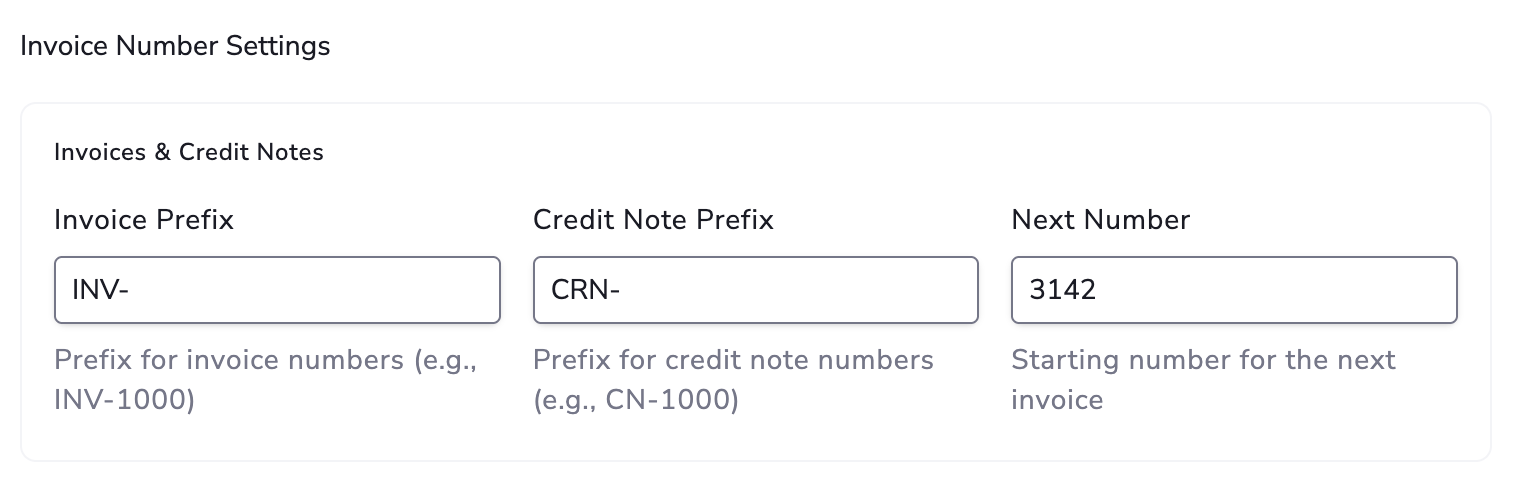
If you operate multiple business entities (for example, separate trading names or regional locations), you can prepend a short alphanumeric prefix of four characters or fewer to the sequential invoice number. When a prefix is added, the sequence for that entity restarts at 1000 and increments independently.
Invoice numbers are commonly used by payment gateways to reconcile transactions. Keep your gateway's number-length limits in mind before adding an entity prefix, especially if you operate across multiple gateways.
Custom Starting Number#
If you would prefer your invoice numbers to start somewhere other than 1000 — for example, to continue a sequence from a previous billing system — set a new value in the Next Number field on the invoice number settings page. The next invoice posted will use that number, and the sequence will continue incrementing by one from there.
The starting number can only be set higher than the most recently used invoice number, to keep the sequence unique and avoid clashes with existing invoices.
Origin Tagging#
Every invoice records the event that created it — whether that's a Purchase, Renewal, Refund, Write Off, Gift Card, or Import. When you're triaging activity, jump over to the Invoices dashboard and use the Origin filter to narrow the list to just the type you're after.
Business Entities#
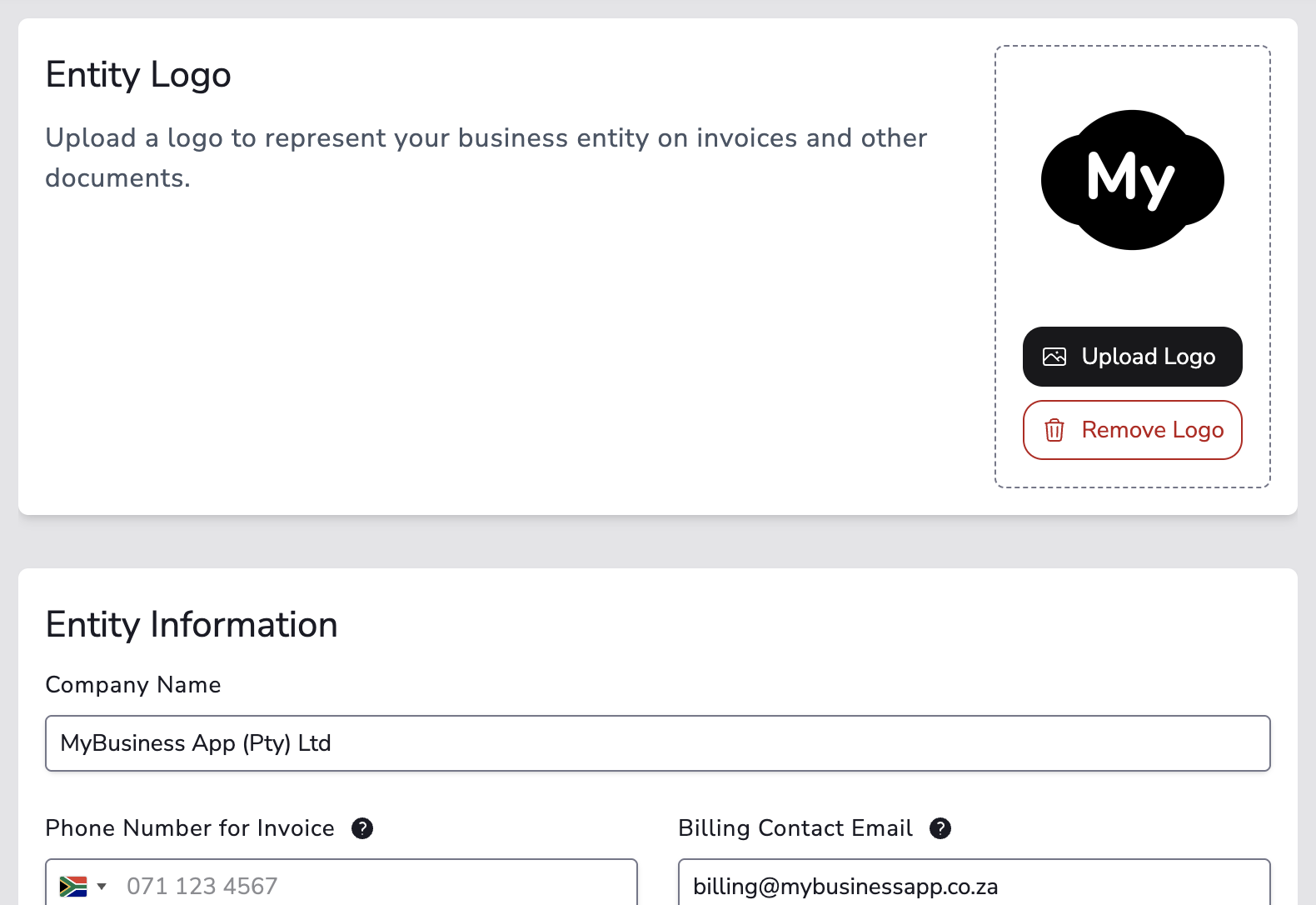
A business entity defines your company's identity on customer-facing invoices and emails. Setting it up correctly lets you control the company name, address, phone number, and VAT or tax registration details that appear on every invoice you send.
For businesses that operate across multiple regions, MyPetParlor lets you set different addresses for invoice display and tax calculation — for example, a UK address for tax purposes and a separate trading address for invoice display.
Set Up Your Business Entity#
Setting up a business entity involves a few core components and some optional extras:
- Company details — The legal or trading name of your business, the phone number to show on invoices, and the billing contact email used as the reply-to address on all transaction emails.
- Invoice display address — The company address that appears on each customer invoice. By default, this address is also used for tax calculations.
- Tax address — The address MyPetParlor uses for tax obligations. If you'd like a different address used for tax purposes, set a separate tax address — the invoice display address stays unchanged.
- VAT and registration numbers — Optional but recommended for businesses that need to display tax identifiers on their invoices. Consult your tax advisor to confirm what applies to your business.
- Invoicing mode — Choose whether invoices are generated internally by MyPetParlor, synced to external accounting software, or handled entirely outside the platform.
- Subscriber location countries — The list of countries the entity covers. Customers in those countries are billed under this entity.
The country you select on a business entity also determines which payment gateways are available, so make sure it matches where your business is registered to operate.
For the full walkthrough, see setting up your business entity.
Invoice Display#
Invoices rendered in the Admin portal, on the customer's hosted invoice page, or downloaded as a PDF include the following sections.
Number and Collection#
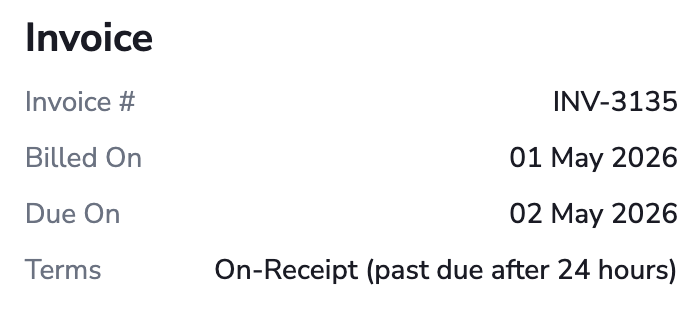
Every invoice shows its invoice number and the date it was posted. Charge invoices also display the payment term and due date. Credit invoices reference the charge invoice number(s) they were issued against.
From Address#
The From block at the top of the invoice pulls from your business entity settings:

- Company name
- Address (lines one and two)
- City, state/province, postal code, and country
- Phone number
- Billing contact email
- VAT or tax registration number
Bill To#
The Bill To block defaults to the account's billing information for automatic collection, or to the account's contact information for manual collection. Fields shown include:

- First and last name
- Company name (from account information)
- Address (lines one and two)
- City, state/province, postal code, and country
- VAT number
Ship To#
For accounts with a shipping address on file, a separate Ship To block lists the recipient's name, address, and country.
Line Items#
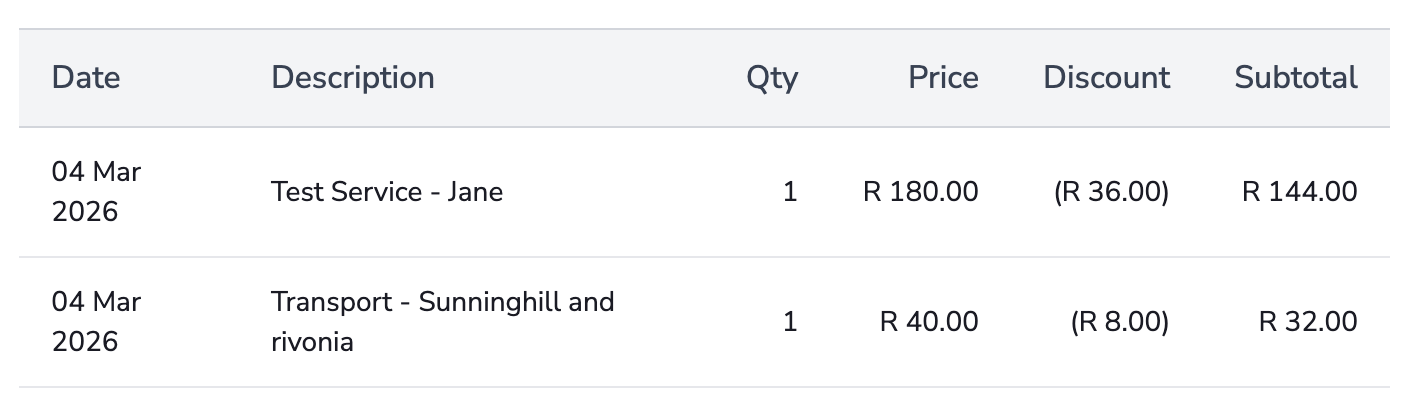
Each invoice contains a table of line items with the following columns:
| Column | Description |
|---|---|
| Date | The date the charge or credit applies to. |
| Description | The service, product, plan, or adjustment being billed. |
| Quantity | How many units are being billed. |
| Price | The per-unit price. |
| Discount | Any discount applied to the line item (shown only if applicable). |
| Tax | The tax rate (shown only if applicable). |
| Subtotal | The line total before tax. |
Total and Balance#
At the bottom of every invoice you'll see:
- Subtotal — Total before taxes and additional charges.
- Tax — Shown only when tax is applicable.
- Total — The invoice total inclusive of all charges and taxes.
- Amount Due — The remaining amount due.
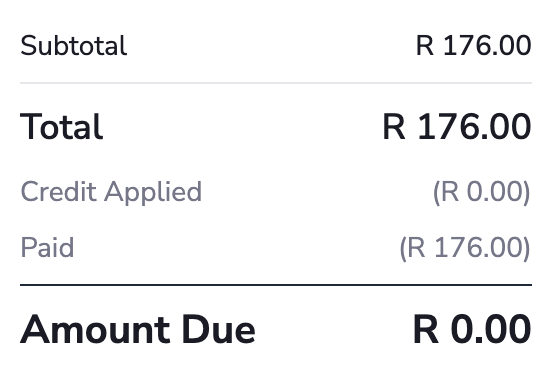
Between Total and Amount Due, balance-changing entries are listed:
- Paid — The total of all payment transactions.
- Credit Applied — Account credit that has been used to pay down this invoice.
- Payment Refund — Refund transactions issued against this invoice.
- Credit Voided — Any portion of the credit balance that has been removed or voided.
- Write-Off — Amount written off as uncollectable.
Payments & Discounts#
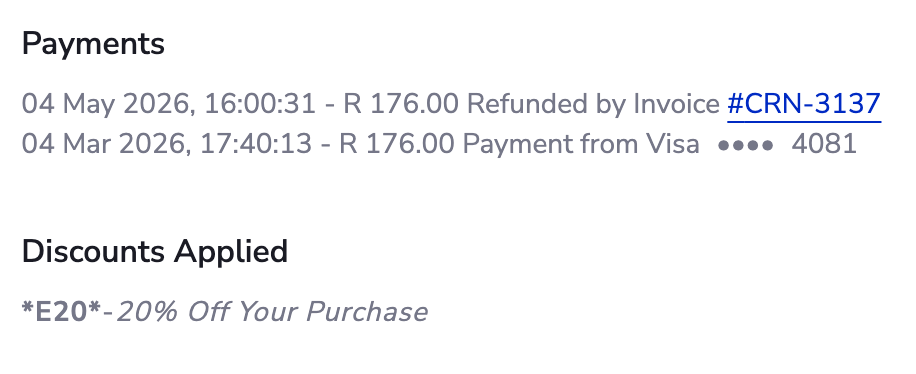
The Payments and Discounts Applied sections list every transaction, credit payment, and discount that has reduced the invoice's balance, including the date and amount of each entry.
Notes#
Invoices include up to three notes sections, which only render when text is present:
- Customer notes — Visible to the customer. Useful for invoice-specific details, a thank-you message, or local compliance text.
- Terms and conditions — For payment terms, legal notes, or contractual information.
- VAT reverse charge notes — Used in EU reverse charge scenarios where applicable.
Organisation-level defaults are set on your invoice settings page, and individual invoices can override them.
Email and PDF Delivery#
MyPetParlor sends invoice-related emails based on the type of invoice and how it was created:
- First subscription invoice — Included in the New Subscription email.
- Automatic collection invoices — Use the Payment Confirmation email once payment succeeds. Invoices with a zero total are not emailed.
- Manual collection invoices — Trigger the New Invoice email so the customer knows payment is owed.
- Past due reminders — Manual collection invoices that pass their due date trigger the Invoice Past Due email. Automatic collection declines trigger the Payment Declined email.
A PDF copy of the invoice is attached to most invoice-related emails by default. You can also download a PDF directly from the invoices dashboard or the invoice detail page.
Proration#
When a subscription changes mid-cycle (upgrade, downgrade, or add-on change), MyPetParlor calculates a prorated line item so the customer is only charged for what they actually used. Proration is calculated to the second, although line item dates are displayed by day.
Learn more about immediate subscription change proration.
Collection Methods#
The collection method determines whether MyPetParlor automatically attempts to collect payment or issues the invoice for manual payment.
Automatic Collection#
With automatic collection, MyPetParlor attempts payment using the customer's saved billing information (credit card, bank account, or other configured gateway) when the invoice posts:
- On subscription renewal — The renewal charge is processed automatically per the subscription's terms and due date.
- Immediate charges — Add-on or adjustment charges are processed right away.
- If payment succeeds — The invoice is marked Paid/Closed immediately.
- If payment fails — The invoice enters Past Due status and the dunning cycle begins.
Automatic collection respects the subscription's configured terms. For example, if the subscription is set to charge on the 1st of each month, the invoice posts and payment is attempted on that date.
Manual Collection#
With manual collection, MyPetParlor issues the invoice without attempting payment:
- Invoice posts immediately — The invoice is created and marked Pending but no payment is attempted.
- Customer pays externally — The customer pays via their own banking system, email transfer, cheque, cash, or another external method.
- You record the payment — Open the invoice detail page in MyPetParlor and log the manual payment to mark it Paid/Closed.
- Or customer self-pays — If your customer portal is enabled, the customer can click Make a Payment on their hosted invoice view to pay directly.
Manual collection is useful for customers who prefer to manage payment externally, operate on net terms (such as Net 30), or require invoice approval before payment.
Once a manual invoice receives a payment — either automatically using billing info on file, or by recording an external payment — it converts to automatic collection going forward. Converting an automatic charge invoice back to manual collection is not currently supported.
Change a Subscription's Collection Method#
Changing a subscription's collection method affects the next charge invoice generated — it does not change invoices that have already been issued.
To change the collection method:
- Open the subscription from the Subscription Dashboard.
- Click Edit Subscription in the Subscription Actions menu.
- Scroll to the Invoicing section.
- Choose a new value from the Collection Method dropdown.
- Save your changes.
The change applies immediately, regardless of whether "On next renewal" is selected for other plan changes.
Dunning#
When an invoice enters Past Due status, MyPetParlor starts the dunning cycle to recover payment:
- Automatic collection — Dunning begins after the first transaction decline, using the Payment Declined email template. Configured retries continue per your dunning settings.
- Manual collection — Dunning begins 24 hours after the invoice's due date, using the Invoice Past Due email template.
At the end of the dunning cycle, you can choose to write off the invoice (see Stop Collection) or leave it past due and continue manual follow-up.
Stop Collection#
To write off an unpaid invoice, click Stop Collection on the invoice detail page.
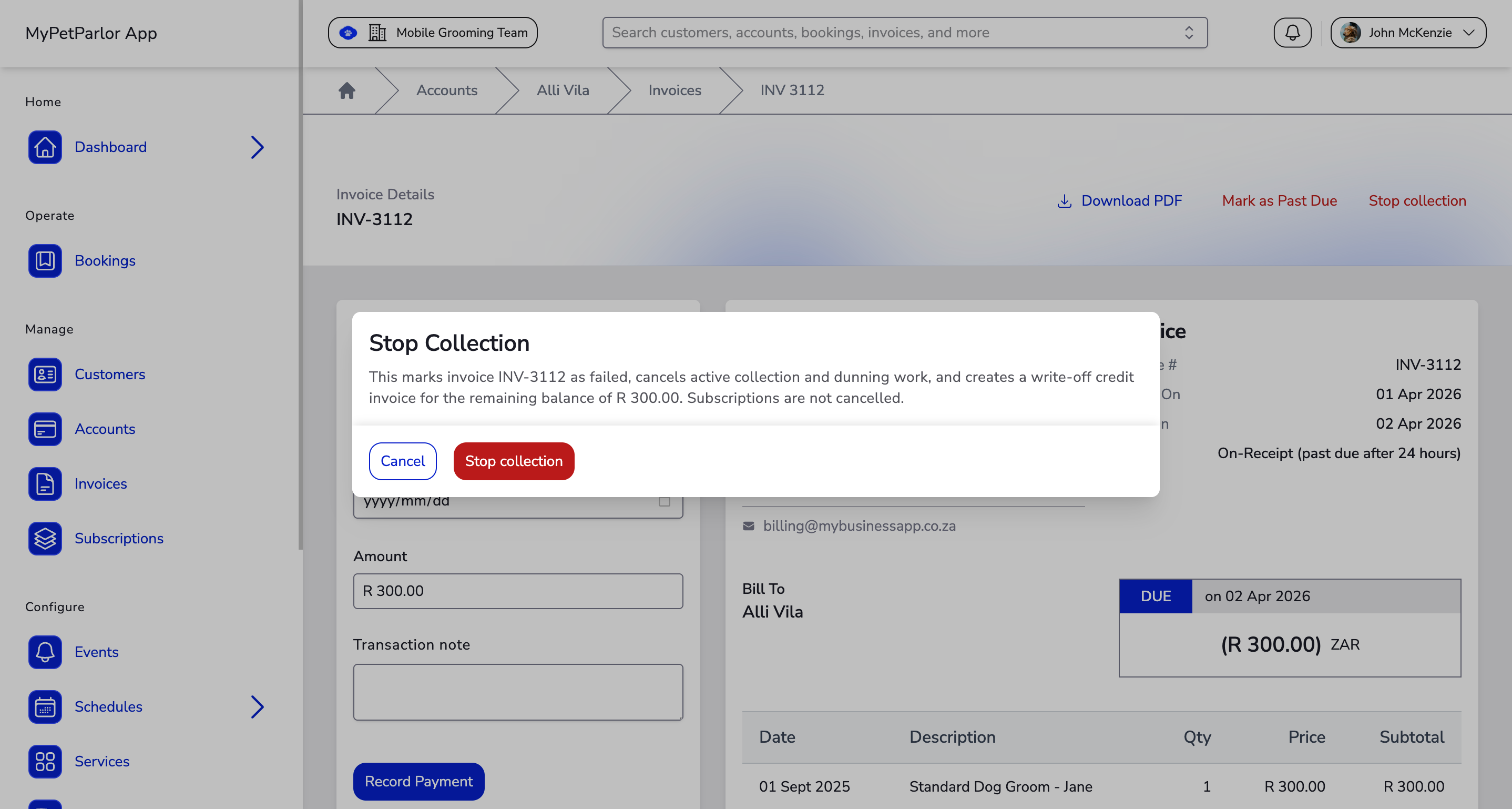
This:
- Changes the invoice state to Failed.
- Removes the amount from the customer's account balance.
- Records a corresponding write-off credit entry so balances stay accurate.
- Halts all dunning activity — automated emails, payment retries, and any active follow-up stop.
Stopping collection on an invoice does not cancel the related subscription. To stop future billing, cancel the subscription separately.
Once an invoice is failed, it cannot be reopened. To collect again, create a new charge invoice on the account.
Refunds#
Refunds are processed at the invoice level. They generate a credit invoice with credit line items against previously paid charges, and money is returned to the customer's original payment method (or recorded against an external method for manual refunds).
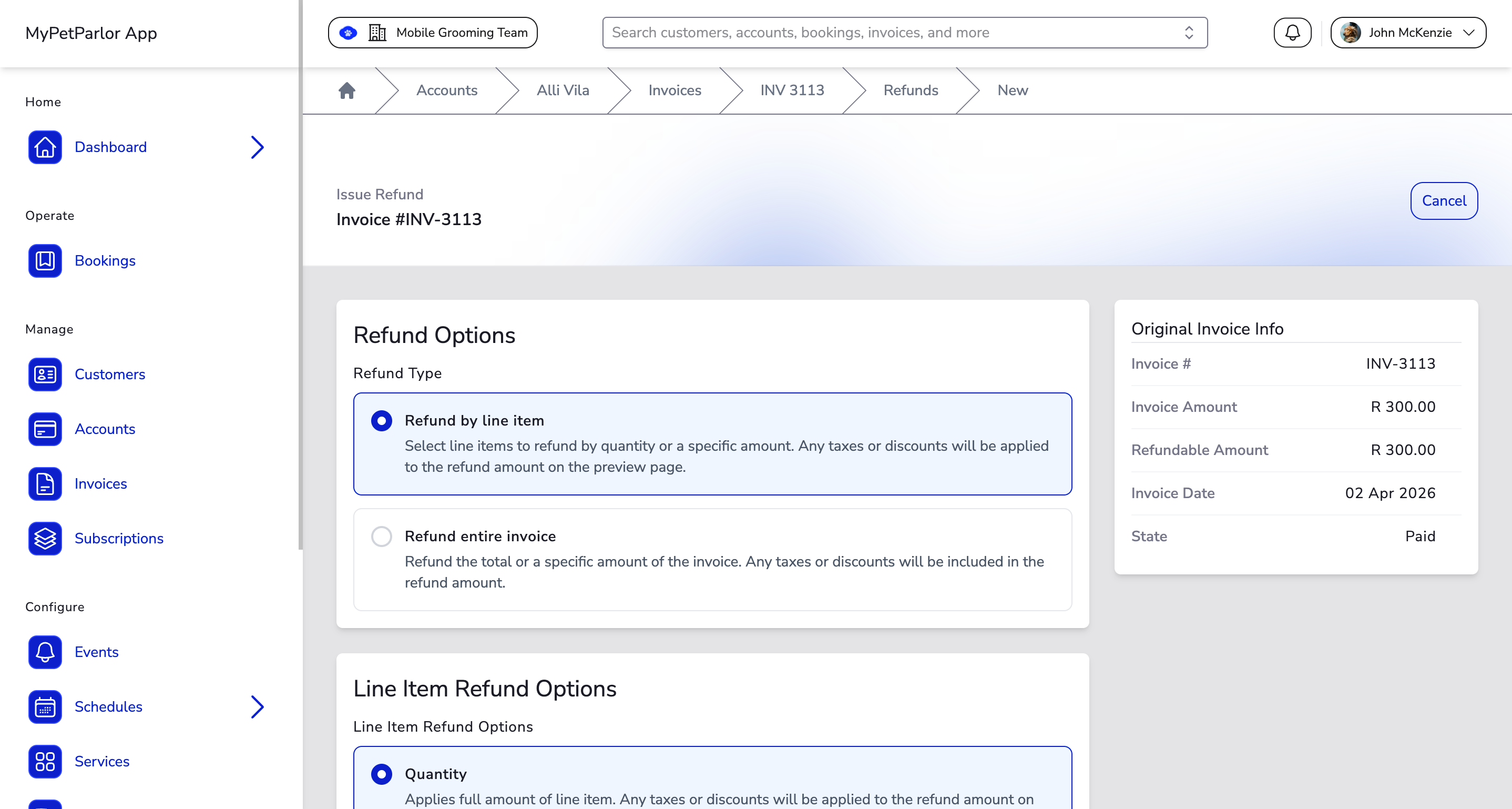
To issue a refund:
- Open the charge invoice from the invoices dashboard or the account detail page.
- Click Issue Refund in the Invoice Actions menu.
- Choose to refund by line item or for the entire invoice.
- Select a refund method:
- Quantity — Refund specific quantities on a line item.
- Specific amount — Refund an exact value on a line item or against the invoice total.
- Percentage — Refund a percentage of a line item or the invoice total.
- Confirm and save.
The refund is processed, a credit invoice is created, and the customer's balance is updated.