

Change a Subscription
Modify a subscription's plan, pricing, quantity, add-ons, or invoicing settings — immediately, at the next billing date, or upon term renewal
The Change Subscription feature lets you modify an active subscription — whether you need to upgrade a customer to a higher-tier plan, adjust pricing, change quantities, manage add-ons, or update invoicing settings. Changes can take effect immediately, at the next billing date, or upon term renewal, giving you flexibility over how and when modifications are applied.
Overview#
Subscription modifications include changes in plan, quantity, price, or the addition and removal of add-ons. They also cover updates like altering the collection method, PO number, customer notes, or net terms. If you need to shift the current billing cycle of a subscription rather than change what the customer is subscribed to, see Postpone a Subscription.
Prerequisites#
- Admin access to manage subscription settings.
- A clear understanding of your subscription model and billing cycle.
Limitations#
- Changes during a free trial period won't generate an invoice.
- Voucher redemption is limited to immediate changes with product alterations.
- Subscription modifications enforcement based on payment status.
Key Benefits#
- Flexible management — Easily upgrade, downgrade, or modify subscription settings to suit evolving customer needs.
- Real-time billing adjustments — Immediate invoicing for changes ensures accurate billing and a clear transaction history.
- Scheduled changes — Queue changes for the next bill date or term renewal so the customer keeps their current service until the appropriate time.
- Full proration control — Choose prorated, full, or no charges and credits for immediate changes to match your business model.
Timing of Changes#
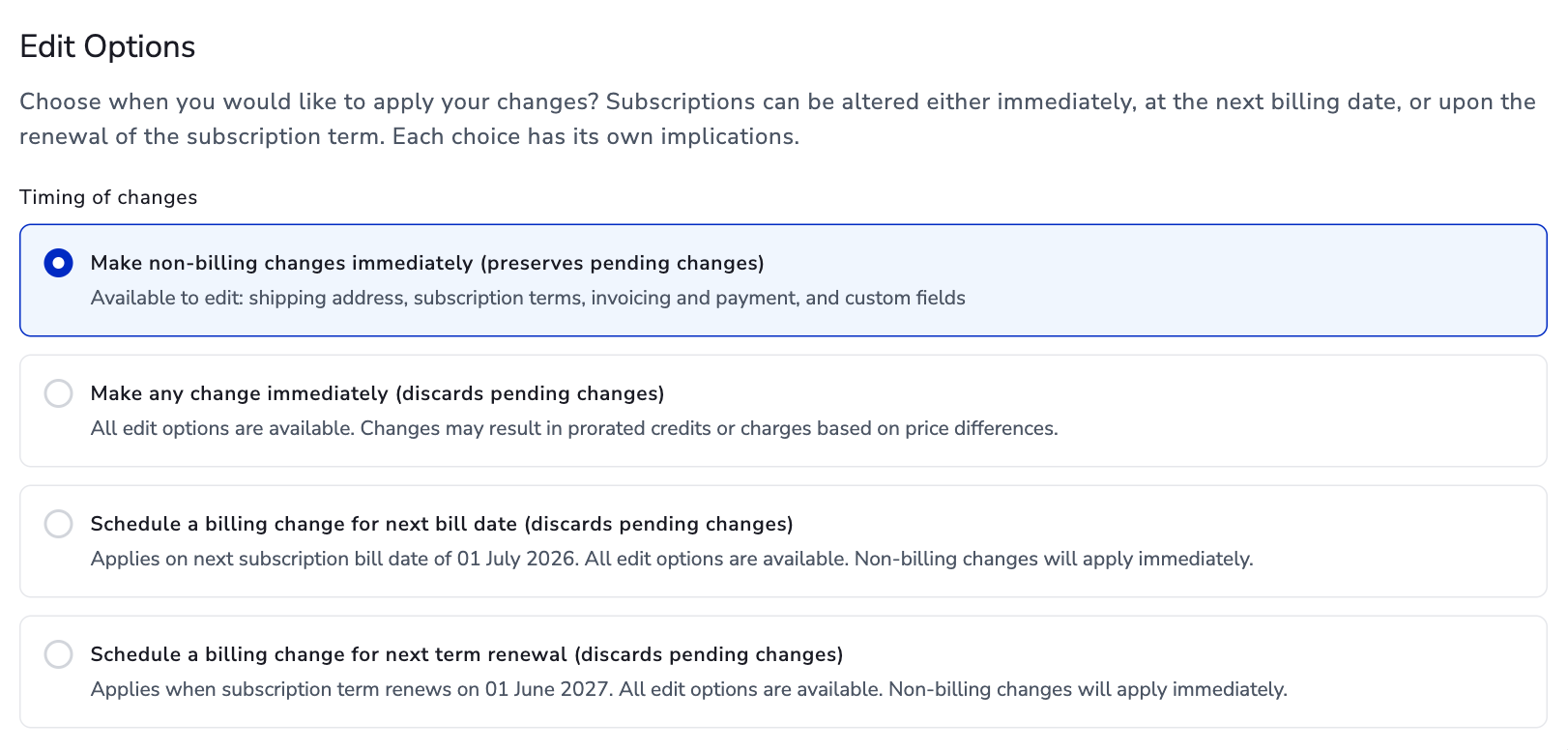
Subscriptions can be altered either immediately, at the next billing date, or upon the renewal of the subscription term. Each choice has its own implications:
- Immediate changes — Billed right away. This may result in the creation of a charge invoice (for upgrades or added value), a credit invoice (for downgrades or removed value), or both (called a rebill). If using automatic collection, a transaction is attempted on the payment method on file for any charge invoice. If the transaction fails, the invoice and subscription enter the dunning process.
- At next bill date — Changes are saved and applied when the subscription is next billed. The customer is invoiced at the new amount on the next billing date with no proration.
- At term renewal — Changes are saved and applied when the subscription term renews, with no proration.
For both at-bill-date and at-renewal changes, only one pending change is retained — submitting a new change request replaces any existing one. Only product changes (plan, price, quantity, add-ons) can be scheduled; all other changes (collection method, notes, terms, etc.) take effect immediately regardless of the selected timeframe.
Often, merchants prefer immediate upgrades to give customers access to higher-value products promptly while collecting additional revenue right away. Conversely, downgrades are usually set for the next bill date or at term renewal, locking the customer into the already-paid billing cycle and continuing to provide the higher-value product until the next period begins.
When there are already pending changes on a subscription, there is flexibility to alter certain attributes without affecting those pending changes. When preserving pending changes is desired, there is an option to keep them intact while updating values like invoicing and payment, subscription terms, and custom fields, without any impact on the existing pending changes.
What Can Be Changed#
Product modifications can be executed immediately, at the next billing date, or upon term renewal. However, changes related to invoicing will take effect immediately, even if the at-renewal or at-bill-date option is selected.
Can Be Changed Immediately#
- Plan
- Price
- Quantity
- Plan/Add-on price
- Plan/Add-on quantity
- Bill date with proration
- Add or remove add-on
- Collection method
- Net terms
- PO number
- Customer notes
- Terms and conditions
Can Be Changed at Bill Date and Term Renewal#
- Plan
- Price
- Plan/Add-on price
- Plan/Add-on quantity
- Add or remove add-on
How to Change a Subscription#
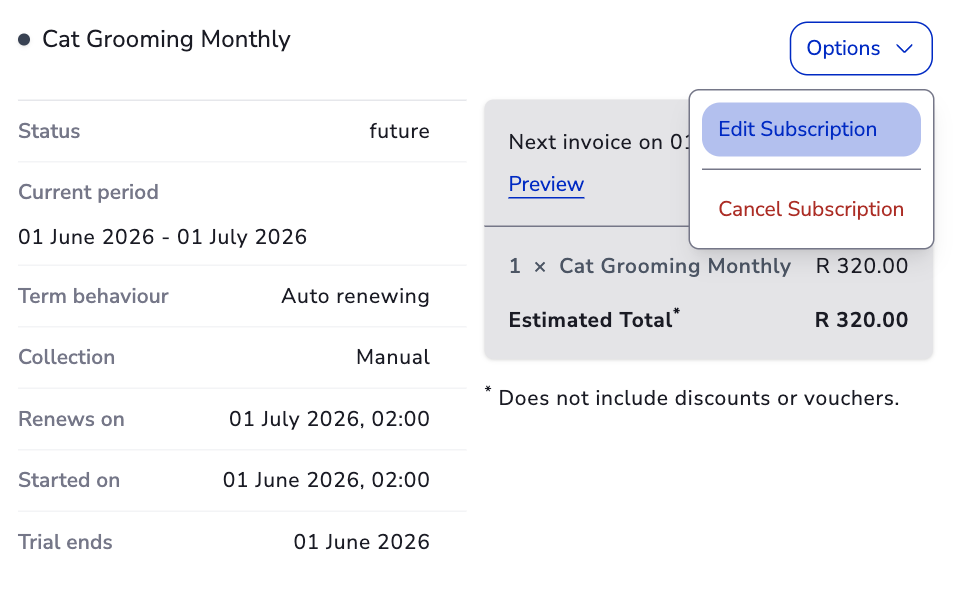
- Navigate to the subscription detail page.
- Click Options → Edit Subscription.
- Select the appropriate edit option (see timing of changes).
- Make your changes in the form.
- For billing changes, click Preview to review the resulting invoices, then Create to apply. For non-billing changes, click Save Changes.
Handling Immediate Subscription Changes#
When making an immediate subscription change, as opposed to making a change that takes place at the start of the next billing period or term, there are a few different options available for how to handle the resulting credits and/or charges.
Your customer may have requested to upgrade their plan, or you want to change the quantity and/or price of their current plan, or adjust pricing or quantity of associated add-ons, and you wish to provide them access to these immediate changes right away. In these cases, you can handle the resulting credit and/or charge that reflects the time left in the current billing period, in the way that is most effective for your business and your customer. Because there is no one-size-fits-all approach for how much or little to charge or credit a customer for an immediate subscription change across varying business models, the flexibility to control proration behaviour is left up to you and your organisation's needs.
Charges and Credits#
Why do credits and charges result? When you upgrade a customer, add more add-ons, or increase quantities, there is typically a price difference for the remaining billing period. Sometimes you'll want to charge the customer for those changes, sometimes you'll want to credit them, and sometimes you'll want to skip the credits and charges entirely.
Credit options for how to handle the remaining value of the old subscription:
| Option | Behaviour |
|---|---|
| Prorated credit | Credit the customer for the unused portion of the current billing period at the old price. |
| Full credit | On a rebill (plan change), credits the entire price of the old subscription. When no rebill occurs (only a price or quantity change), credits the price difference multiplied by the current quantity. |
| No credit | Do not issue any credit for the change. No credit invoice is created. |
Charge options for how to handle the cost of the new subscription:
| Option | Behaviour |
|---|---|
| Prorated charge | Charge the customer only for the remaining portion of the current billing period at the new price. |
| Full charge | On a rebill (plan change), charges the entire price of the new subscription. When no rebill occurs (only a price or quantity change), charges the price difference multiplied by the current quantity. |
| No charge | Do not charge the customer for the change. A zero-amount invoice is still created to reflect the change. |
Choose how to handle charges and credits from immediate subscription changes#
There are two ways to choose how to handle the credits and/or charges resulting from immediate subscription changes.
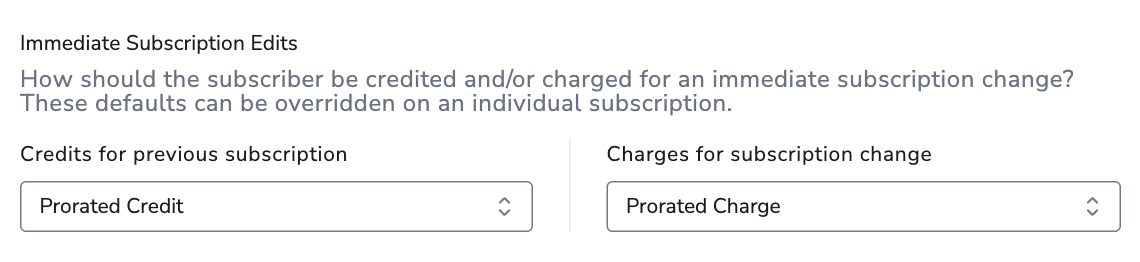
The first way is by setting your preferences on the Business Entity's invoice settings. The options you choose for credits and charges will serve as the default behaviour for how to handle all credits and charges resulting from immediate subscription changes. You can update your settings at any time. All charges and credits resulting from immediate subscription changes moving forward will assume the new settings. Previously executed charges and credits will remain unchanged.
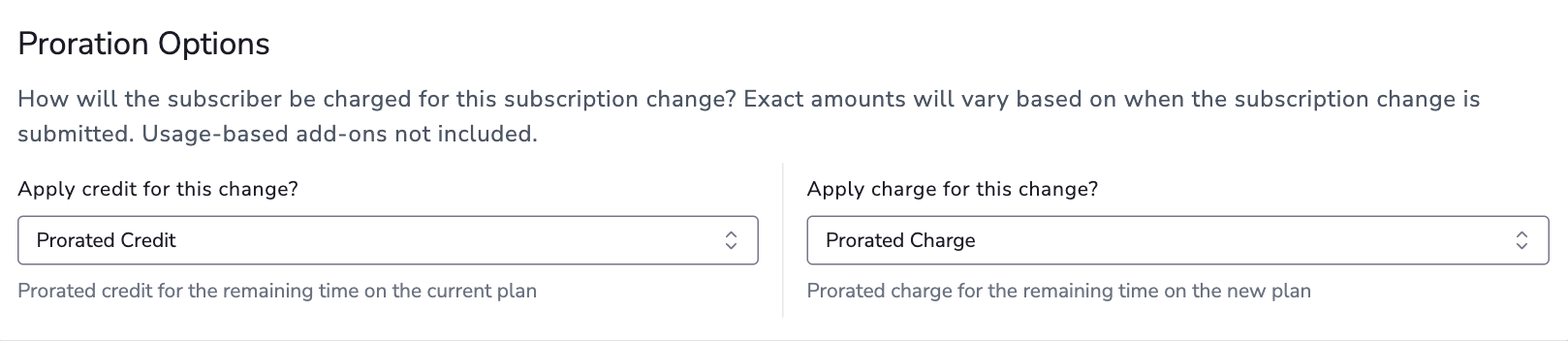
The second way is by setting your preferences during the immediate subscription change itself. You can set subscription-level overrides when making the change. If you do not override the charge and credit behaviour when making the change, the defaults from your business entity settings will be used.
Business entity-level setting#
Subscription-level overrides#
Rebills#
During an immediate subscription change, if the plan has been altered, credits will be generated for the old/current subscription version while charges will be generated for the new/updated subscription version. This process is referred to as rebilling the subscription. Rebills will also result if both the quantity and price of something on a subscription changes.
If the plan remains unchanged, each product in the change is evaluated individually — charges are created for new items or price increases, and credits are created for removed items or price decreases. This is known as only billing what changed (OBWC) in the subscription.
Subscription bill date proration#
"Rebilling" will also be triggered when a subscription's bill date is changed and is prorated. In this scenario, a credit will be generated for the remaining portion of the current billing period that has already been paid, and a charge will generated for the time between the current date and the newly selected bill date. Both of these events happen immediately, and the credit will be used on the immediate charge.
Example: If Sarah's subscription bills on the 5th of every month and she changes it to the 20th of every month, and today is the 2nd of the month then…
- Sarah will get a prorated credit for 3 days (the 2nd through the 4th)
- She will be charged for the current date through the 19th
- And finally, her new billing period will kick in on the 20th
Both a credit and a charge (a rebill) result when:
- The plan on the subscription changes (upgrade or downgrade)
- Both price and quantity change on a product at the same time
- The subscription's bill date changes and proration is applied
Only a charge results when (plan unchanged):
- Price of the plan or an add-on increases
- Quantity of the plan or an add-on increases
Only a credit results when (plan unchanged):
- Price of the plan or an add-on decreases
- Quantity of the plan or an add-on decreases
How proration is calculated#
As outlined above, you have three (3) options to choose from for handling both credits and charges that result from immediate subscription changes. Plans using ramp pricing will also follow these calculations and behaviours.
If you choose a prorated credit/charge#
Proration is a popular choice for handling credits and charges for immediate subscription changes amongst merchants who only wish to credit or charge a customer for how much value they were able to receive from the old/current state of their subscription before they made a change. Proration is calculated as follows:
- Determine the time remaining in the current billing period.
- Divide this time by the total duration of the subscription's plan billing period.
- Multiply the result by the per-unit price to calculate the prorated charge or credit. The formula is represented as:
It's important to remember that the "plan billing period" in this formula refers to the set duration of the subscription plan, not the adjusted subscription's billing period. This is relevant when the billing date is changed. For example, if a subscription on an annual plan has its billing cycle end date adjusted, the denominator in the formula will still represent a full year, while the numerator will reflect the adjusted end date.
If you choose a full credit/charge#
How the full amount is determined depends on whether a rebill occurs:
- Rebill scenario (plan change, or both price and quantity change) — The full credit is for the entire price of the old/current subscription, and the full charge is for the entire price of the new/updated subscription.
- No rebill (only a price or quantity change) — The full credit or charge is for the price difference of the change.
Credit: For example, if you upgraded a customer from a R30/month plan to a R100/month plan and chose "full credit," the customer would receive a credit for R30. If instead you decreased the price from R50/month to R30/month (no plan change) and chose "full credit," the customer would receive a R20 credit.
Charge: For example, if you upgraded a customer from a R30/month plan to a R100/month plan and chose "full charge," the customer would receive a charge for R100. If instead you increased the price from R30/month to R50/month (no plan change) and chose "full charge," the customer would receive a R20 charge.
If you choose no credit/charge#
Choosing no credit or charge for any scenario, rebill or otherwise, will result in no charge or credit being created as a result of an immediate subscription change.
One item to note is that when choosing to skip a "Credit," no invoice will be sent to the customer as no invoice will be created for a zero-amount credit.
However, if you choose to skip a "Charge," a zero-amount invoice will still be sent to the customer reflecting the change that was made.
If you have chosen to not credit an immediate subscription change in the past, and you decide at a later point in time to provide a refund for that charge, you may do so.
Types of Subscription Changes#
Plan Change#
When the subscription's plan changes, the entire subscription is rebilled. A charge is generated for the new version and a credit for the old version.
Example: You downgrade a customer's monthly subscription from a R100/month plan to a R60/month plan with 10 days left in the billing cycle:
- Prorated credit: R33.33 —
(10/30) × R100 - Full credit: R100
- No credit: R0
And for the charge on the new plan:
- Prorated charge: R20.00 —
(10/30) × R60 - Full charge: R60
- No charge: R0 (zero-amount invoice sent)
Quantity Change#
When only quantity changes, a charge or credit is generated for the quantity difference.
- For quantity increases, the charge invoice reflects the additional quantity added.
- For quantity decreases, the credit invoice has a quantity of 1 with the price reflecting the total value of the removed units.
Quantity increase example: You increase a customer's plan quantity (R30/month per unit) from 1 to 2 with 10 days remaining:
- Prorated charge: R10.00 —
(10/30) × R30 - Full charge: R30
- No charge: R0
Quantity decrease example: You decrease an add-on quantity (R15/unit per month) from 2 to 1 with 10 days remaining:
- Prorated credit: R5.00 —
(10/30) × R15 - Full credit: R15
- No credit: R0
Price Change#
When only the price changes on a plan or add-on, a charge or credit is generated for the price difference.
- For price increases, the charge quantity corresponds to the current product quantity, and the price is the difference between the old and new price, multiplied by the proration percentage.
- For price decreases, the credit quantity is always 1, and the price reflects the prorated price difference multiplied by the current quantity.
Price increase example: You increase a plan from R80/month to R100/month with 10 days remaining:
- Prorated charge: R6.67 —
(10/30) × R20 - Full charge: R20
- No charge: R0
Price decrease example: You decrease an add-on from R20/month to R10/month with 10 days remaining:
- Prorated credit: R3.33 —
(10/30) × R10 - Full credit: R10
- No credit: R0
Quantity and Price Change#
When both quantity and price change at the same time for a plan or add-on, the product is rebilled with both a credit and a charge.
Add or Remove Add-Ons#
Adding an add-on mid-cycle generates a charge for the new add-on. Removing an add-on generates a credit for the removed add-on. The charge/credit calculations follow the same proration rules as plan changes.
Change Plan Period#
Immediate subscription changes that keep the same billing period (e.g. monthly to monthly) maintain the current billing period and term, following usual proration rules. However, if the change alters the underlying billing period (e.g. monthly to yearly) and/or the term length, the subscription billing term restarts and new charges are not prorated.
Changes to Subscriptions with Discounts#
Discounts on immediate subscription change invoices adhere to two primary rules:
- Credits will reverse any discounts on the referenced charges.
- Charges will only be discounted by currently active coupon redemptions.
Credit Discounts#
When discounts are reversed on a credit, the discounts are smoothed in the proportion of the credit to the charge it is against.
Percentage example: Consider a subscription with quantity 10, priced at R1 per quantity and a 20% off forever coupon. The first invoice will be for R8 (R10 - R2 discount). A downgrade of quantity 3 will result in a credit for R3 and R0.60 discount, so (R2.40) after the discount reversal. The discount of R0.60 comes from R3/R10 x R2.
Fixed amount example: Consider a subscription with quantity 10, priced at R1 per quantity and a R2 off forever coupon. The first invoice will be for R8 (R10 - R2 discount). A downgrade of quantity 3 will result in a credit for R3 and R0.60 discount, so (R2.40). The discount of R0.60 comes from R3/R10 x R2.
Charge Discounts#
When active coupon redemptions are applied to new charges, any fixed-amount discounts are prorated following the same proration rate of the charge. Fixed-amount discounts are prorated in an immediate subscription change because the discount represents the time of the cycle. If the customer is 50% through their cycle and only going to be charged 50% of the plan price, they should only get 50% of the discount amount. Percentage discounts automatically represent a prorated portion because they are a percentage of an already prorated amount.
Changes During a Free Trial#
No Change Invoices#
While an invoice is created when a subscription starts its free trial, no invoice is generated for an immediate change during a trial period. The customer is essentially trialling whatever you allow them to have. Proration settings are automatically set to "no charge" and "no credit" for changes during a trial.
Trials and Plan Changes#
If a subscription change alters the plan and the new plan has different trial rules, the original plan's trial rules are maintained:
- 7-day trial → no trial: The subscription stays in the current 7-day trial with access to the new plan.
- No trial → 7-day trial: The subscription does not receive a trial and is charged for the new plan.
- 7-day trial → 14-day trial: The subscription stays in the current 7-day trial with access to the new plan. The remaining trial days are not extended.
Preview Changes#
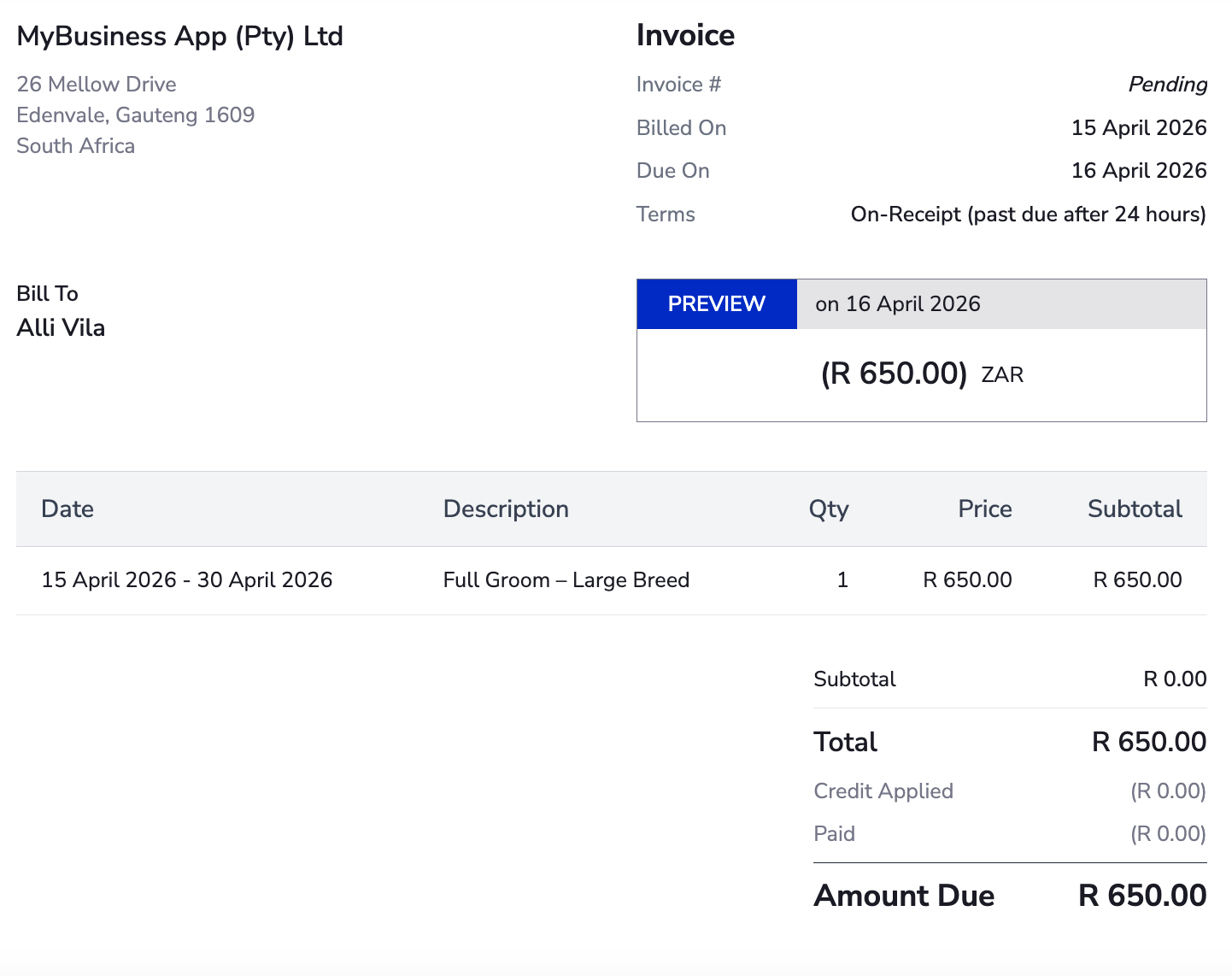
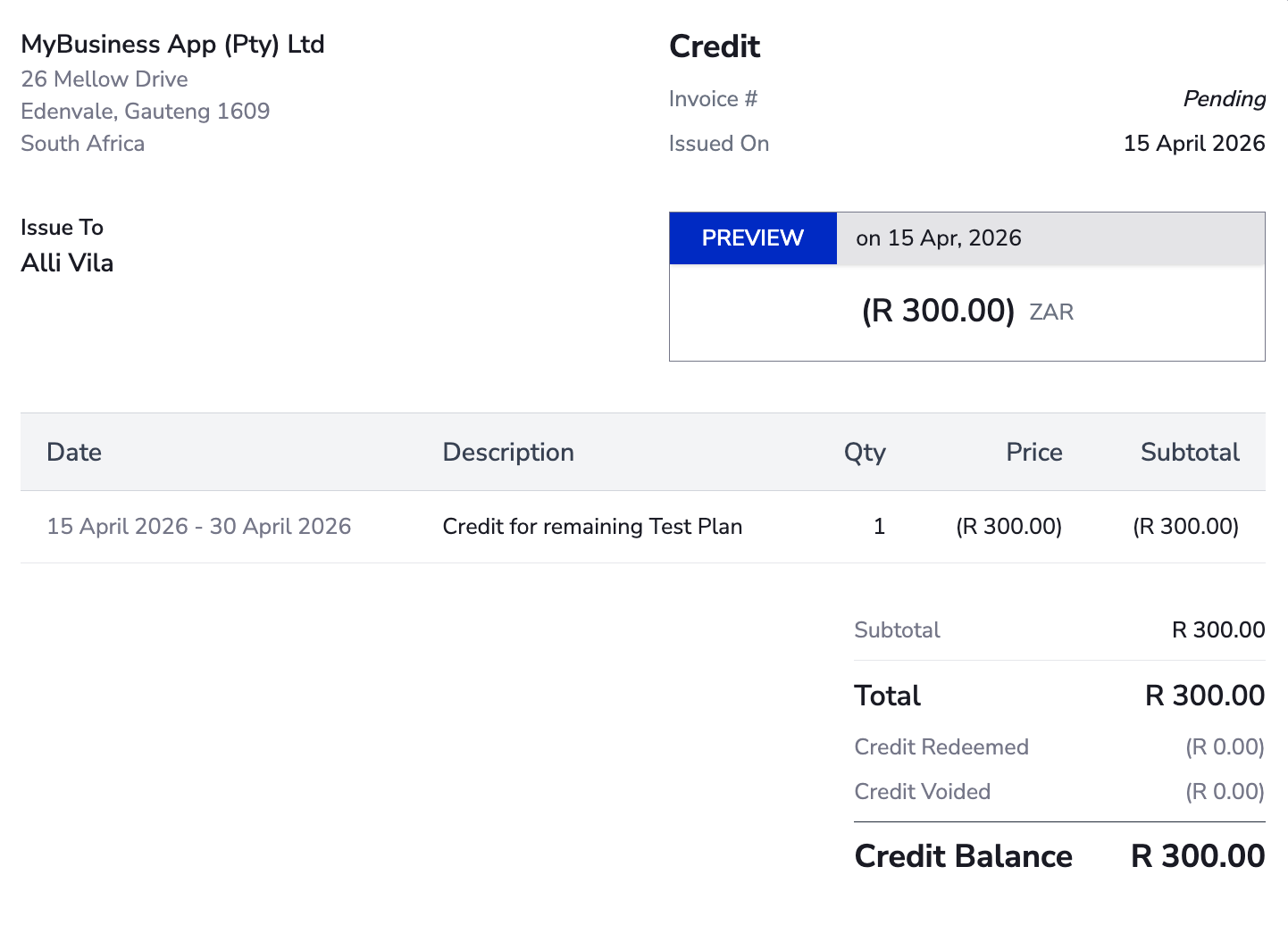
Before committing billing changes, click Preview to see exactly what invoices will be generated. The preview shows:
- The charge invoice amount (if upgrading, adding add-ons, or increasing quantity/price).
- The credit invoice(s) amount (if downgrading, removing add-ons, or decreasing quantity/price).
Once you review the preview, click Create to apply the changes, or Back to return to the edit form. You can also Refresh Preview to recalculate with up-to-the-second proration.
The final amount may differ slightly from the preview, because the exact proration calculation is performed down to the second at the moment the change is applied.
Pending Changes#
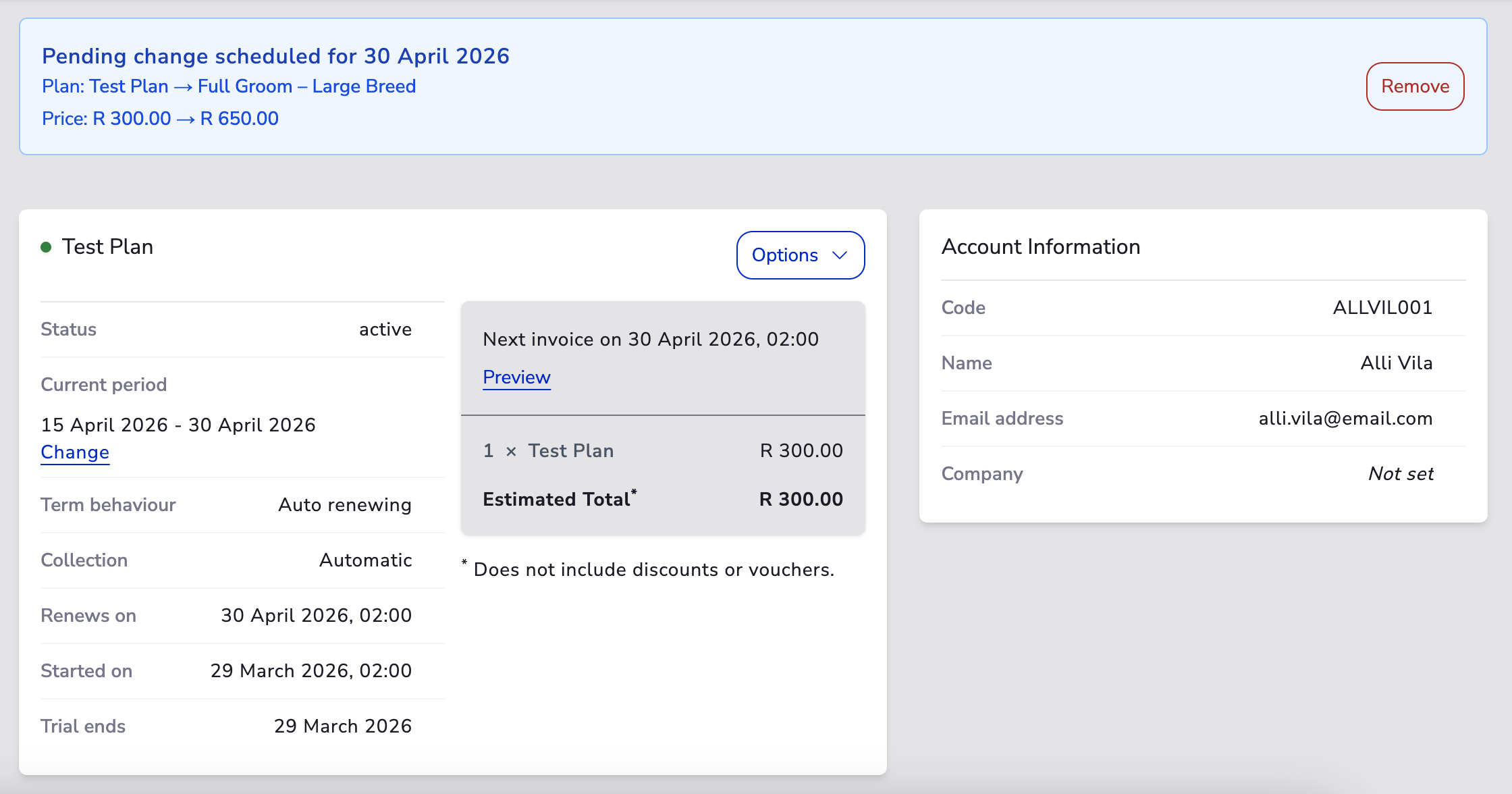
Only one pending change can exist on a subscription at a time. Key behaviours:
- If a change is scheduled for bill date or renewal, it appears as a pending change banner on the subscription detail page.
- Submitting a new scheduled change replaces any existing pending change. The previous request is cancelled and the new request is applied at the timeframe indicated.
- You can remove a pending change without affecting the current subscription by clicking the remove button on the pending change banner.
- Making an immediate change with the "Any change immediately" option discards any existing pending change.
- If you want to update a pending change, submit the original change along with the updated information.
- Pending changes can also be cleared by updating the subscription immediately with no other changes.
Email Communications#
Both automatic and manual collection subscriptions issue a Subscription Change email to the customer at the time of the change:
- Immediate changes send the email right away.
- Scheduled changes send the email when the change is applied (at the next bill date or term renewal).
- Automatically collected subscriptions additionally send either a Payment Confirmation or Payment Declined email, depending on whether the transaction succeeds. If the immediate change was a downgrade (credit only), no payment email is sent.
- Manually collected subscriptions additionally send a New Invoice email.
If credit invoices are enabled, the Subscription Change email is sent immediately regardless of the selected timeframe.
Modification Enforcement#
Some merchants may prefer customers to be up-to-date on all payments before allowing subscription changes. Two enforcement options are available through your business entity settings:
Require Paid Invoices for Upgrades#
When upgrading a subscription immediately, require that the account has no past-due invoices and that the payment method on file processes successfully. If the payment is declined, the subscription stays on the original plan.
Require Paid Invoices for Downgrades#
When downgrading a subscription immediately, require that all invoices have been paid. If any invoice is past due, the subscription stays on the original plan and the customer is notified.