

Pause a Subscription
Temporarily halt billing without cancelling — the client keeps access until the period ends, then no invoices are generated until the subscription resumes.
The Pause Subscription feature lets you temporarily stop billing a client's subscription without cancelling it entirely. The client keeps access to their plan until the end of the current billing period, after which no invoices are generated until the subscription resumes. It's a great retention tool — pet owners who might otherwise cancel can take a break and come back when they're ready.
Key Benefits#
- Keep more clients — Offering a pause option prevents outright cancellations. A client who pauses is far more likely to return than one who cancels.
- Protect your revenue — The subscription stays active until the end of the current billing cycle, so there's no immediate revenue loss or need for prorated refunds.
- Accommodate your clients' lives — Whether a pet owner is travelling, managing a tight budget, or their pet's grooming needs are seasonal, pausing gives them the flexibility they need.
- Simple to manage — Pausing and resuming is handled directly from the subscription detail page — no extra steps.
- Build trust — Giving clients control over their subscription shows you value the relationship, not just the transaction.
Why Pause Instead of Cancel?#
When a client pauses rather than cancels, they're telling you they plan to come back. That saves you the time and cost of trying to win them over again.
Common reasons a pet owner may want to pause:
- Tight budget for the month.
- Their pet doesn't need grooming as often during certain seasons.
- They're away on holiday or travelling.
- A temporary change in routine (e.g. pet staying with family).
Prerequisites#
To pause a subscription, the following conditions must be met:
- The subscription must be in an Active state.
- The subscription cannot be future-dated, in a trial period, or already cancelled.
- There must be no overdue invoices on the client's account.
- The pause is always tied to the subscription's next billing date.
How to Pause a Subscription#
- Navigate to the subscription detail page.
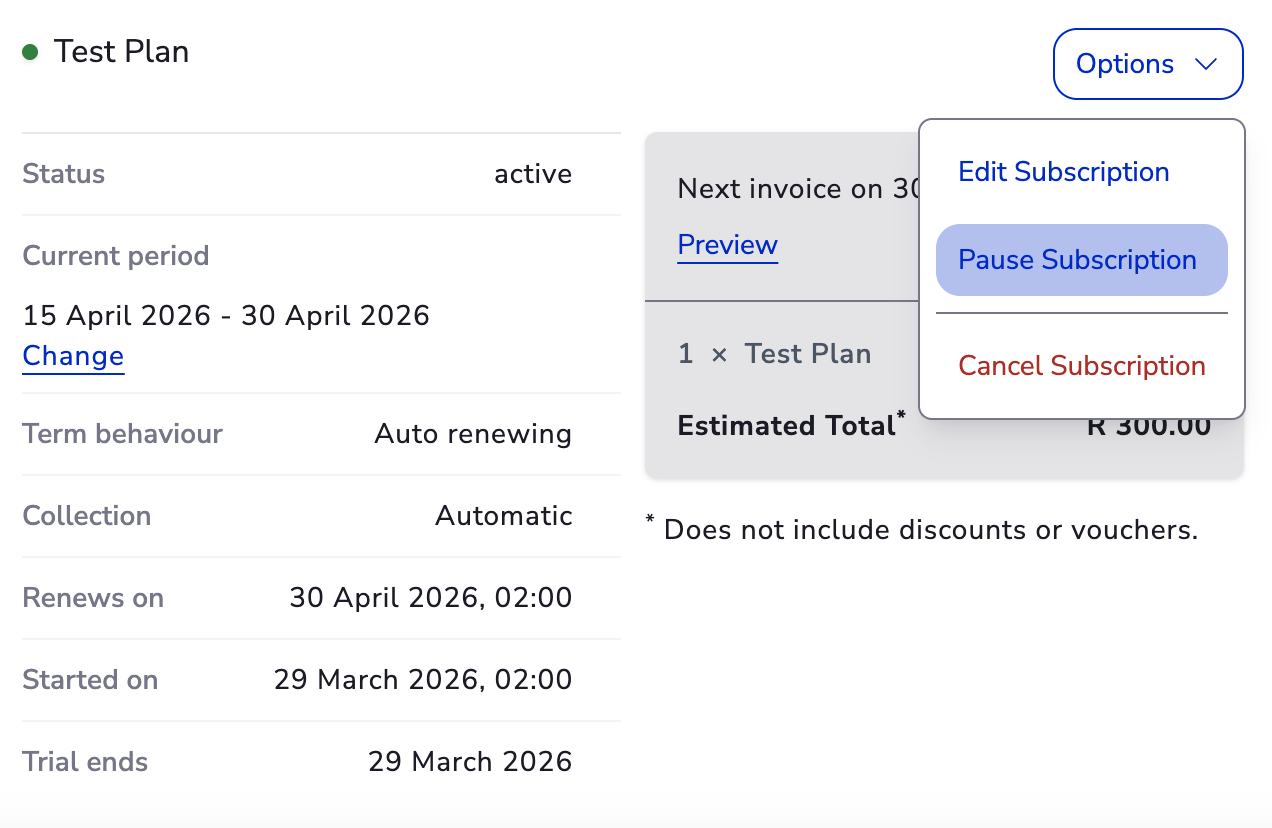
- Click Options → Pause Subscription.
- In the Configure Pause Duration dialog, enter the number of billing cycles to skip (e.g. 1, 2, 3). The subscription will automatically resume after skipping that many billing cycles.
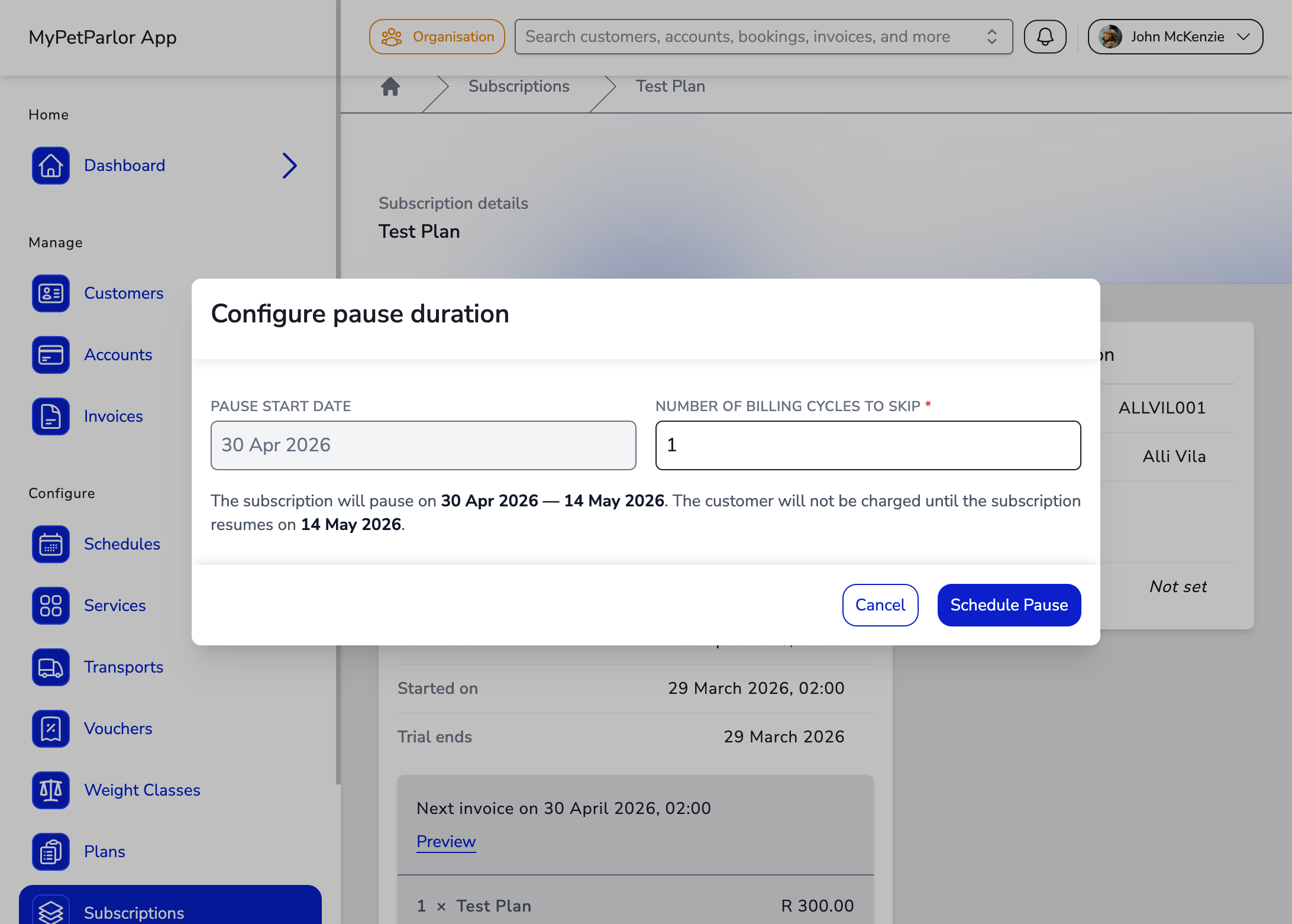
- The dialog calculates and displays the projected resume date based on the billing interval and number of cycles to skip.
- Click Schedule Pause.
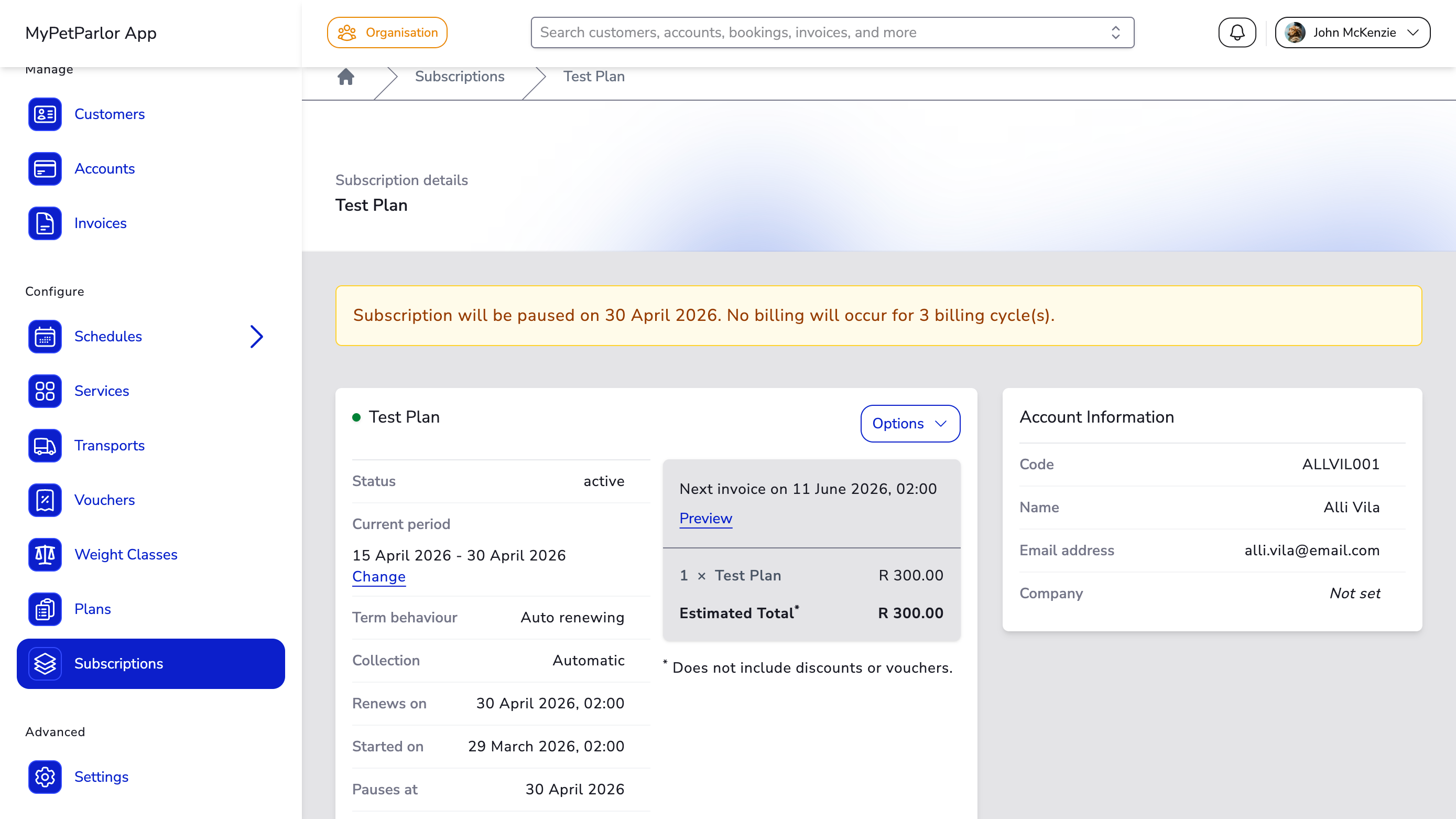
A confirmation banner appears on the subscription detail page showing when the pause will take effect and how many billing cycles will be skipped.
What Happens During a Pause#
- No invoices are generated for the skipped billing cycles.
- The subscription's status changes to Paused on the pause start date.
- The client is not charged during the pause.
- The subscription automatically resumes after the specified number of billing cycles.
Editing a Scheduled Pause#
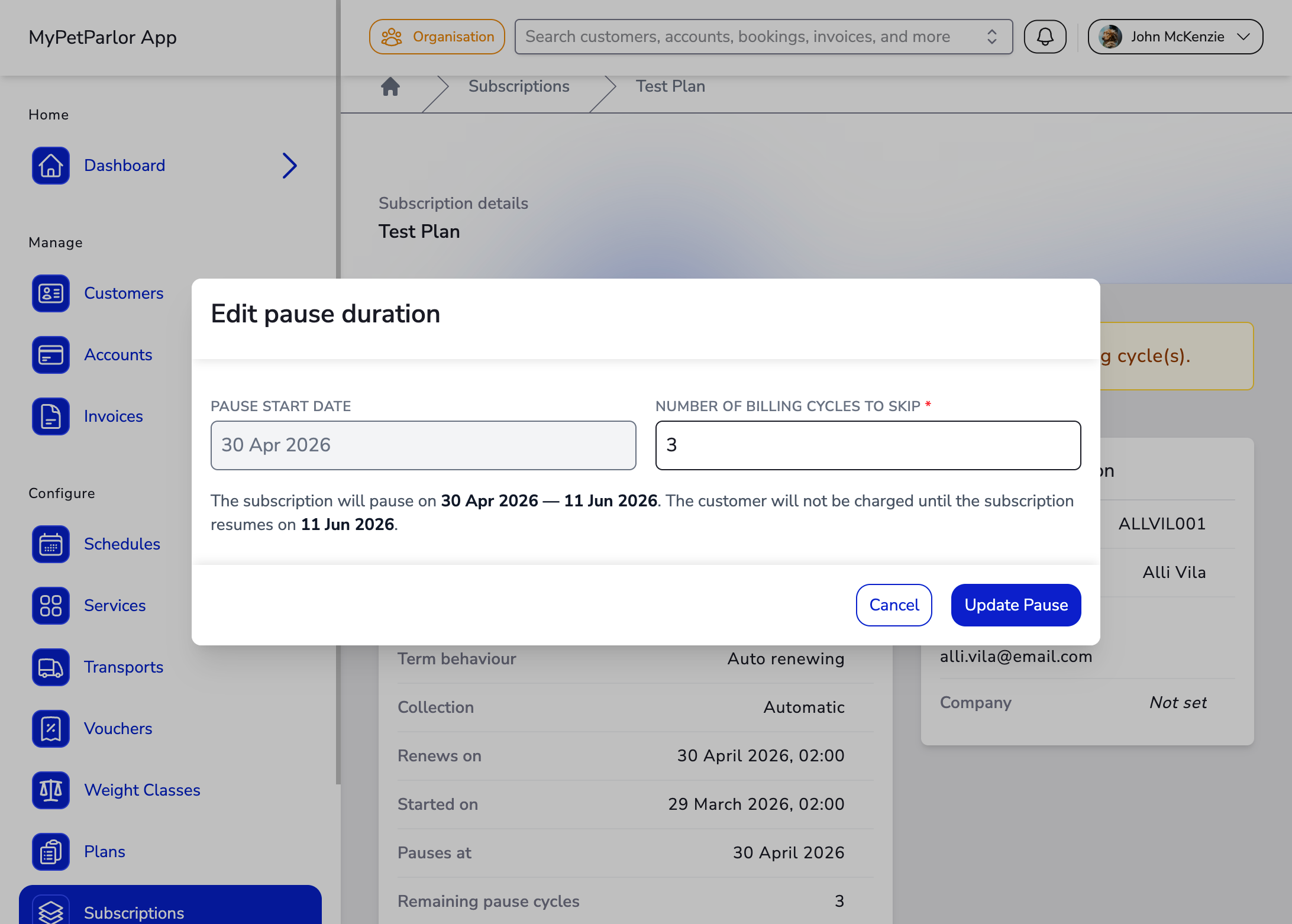
If you need to change the number of billing cycles to skip before the pause takes effect:
- Navigate to the subscription detail page.
- Click Options → Edit Pause.
- Adjust the number of billing cycles in the dialog.
- Click Update Pause.
Cancelling a Scheduled Pause#
To cancel a pause before it takes effect:
- Navigate to the subscription detail page.
- Click Options → Cancel Pause.
- Confirm the cancellation in the dialog.
The subscription will continue billing normally on the next billing date.
Resuming a Paused Subscription#
To resume a subscription that is currently paused:
- Navigate to the subscription detail page.
- Click Options → Resume Subscription.
- Confirm the resumption in the dialog.
When resumed:
- The subscription immediately returns to the Active state.
- A new billing cycle begins and an invoice is generated.
- If the collection method is automatic, the client's payment method on file is charged straight away.
Billing and Invoicing#
- During the pause — No invoices are generated and the client is not charged.
- After resumption — Invoicing picks up based on the subscription's billing interval. The billing date may shift depending on when the subscription resumes. Any plan or add-on changes made during the pause will be reflected in the next invoice.
- No impact on recurring revenue — While paused, the subscription doesn't contribute to your Monthly Recurring Revenue since no invoices are issued.
Making an immediate subscription change (such as changing the plan or price) while a pause is scheduled will cancel the scheduled pause. The subscription will continue billing normally.
If you only need to shift the billing date without skipping entire billing cycles, use Postpone instead.