

Expire/Cancel a Subscription
Manage the termination or conclusion of a customer subscription through cancellation, termination, or natural expiration
Overview#
The expire/cancel subscription feature in MyPetParlor App gives you the ability to manage the termination or conclusion of your customer's subscriptions. Whether it's an immediate termination, end-of-term expiration, or a customer-initiated change, the system provides flexibility without complexity.
Definition#
When a customer elects to end their subscription at the next bill date or term end, this is called cancelling the subscription. If you decide to end the subscription early, mid-cycle, this is called terminating the subscription. Both result in the subscription expiring. Once a subscription is expired, it cannot be reactivated. Only a cancelled subscription can be reactivated — meaning the customer changed their mind and decided to continue the subscription before the date it was set to expire. Subscriptions configured to expire at the end of their term will naturally expire at the end of their last billing period.
| Term | Meaning |
|---|---|
| Cancel | Schedule the subscription to expire at a future date (immediately, next bill date, or term end). The subscription enters a pre-expiry state where the customer retains access and can reactivate before it expires. |
| Terminate | Immediately end the subscription mid-cycle. The subscription moves straight to the Expired state. Supports refund options. |
| Expire | The final state of a subscription. Once expired, it cannot be reactivated — a new subscription must be created. |
Key Benefits#
- Empowered customer experience — Offer cancellation choice, fostering trust and a positive brand interaction.
- Customisable subscription expiry — Flexibility in setting subscription end dates — immediately, next bill date, or term end.
- Automated revenue recovery — Streamline expiration actions based on payment outcomes for efficient dunning management.
Cancel a Subscription#
Cancelling schedules the subscription to expire at a future date while the customer continues to have access. The subscription remains active in a pre-expiry state until the scheduled expiration date.
-
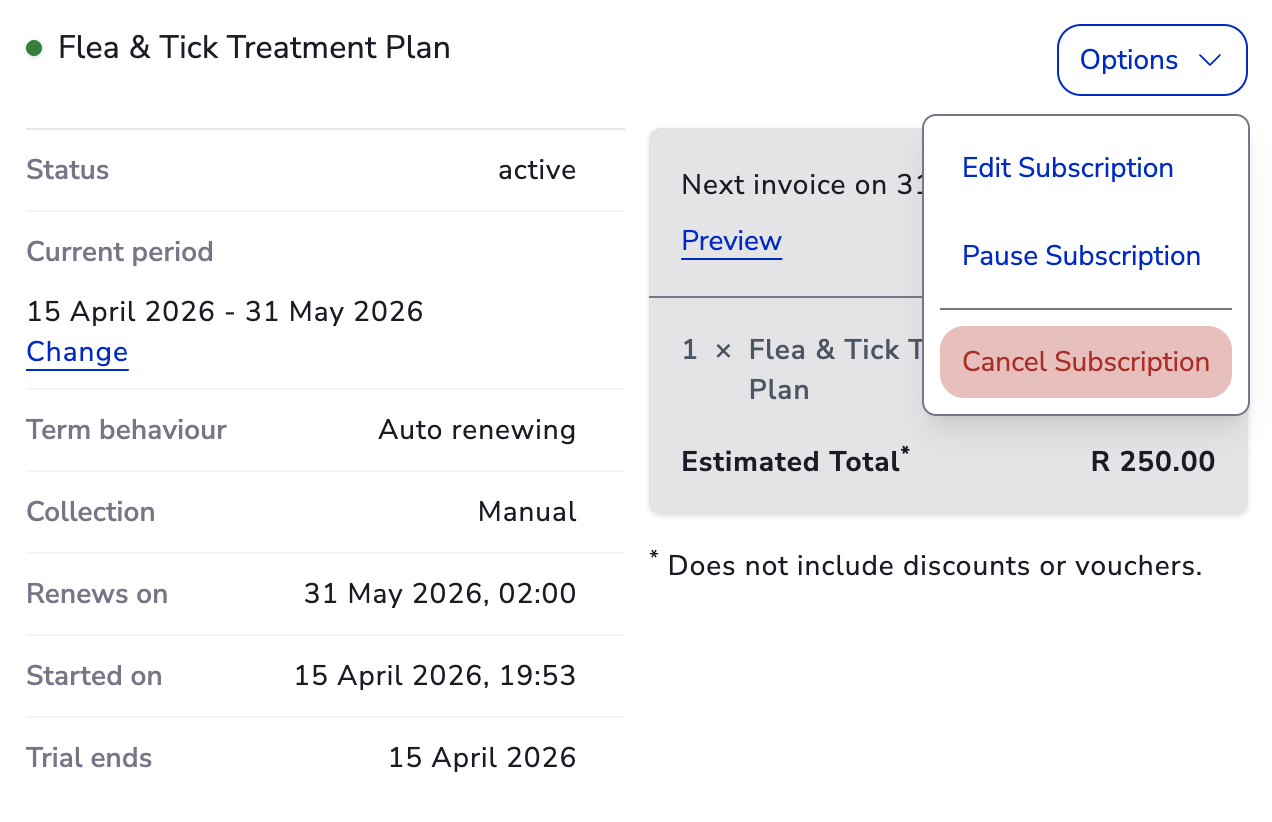
Navigate to the subscription detail page.
-
Click Options → Cancel Subscription.
-
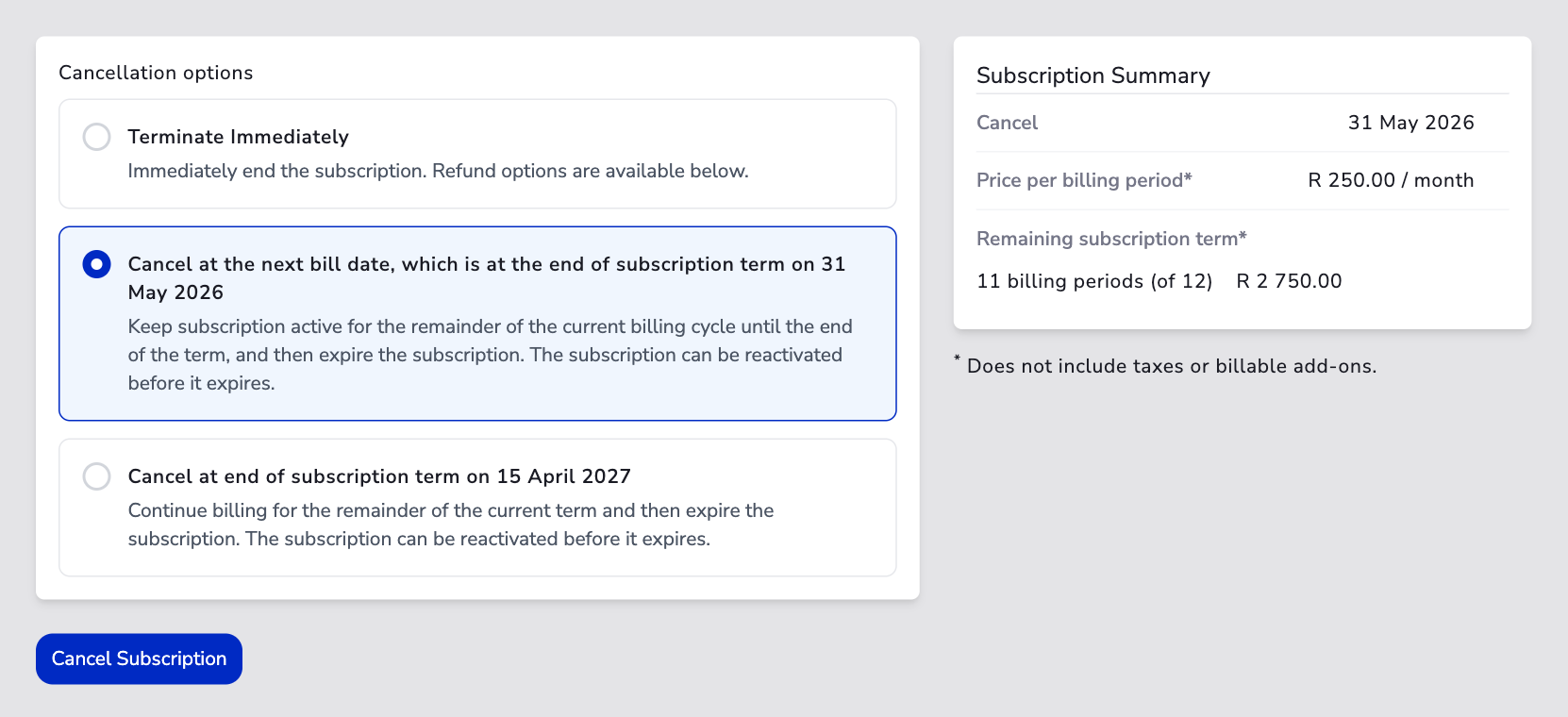
Select a cancellation timeframe:
-
Confirm the cancellation.
The subscription moves to the Canceled state and displays on the dashboard with a red status indicator. The customer can continue using the service until the scheduled expiration date.
Auto Cancellation#
In certain cases, MyPetParlor App can receive an indicator from a payment gateway that a payment method or mandate is no longer valid. When this occurs, the related subscription where the payment method is in use will be automatically cancelled.
Auto cancellation is gateway-dependent. Check your payment gateway documentation to confirm whether this behaviour is supported.
Reactivate a Subscription#
If a customer changes their mind before their cancelled subscription expires, you can reactivate it. Reactivation is only available while the subscription is in the Canceled (pre-expiry) state.
- Navigate to the subscription detail page (subscription must be in Canceled state).
- Click Options → Reactivate Subscription.
- Confirm the reactivation in the dialog.
The subscription returns to the Active state and continues billing normally.
Reactivation is only available for cancelled subscriptions that have not yet expired. Once a subscription has reached the Expired state, it cannot be reactivated — you must create a new subscription instead.
Terminate a Subscription#
Terminating immediately ends the subscription mid-cycle, bypassing any remaining billing period. The subscription moves straight to the Expired state. This is an irreversible action.
- Navigate to the subscription detail page.
- Click Options → Cancel Subscription, then select Terminate Subscription.
- Choose a refund option:
| Refund Option | Behaviour |
|---|---|
| Full | Refund the remaining prorated amount for the current billing period. |
| Partial | Apply a service credit to the account for the remaining value. |
| None | No refund or credit is issued. |
- Confirm the termination.
The subscription immediately moves to the Expired state and cannot be reactivated.
Convert a Trial#
If a subscription is currently in a trial period, you can convert it to a paid subscription immediately:
- Navigate to the subscription detail page (the subscription must be active with a trial end date in the future).
- Click Options → Convert Trial.
- Confirm the conversion in the dialog.
This ends the trial period and begins the first paid billing cycle. An invoice is generated immediately.
Dunning#
Within Dunning Management you can choose to automatically expire a subscription when an invoice for the subscription reaches the end of the dunning cycle without successful payment.
It is important to note that if a subscription expires outside of dunning — via cancelling, terminating, or naturally expiring — any past-due invoices on the account currently in dunning will not automatically be failed. Those past-due invoices will stay open and in dunning until they are either paid or reach the end of their own dunning cycle. If you would like to stop collection on past-due invoices, you will need to manually mark them as failed.