
Manual invoicing
Create and send invoices manually in MyPetParlor for one-off charges, corrections, and ad-hoc billing scenarios.
Take control of your billing with MyPetParlor's manual invoicing — giving your team flexibility and precision over how individual customers are billed, outside the automatic subscription renewal flow.
Overview#
Manual invoicing in MyPetParlor lets your team create and manage invoices on their own terms. It gives you the flexibility to set specific payment terms, apply your own identifiers like PO numbers, and collect payments according to the processes your business already runs on. It is the right tool for one-off charges, account-specific adjustments, and any billing event that should not wait for the next automated renewal.
Key Benefits#
- Enhanced flexibility. Customise payment terms, collection methods, and billing details so each invoice fits the customer agreement and the way your team works.
- Professional and compliant. Generate clean, professional invoices that align with your tax setup, keeping every record audit-ready and reinforcing customer trust.
- Streamlined payment management. Record, track, and reconcile payments easily — with options to reopen invoices and capture partial payments as they happen.
Key Details#
Email Templates#
Personalise the default copy for your New Invoice, New Subscription, and Invoice Past Due emails so they sound like your business. Pull in extra fields such as po_number, net_terms, and (where enabled) net_terms_type to make every notification feel deliberate and on-brand.
Payment Confirmation Options#
Choose whether MyPetParlor sends a payment confirmation every time a payment is recorded, or only when an invoice is fully paid. This lets you keep customer communication focused and avoid over-notifying accounts that pay in instalments.
List Views#
Keep your invoice list manageable by using filters in the Invoices dashboard. Filter by Manual or Automatic to quickly separate ad-hoc invoices from those generated by subscription renewals, so your team can act on outstanding balances without sifting through everything at once.
Exports#
Boost your reporting and reconciliation work by including extra fields in your invoice, subscription, and transaction exports. Fields such as po_number, collection_method, net_terms, and (where enabled) net_terms_type give your finance team the structure they need for accounting, auditing, and analysis.
VAT and Sales Tax#
For manual invoices, VAT and sales tax are calculated from the account-level address. This keeps you compliant and ensures totals are accurate. If a VAT number is set on the account, it is factored into the calculation alongside the address, so cross-border and exempt scenarios are handled correctly.
Billing Information#
With manual invoices, the account address is used as the billing address. It appears on the invoice itself and drives tax calculation.
Address Requirements#
If an account has a billing address recorded but the account address is empty, you will need to capture the account address before issuing a manual invoice. Without it, tax cannot be calculated correctly.
Integration Methods#
Create subscriptions and one-off invoices directly through the MyPetParlor API, specifying the collection method, net terms, and PO number on the request. This is the right path for teams running automations, accounting integrations, or internal tools that need to issue invoices without staff opening the admin.
Dunning Management#
Manual invoicing comes with a dedicated set of dunning rules for manually invoiced customers. Configure these in your dunning settings to match the credit control process your business already follows.
Dunning for Manual Payments#
The dunning period for manual payments starts after the invoice has exceeded its net terms plus one day. MyPetParlor does not automatically retry EFT payments — those retries are triggered manually by attempting to collect the invoice from the dashboard or via the API.
Additional Notes#
- Reopening a manual invoice is not recorded in the account's Activity Log, and the reopened status does not appear in exports or API responses.
- When a manual invoice with a partial payment recorded fails dunning, MyPetParlor creates a write-off invoice for the full invoice amount. A partial credit from the write-off is then applied to the remaining open balance on the original invoice, and the balance of the write-off credit is voided.
Write-offs change receivables and customer balances. Confirm with finance before voiding or writing off historical manual invoices.
Integration Notes#
API Integration for Manual Invoicing#
The MyPetParlor API lets you create subscriptions and one-off invoices directly, passing the collection method, net terms, and PO number with each request. This is the recommended path for syncing invoices from another system, or for issuing invoices from your own internal tools.
Webhooks for Real-Time Updates#
Configure webhooks to receive real-time notifications when manual invoice events occur — for example, when a new manual invoice is generated, paid, or marked past due. This keeps connected systems (accounting integrations, dashboards, internal tooling) in sync with MyPetParlor without polling.
Error Handling in Integration#
Build your integration to handle errors gracefully. If an API call to create a manual invoice fails, your system should retry the request where appropriate or log the failure for manual review, so no invoice is lost in transit.
Security Considerations#
Follow standard integration security practice when connecting to the MyPetParlor API. Use HTTPS for every request and protect API keys and credentials carefully — never expose them in client-side code or shared repositories.
Compliance and Tax Considerations#
MyPetParlor's manual invoicing is designed to support common tax regimes, including VAT and sales tax. Tax rules vary significantly between regions, so consult a qualified tax advisor to confirm that your invoicing practices are compliant with the regulations that apply to your business.
Testing in a Sandbox Environment#
Test your integration in a sandbox or staging environment before going live. This lets you confirm the end-to-end flow — issuing invoices, recording payments, triggering webhooks — without touching production customer data.
By paying attention to these integration notes, you can ensure a smooth and effective implementation of MyPetParlor's Manual Invoicing feature within your existing infrastructure and workflows.
Collection Terms#
1. Automatic#
This method will directly bill a credit card that the customer has on file.
2. Manual#
This method allows you to create and send an invoice to the customer, who can then pay it through the mobile app, emailed payment links (when a payment gateway is configured and enabled), or by contacting your team directly.
3. Terms Options for Invoices#
All invoices default to On-Receipt. When you issue a manual invoice, the Terms dropdown gives you the full set of options:
| Term | When Payment Is Due |
|---|---|
| On-Receipt | Immediately when the invoice is issued |
| Net-10 | 10 days after the issue date |
| Net-30 | 30 days after the issue date |
| Net-60 | 60 days after the issue date |
| Custom | A specific number of days you set on the invoice |
4. End-of-Month (EOM) Terms#
End-of-month terms are useful when you bill business customers who settle invoices weeks or months after issue.
The due date on an invoice marks when it becomes past due. An additional 24-hour grace window is added beyond the deadline. With an EOM term, the due date is calculated from the last day of the month in which the invoice was issued, plus the selected EOM duration, plus the 24-hour window.
Examples:
| Invoice Issue Date | EOM Term | Due Date |
|---|---|---|
| 6 June | EOM +0 | 1 July |
| 18 February | EOM +15 | 16 March |
| 27 September | EOM +60 | 30 November |
Supported EOM terms: EOM +0, EOM +15, EOM +30, EOM +45, EOM +60, EOM +90.
Custom EOM terms are not supported. Once an EOM term is set on an invoice, the due date cannot be edited. To change it, refund the current invoice and issue a new one. EOM terms are available both through the dashboard and the MyPetParlor API.
5. Understanding Past-Due Invoices#
An invoice becomes past due the day after its official due date. A Net-30 invoice, for example, is past due on the 31st day after issue.
6. Modifying a Subscription Collection Method#
To change how a subscription collects payment:
- Open the customer's billing account
- In the subscriptions' list, click the subscription you want to change
- In the subscription details, click Edit again
- Toggle collection method between Automatic and Manual
Switching to Automatic requires a valid card on file. Changes to price, quantity, or plan generate credits or invoices on the account, but changes to manual invoice terms alone do not generate a new invoice.
Generating a Manual Invoice for a Subscription#
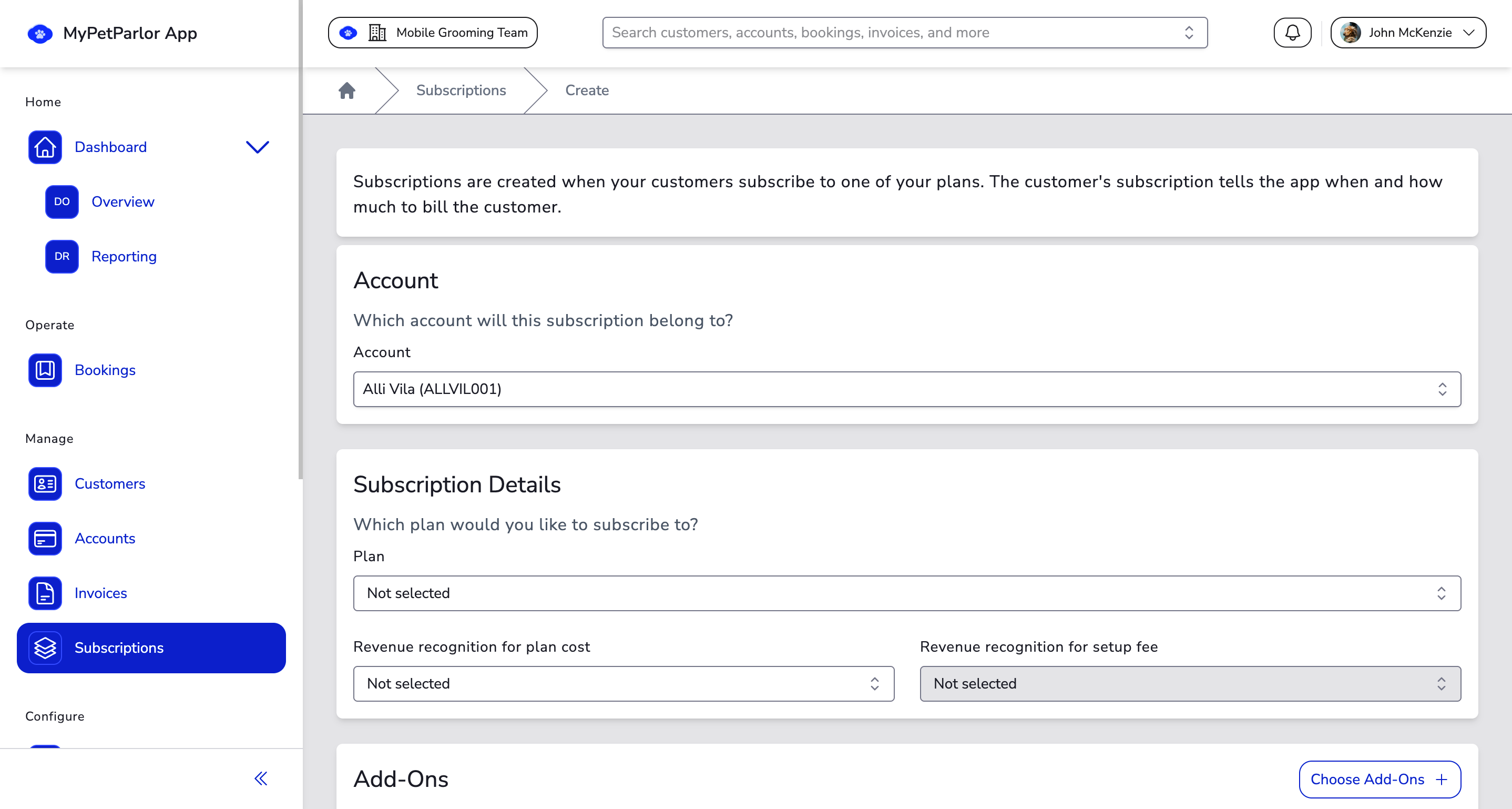
- Create a customer billing account (if needed). Open the customer record, or create a new account if one does not yet exist.
- Add account-level address information. This address carries over to every invoice on the account and is used for tax calculation.
- Add a subscription. From the customer's billing account, click Add subscription and configure the plan to match the customer's needs.
- Edit invoice options. Under Invoice Options, click Collection method dropdown and select the Manual collection method (see options above).
- Customer communication. Based on the collection terms selected, the customer receives the matching notifications — including a new subscription email and a new invoice email when the invoice is generated.
Generating One-Off Invoices#
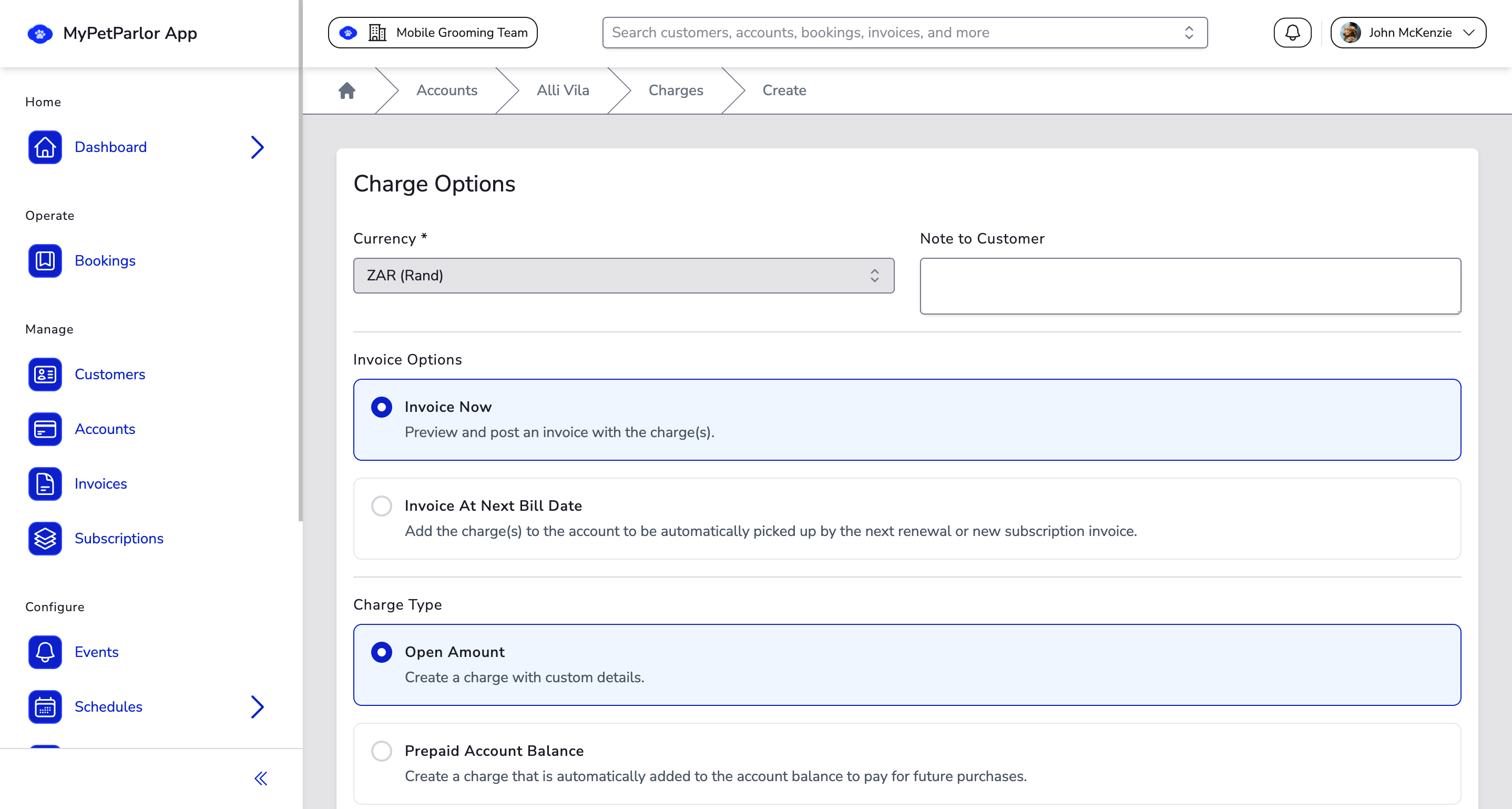
- Add charges to an existing account. On the customer's billing account, use Add charge to record any items you want to bill.
- Generate the invoice. Once the charges are in place, click Post invoice to immediately generate the invoice (defaults to auto-collection) or Preview to review it before posting.
- During preview, you can change collection method. In the collection method dropdown, choose Manual.
- Enter additional details. Capture a PO number if the customer has requested one, select the net terms, then click Post invoice.
Recording Payments on Manual Invoices#
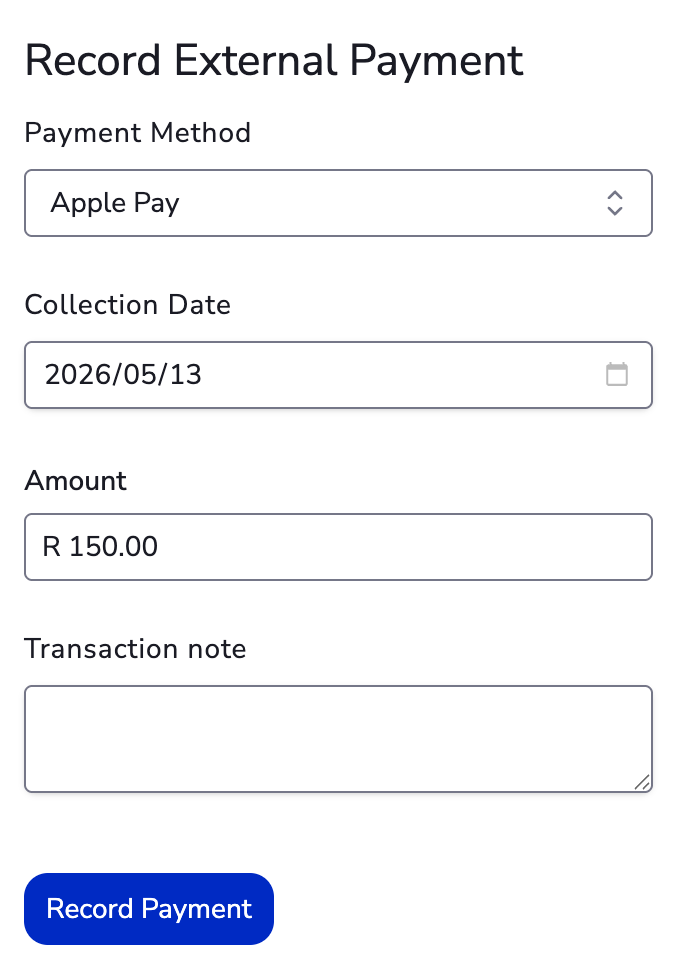
- Open the customer's billing account in MyPetParlor.
- Open the invoice you want to record a payment against.
- Record the payment. Choose Payment method, enter the rest of the payment details, such as the amount received and the payment receipt date, then click Save.
- Handle partial payments. If only part of the balance is recorded, the invoice can still enter a past-due state and the customer may receive past-due notifications.
For EFT customers, define a standard proof-of-payment check before recording the payment so your team only marks invoices paid once funds have cleared.
Reopening Manual Invoices#
- Open the invoice. Navigate to the paid or failed manual invoice you want to reopen.
- Reopen the invoice. Click Reopen from the top-right corner of the invoice page.
- Record new payments. Once reopened, you can record new payments and move the invoice back to Paid.
Reopening a manual invoice is not captured in the account's Activity Log, and the reopened status does not appear in exports or API responses. Keep an internal note when reopening invoices that finance will need to reconcile.