

Create a Message Template
Write a WhatsApp message template, add variables and buttons, submit it to WhatsApp for approval, and keep your template list in sync with Meta.
This guide walks you through creating a WhatsApp Message Template and getting it approved. Templates are the only messages you can send to start a conversation or outside the 24-hour service window, so most workspaces build a small library of them early.
Find your templates under WhatsApp → Templates, then select New template.
Name, Category, and Language#
- Name — lowercase with underscores, like
your_template_name. The name is how workflows and broadcasts refer to the template, and it can't be changed after approval. - Category — what kind of message this is. WhatsApp reviews and prices each differently:
| Category | Use for |
|---|---|
| Utility (transactional notifications) | Order and booking confirmations, reminders, status updates. |
| Marketing (promotional) | Offers, announcements, re-engagement. |
| Authentication (one-time passwords) | OTP codes for identity verification. |
- Language — pick from the searchable language list. A template is approved per language.
Choose the category honestly. WhatsApp rejects marketing content submitted as Utility, and repeated miscategorisation harms your number's standing.
Write the Message#
A template has up to four parts:
- Header (optional) — a short title, image, or document on top.
- Body — the message itself.
- Footer (optional) — a short line of muted text at the bottom.
- Buttons (optional) — quick replies or a website link the customer can tap.
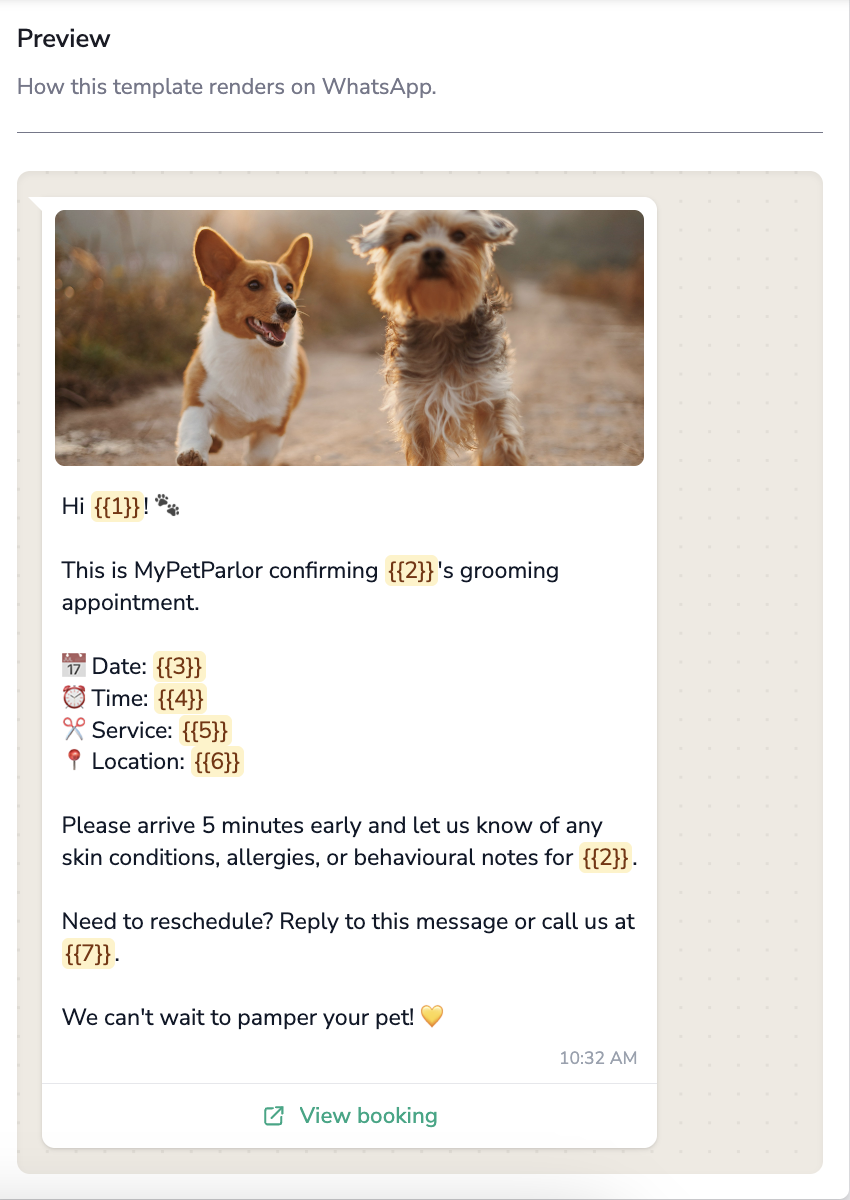
Personalise the body with variables:
- Numbered —
{{1}},{{2}}— filled in order when the message is sent. - Named —
{{first_name}},{{booking_date}}— filled by name.
As you type, the live preview shows the message exactly as the customer will see it in WhatsApp.
Authentication Templates#
Pick the Authentication category and the form changes — WhatsApp owns the wording of OTP messages, so instead of writing a body you configure:
- Delivery — One-tap autofill (the code sends straight into your app when the customer taps the button, with a copy-code fallback) or Copy code (the customer taps to copy the code).
- Add security recommendation — appends WhatsApp's standard "don't share this code" line.
- Code expiry — optionally state how long the code is valid (1–90 minutes).
- Validity period — optionally cap how long the message itself may take to deliver; late OTPs are useless.
One-tap autofill also asks for your Android app's package name and app signature hash so the code lands in the right app.
Submit and Track Approval#
Save the template and it's submitted to WhatsApp for review. Watch its status in the templates list:
| Status | Meaning |
|---|---|
| Pending | Under review by WhatsApp. |
| Approved | Ready to use in workflows and broadcasts. |
| Rejected | Declined — adjust the content or category and submit again. |
Approval is decided by WhatsApp, not MyBillingHub App — most reviews complete quickly, but allow time before you need the template live.
Keep the List in Sync#
The templates list manages the same library your WhatsApp Business Account holds at Meta:
- Sync from Meta pulls the full current list and statuses — use it if templates were created or reviewed elsewhere (for example in Meta Business Manager).
- Refresh updates a single template's status.
- Delete removes a template — from Meta as well, after a confirmation. It disappears for every product using that number.
Build templates for the messages you send daily — invoice notifications, payment reminders, renewal notices. Each takes minutes to create and saves your team hours every week.