
Create an Account
Learn how to create and set up your MyPetParlorApp account with our self-service sign-up process.
MyPetParlorApp offers the convenience of an online booking system along with a customised booking app for your clients. Getting started is quick and easy with our self-service sign-up process – you can create your account and access your business portal in just minutes.
Getting Started#
Visit our sign-up page to begin your 14-day free trial. No credit card is required, and you can cancel anytime.
What You'll Get#
When you sign up, you'll have immediate access to:
- ✅ Complete booking management
- ✅ Client communication tools
- ✅ Operations streamlining features
- ✅ Business analytics and reporting
- ✅ Comprehensive customer support
Sign-Up Process#
Our streamlined sign-up wizard guides you through four simple steps:
Step 1: Tell Us About Yourself#
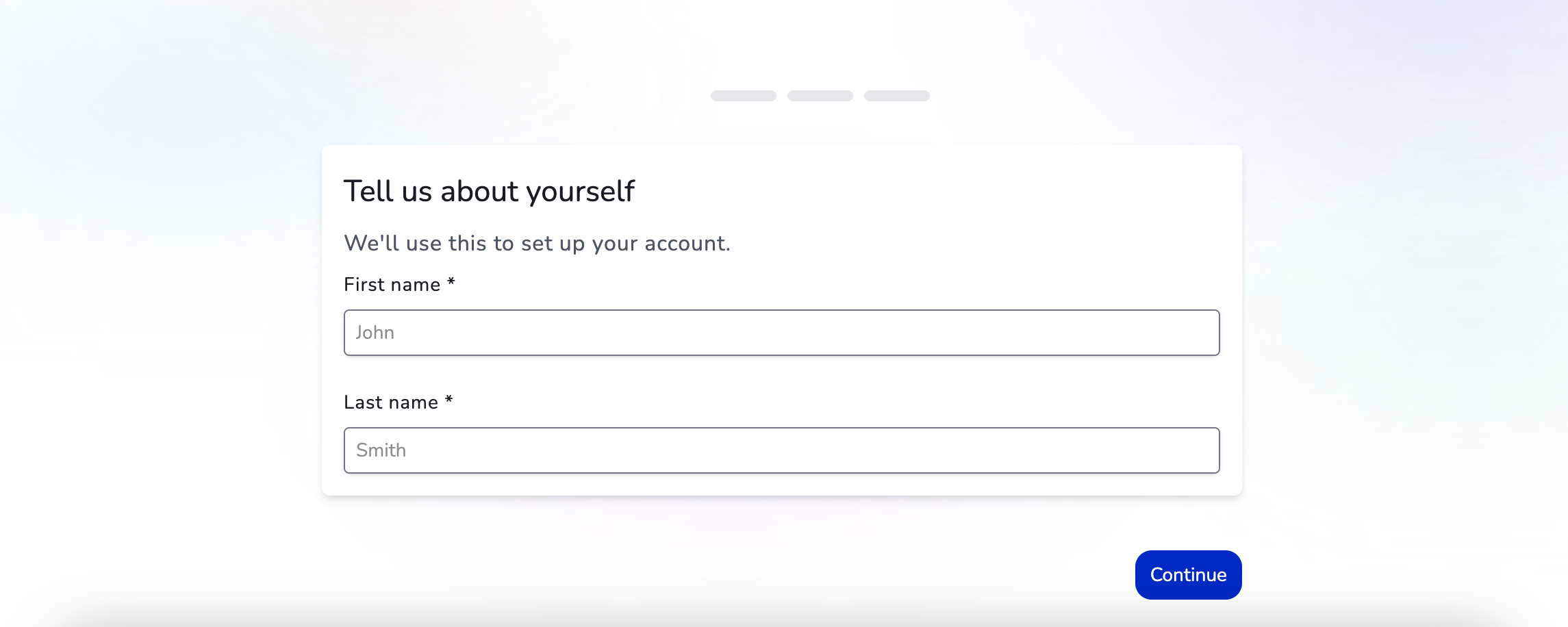
Enter your personal details to create your account:
- First name
- Last name
Step 2: Create Your Account#
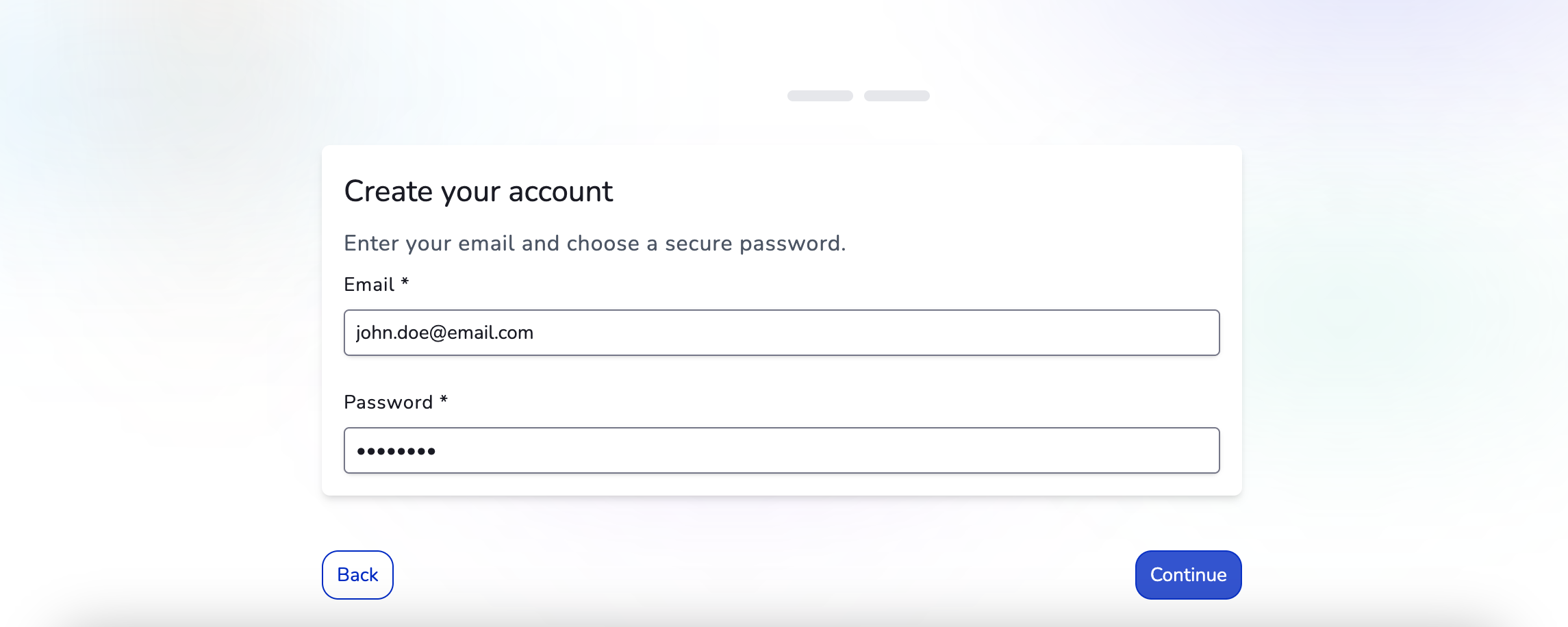
Set up your login credentials:
- Email address
- Password (choose a secure password)
Step 3: Configure Your Team Size#
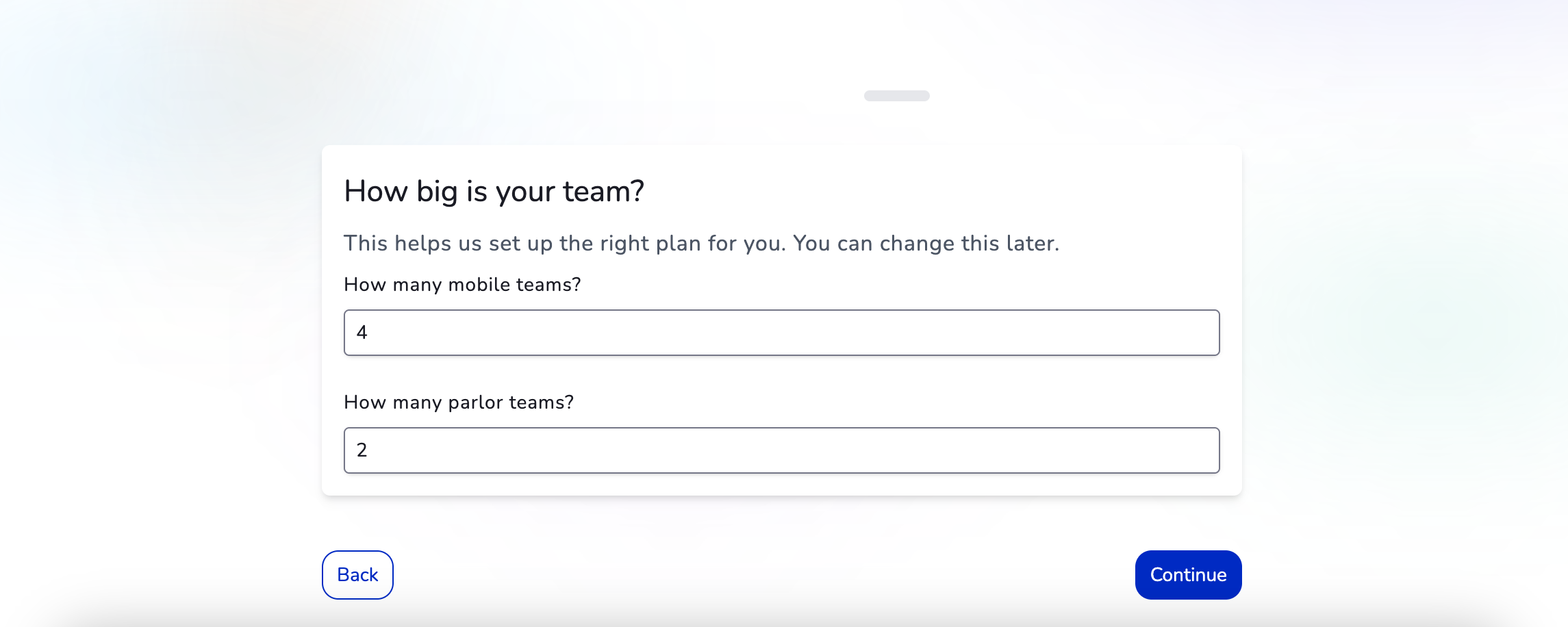
Let us know the size of your operation so we can set up the right plan for you:
- Number of mobile grooming teams
- Number of parlor grooming teams
Note: You must have at least one team (mobile or parlor) to proceed. Don't worry – you can change this later!
Step 4: Name Your Application#
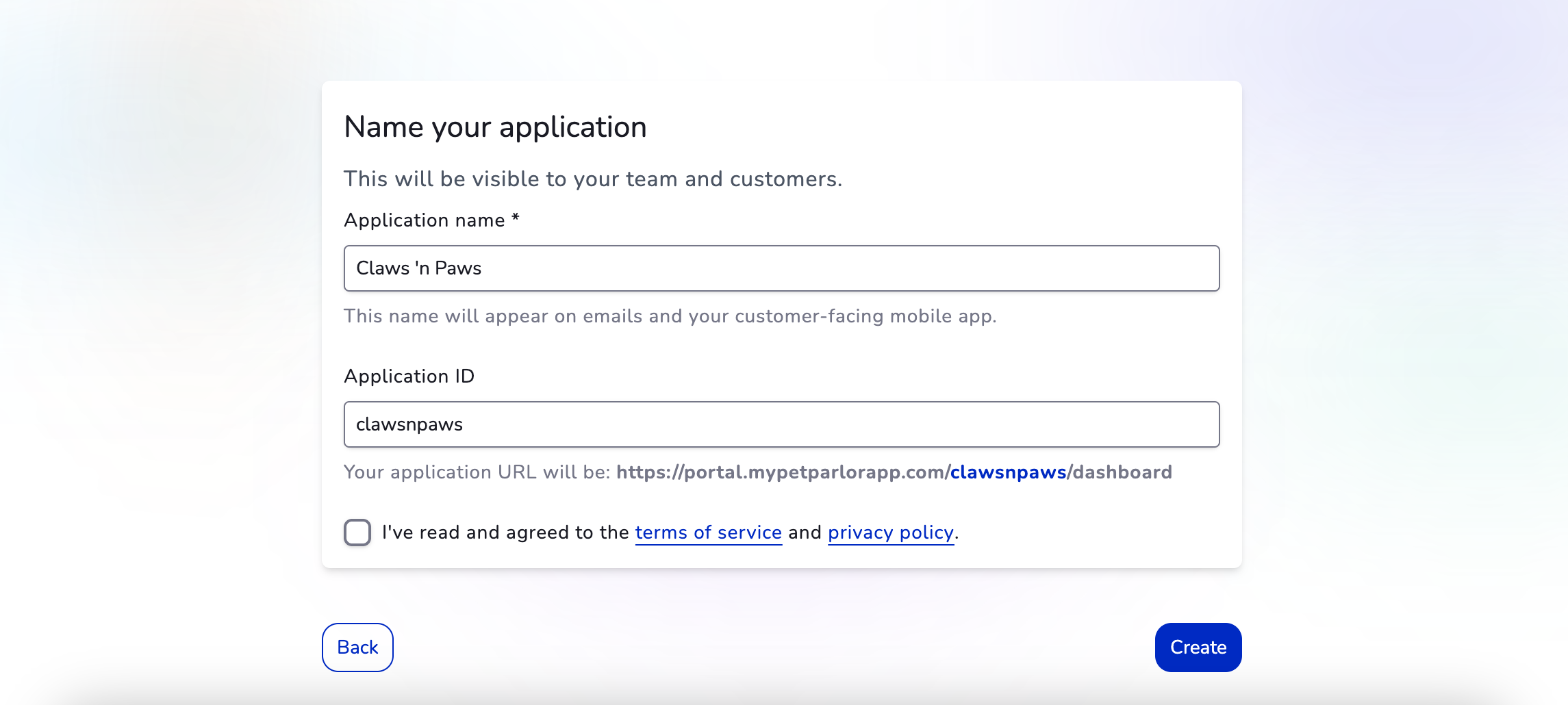
Finalise your account setup:
- Application name: This will appear on emails and your customer-facing mobile app (e.g., "Claws 'n Paws")
- Application ID: This determines your portal URL (e.g.,
https://portal.mypetparlorapp.com/clawsnpaws/dashboard) - Accept the terms of service and privacy policy
Once you click Create, your account will be ready instantly!
After Sign-Up#
Once your account is created, you'll be redirected to a success page and can immediately access your portal. We recommend setting up next to get the most out of MyPetParlorApp.
Using Your Portal#
Once you're set up, explore these key features:
Dashboard & Management:
- At-a-glance information from the dashboard
- Use the Bookings screen to manage your bookings on a daily basis
- Navigate your portal and apps
Booking Management:
- Easily reschedule appointments for a client's booking
- Invite a new customer to use the booking app from the portal/reception desk
- Manually create or edit pets for a customer
- Manually create a booking for a walk-in customer